Create batch invoices and CMS-1500 claims
Bill a period's work for one or more patients in one go, with CMS-1500 claims ready to send.
Last updated October 23, 2026
Who can do this: Admin, Billing Staff
Before you start
- Time is billed from case notes and approved time entries. Approve time on Billing > Time Entries first if your company requires it.
Steps
- Open Billing and click the Batch Invoicing tab.
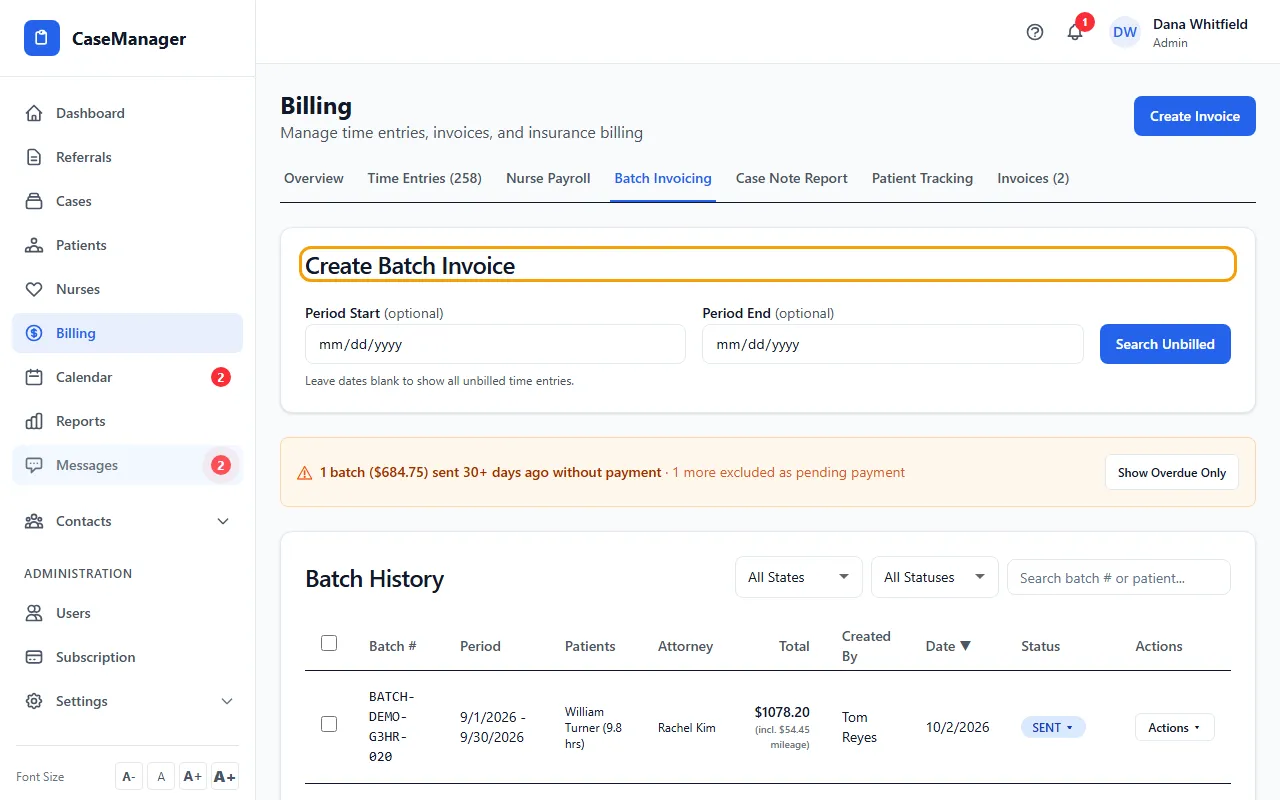
- Optionally set Period Start and Period End, then click Search Unbilled.
- Tick the patients to bill and click Review & Create Batch.
- In Step 2: Review & Edit Line Items, check hours, mileage and amounts, then click Confirm & Create Batch.
- In Batch History, use Actions on a batch to view it, open the CMS-1500 Editor, download the CMS-1500s, Email/Fax it, or record a Payment.
Tips
- Every batch total includes mileage.
- If the payer confirmed a check is on the way, click the batch's status badge and choose Mark as Pending Payment… with the expected date; the batch moves to Waiting for Payment and won't show as overdue until then.
- Show Overdue Only lists batches sent 30+ days ago without payment.
- Changing the hours or the rate in Step 2: Review & Edit Line Items changes this bill only. The nurse's time entry, their pay and the case note stay as logged.
- A batch bills exactly the time listed in Step 2, and each hour can be on only one bill (batch or invoice).
If something goes wrong
- A patient already has a batch for that period.
- Batches are protected against duplicates. Void the existing batch first if you really need to rebuild it.
- “… some of these hours are already billed on …”
- Those hours went on another invoice or batch after you searched (the message names it). Click Search Unbilled again. If the other bill is the mistake, void it first.
- “This page is out of date. Refresh it and create the batch again.”
- Refresh the page, then click Search Unbilled and create the batch again.