Add an appointment, follow-up or task
Put work on the calendar so the right person is reminded at the right time.
Last updated October 22, 2026
Who can do this: Admin, Nurse Case Manager, Internal Case Manager, Billing Staff
Steps
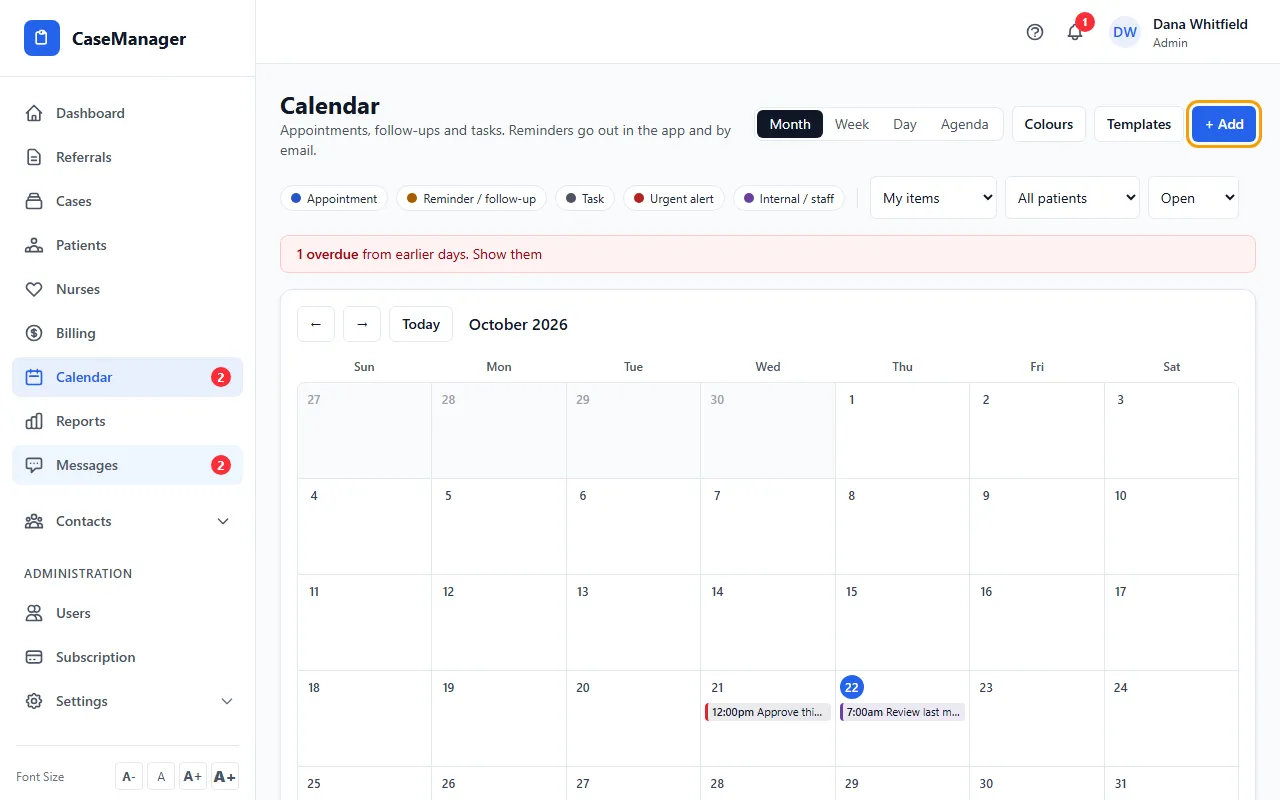
- Open Calendar and click + Add (or click a day). From a patient file you can also use + Add on the Schedule & reminders card.
- Pick the Type: Appointment, Reminder / follow-up, Task or Internal / staff.
- Fill in What, the Date and the time (Starts for appointments). For appointments you can add Doctor / provider and Location.
- Choose the Patient (optional) and who it's for under Assign to.
- Check Reminders (appointments default to 1 day and 1 hour before) and set Repeat if it happens again, e.g. every week.
- Click Add appointment (the button names the type you picked).
Tips
- When you mark a patient's item done, you're offered Write case note & log time so the work gets billed.
- Reminders arrive in the app and by email. Each person also gets a daily summary of today's and overdue items.