Finding your way around
Where everything lives: the sidebar, the notification bell, My Settings, the ? Help button, text size and dark mode.
Last updated October 22, 2026
Who can do this: Everyone on your team
Steps
- The sidebar on the left has Dashboard, Referrals, Cases, Patients, Nurses, Billing, Calendar, Reports and Messages. What you see depends on your role and your permissions.
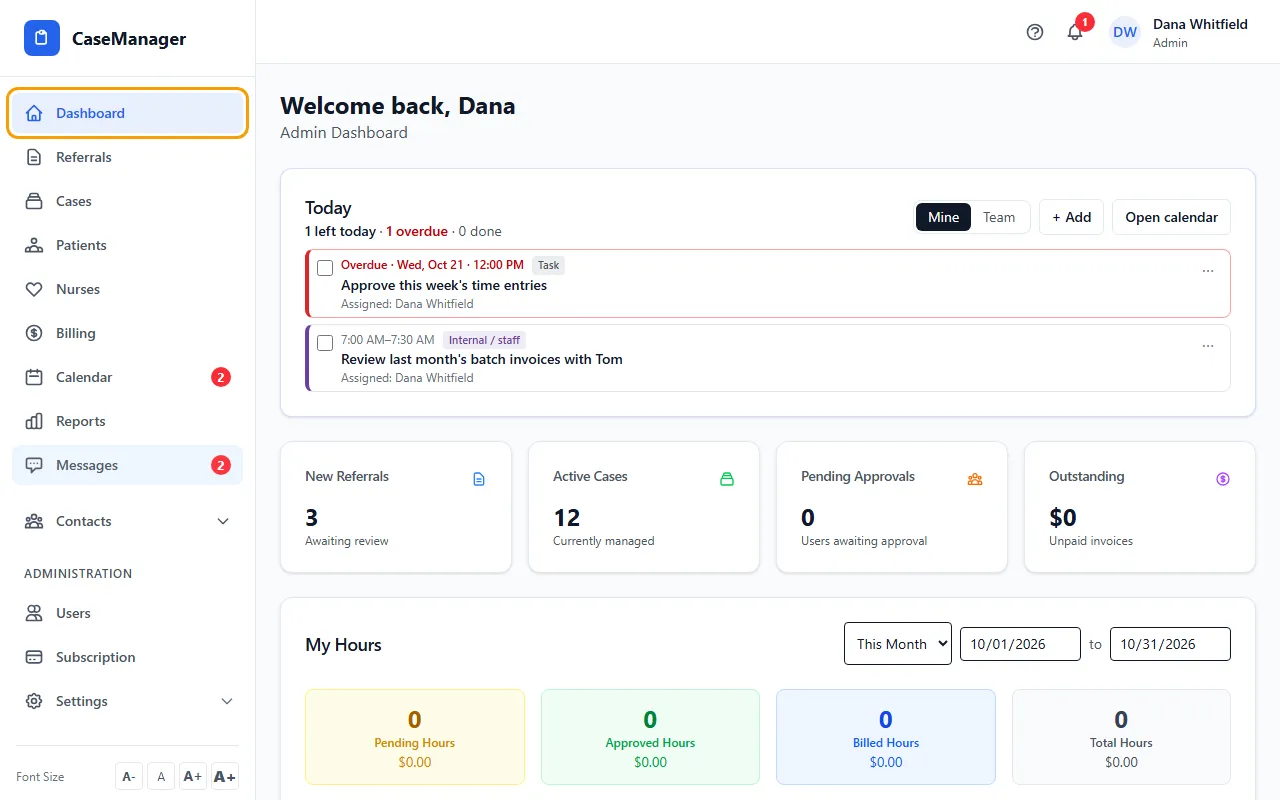
- Contacts opens your directory: law firms, referral sources, adjusters, case managers, paralegals, providers, medications, insurance companies and pay amounts.
- Admins also see Administration: Users, Subscription and Settings.
- The bell at the top shows new notifications. Click one to jump to the referral, case, patient or calendar item it is about. View all notifications opens the full list.
- Click your name at the top right for My Settings (your profile, notifications, time zone, email and signature) and Sign Out.
- The ? button next to the bell opens help for the screen you're on, with search across the whole help center.
- At the bottom of the sidebar, Font Size makes text smaller or bigger, and Dark Mode switches colors. Both are remembered on this device.
Tips
- On a phone, tap the menu icon at the top left to open the sidebar.