Track your referrals and download a PDF
See where each referral you sent stands, and save a copy as a PDF.
Last updated October 23, 2026
Who can do this: Referral Staff
Steps
- Click My Referrals at the top. Each referral shows the patient, the referral number, its status and its urgency.
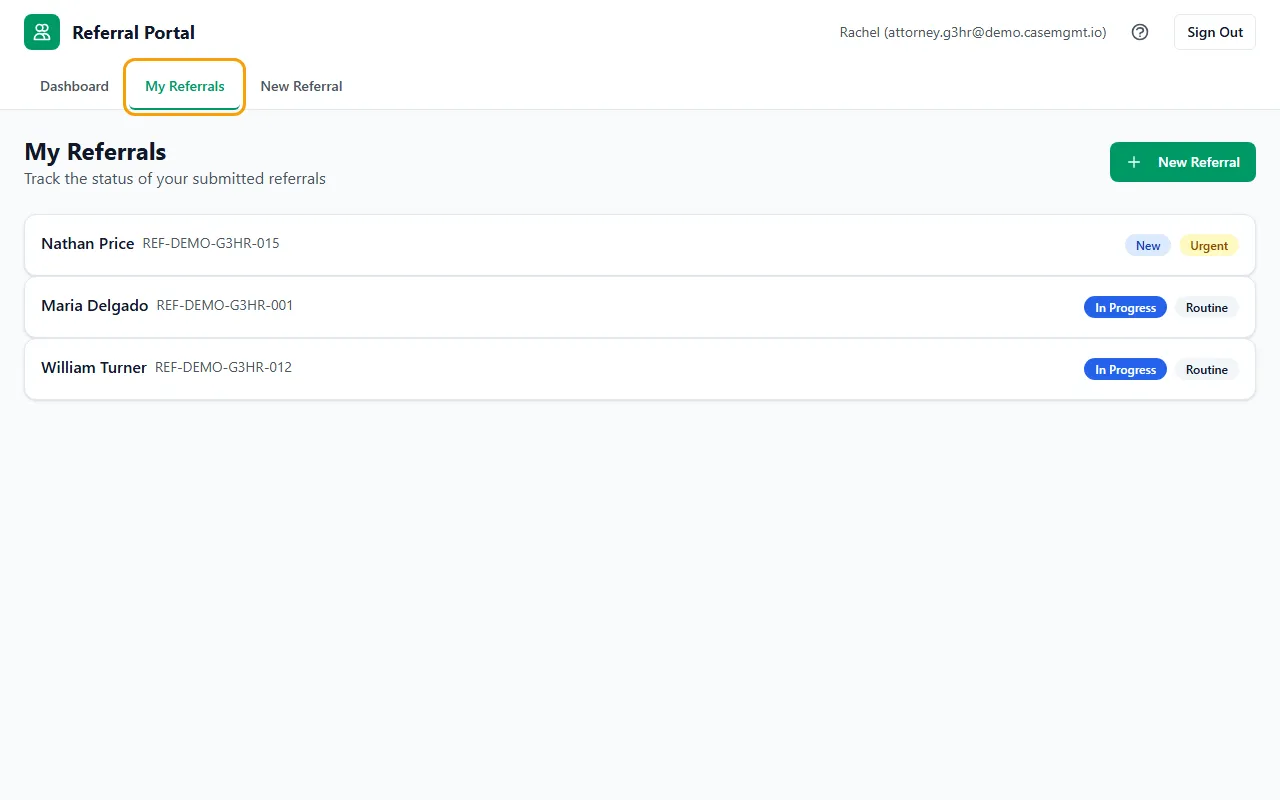
- Click a referral to open it.
- Status Progress shows how far it has come: New, Accepted, Assigned, In Progress and Completed.
- Below are the details you sent: Patient Information, Referral Details and any insurance and legal information. If a nurse is assigned, their name shows under Assigned Nurse.
- Click Download PDF to save a copy of the referral, named with its referral number.
What the statuses mean
New: received and waiting to be reviewed.
Accepted: the case management company accepted it.
Assigned: they've opened a case for the patient.
In Progress: the work is under way.
Completed: the work is finished.
Closed: the company closed the referral. Contact them if you need to know why.
Which referrals you see
Only the referrals you submitted through the portal with your own login. Referrals sent by your colleagues, or entered for you by the case management office, don't appear here.
Tips
- The PDF shows the referral's status on the day you download it.