Void, delete or restore a batch
Cancel a batch so its time can be billed again, bring a voided batch back, or remove voided batches for good.
Last updated October 23, 2026
Who can do this: Admin, Billing Staff
Steps
- Open Billing and click Batch Invoicing.
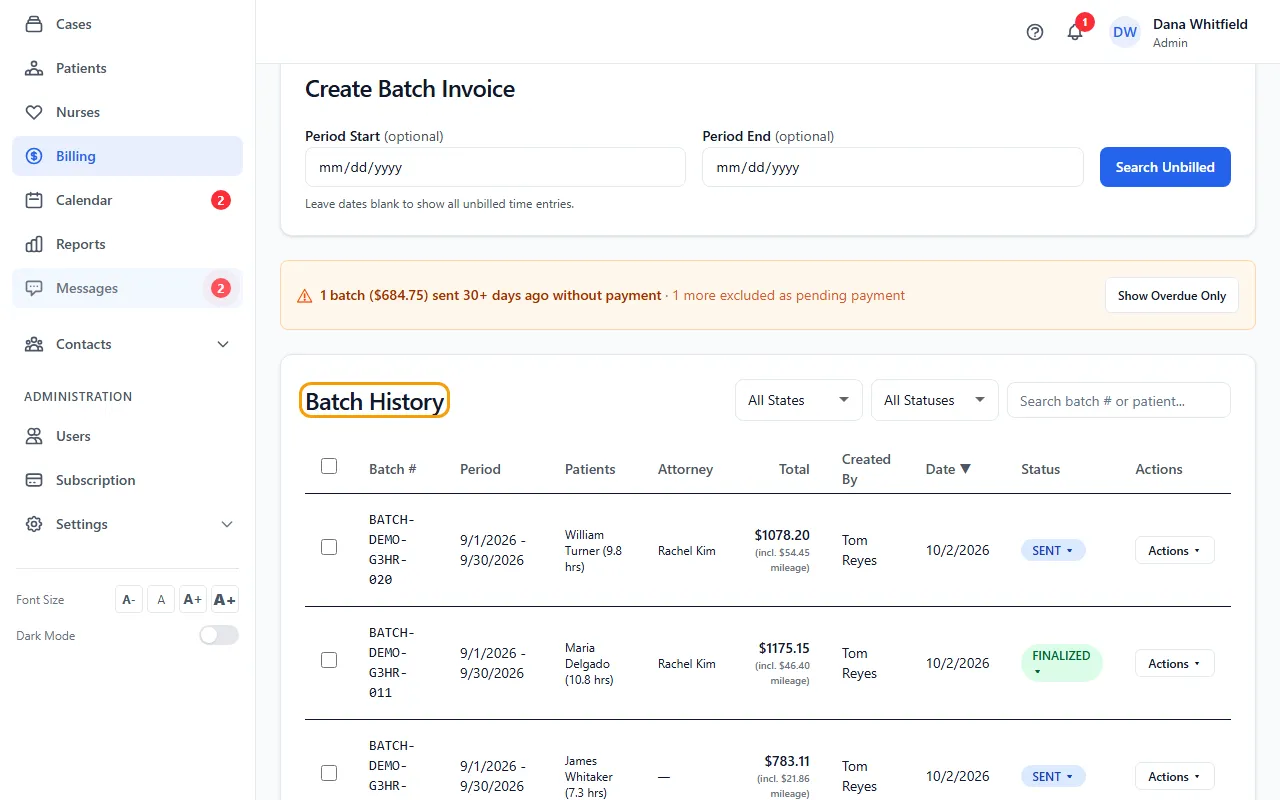
- To void a batch, click Actions on it, choose Void Batch and confirm. Its time goes back to APPROVED so it can be billed again. (To cancel a batch, always use Void Batch: it's not on the status badge.)
- Open Closed / Completed Batches below Batch History. Paid, void and closed batches are kept there.
- To bring a voided batch back, click Undo Void on its row and confirm. It returns as FINALIZED and its time is marked billed again. If any of its hours have been billed on another batch or invoice since, it can't be brought back: create a new batch instead.
- To restore several at once, tick them and click Undo Void at the top of the section.
- To remove voided batches for good, tick them and click Delete. This can't be undone. Paid and closed batches are skipped: they stay as your billing record.
Draft and paid batches
A draft or voided batch shows Delete Batch in Actions instead of Void Batch. It removes the batch permanently.
A batch with payments recorded, or one that is PAID, PARTIAL or CLOSED, can't be voided or deleted. If one is truly wrong, remove its payments first in Actions > Payment (or change a mistaken CLOSED status on the badge).
Rebuilding a batch
A patient can have only one active batch for a period. To rebuild one, void it first, then create the batch again.
If something goes wrong
- “All selected patients already have an active batch for this period. Void the existing batch first if you need to re-create.”
- Void the existing batch with Actions > Void Batch, then create the new one.
- “Can only restore a batch that's currently VOID …”
- Only voided batches can be restored.
- “Can't restore … some of these hours are already billed on …”
- Since the void, some of its hours went on the bill named in the message, and the same hours can't be on two bills. Leave this batch void, or void the other bill first.
- “… was created before CaseMgmt recorded which hours each batch billed, so it can't be restored safely …”
- Very old batches don't record exactly which hours they billed. Create a new batch for the period instead.
- “None of the selected batches can be deleted.”
- Bulk Delete only removes voided batches. Paid and closed batches are kept as your billing record; void active batches one at a time first.
- “… so it stays as part of your billing record and can't be voided or deleted …”
- The batch has payments recorded (or is closed). Remove the payments in Actions > Payment first if the batch really was a mistake.