Run a case note report for a patient
List every case note for one patient over a date range with hours, miles and amounts, then download or email it as a PDF.
Last updated October 22, 2026
Who can do this: Admin, Nurse Case Manager, Internal Case Manager, Billing Staff
Steps
- Open Billing and click Case Note Report.
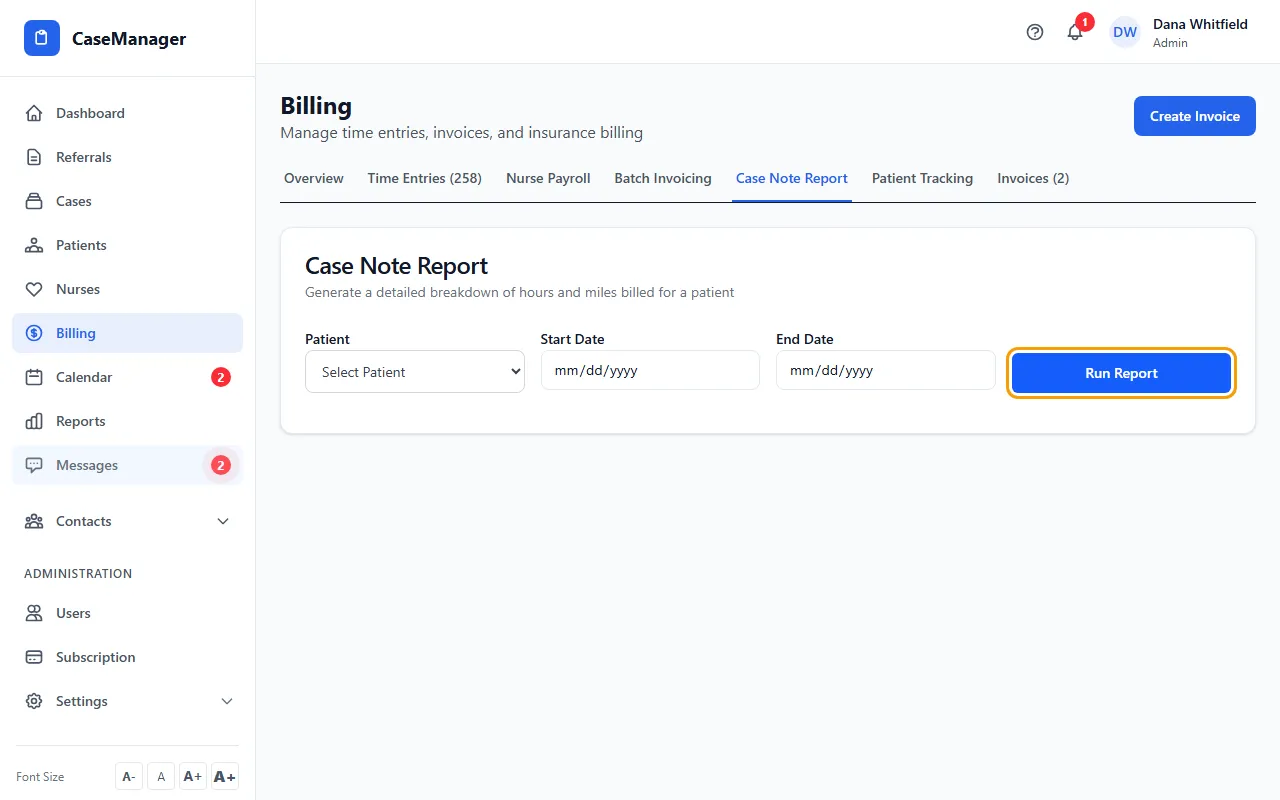
- Choose the Patient.
- Set the Start Date and End Date.
- Click Run Report. You see Total Hours, Total Miles and Total Billed, then one row per case note.
- Click Export PDF to download the report, or Email Report to send it.
- In Email Case Note Report, enter the Recipient Email, check the subject and message, and click Send Email.
Tips
- Miles include the miles entered on each billing line of a case note.
If something goes wrong
- “Please select a patient” or “Please select start and end dates”
- Choose the patient and fill in both dates.
- “No case notes found for this patient in the selected date range.”
- Widen the dates.