Run payroll and mark nurses paid
See each nurse's hours and pay for a period, mark entries paid, and export, email or push the hours to QuickBooks.
Last updated October 22, 2026
Who can do this: Admin, Billing Staff
Steps
- Open Billing and click Nurse Payroll.
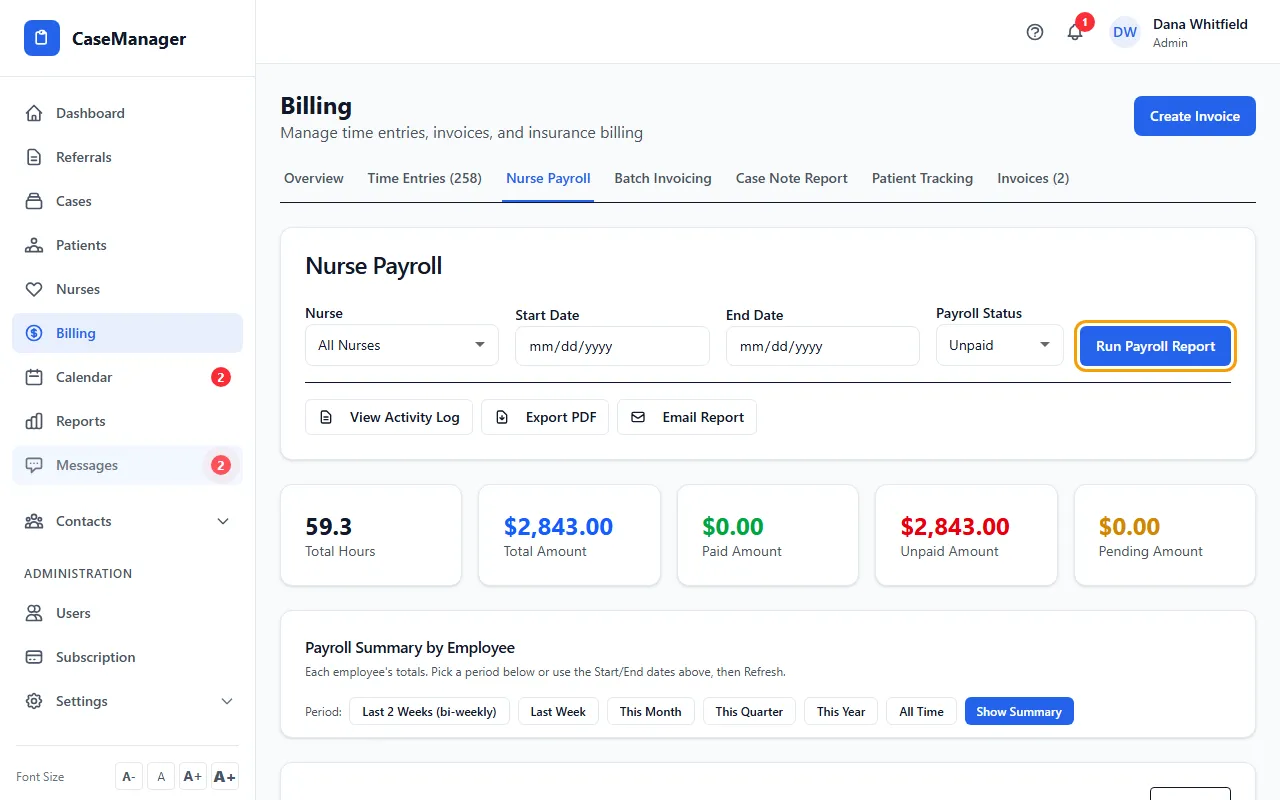
- Pick a Nurse (or All Nurses), a Start Date and End Date, and a Payroll Status, then click Run Payroll Report.
- Tick the entries you've paid and click Mark Selected as Paid. For a single entry, click Pay on its row.
- Enter the Payment Date and, if you like, a Payment Reference (check #, EFT ref, etc.), then click Confirm Payment.
- For per-person totals, click a period such as Last 2 Weeks (bi-weekly) under Payroll Summary by Employee, or Show Summary to use the dates above.
- Share it with Export PDF or Email Report, or the summary's Export CSV and Export PDF.
What's on the report
The cards show Total Hours, Total Amount, Paid Amount, Unpaid Amount and Pending Amount. Pay is the hours times the entry's rate, or the nurse's own rate when the entry has none.
The list includes every time entry in the dates, whatever its approval status. Check the Approval column before you pay.
Use Group by to sort the list by date, patient or case. Mark Unpaid and Mark Pending change the selected entries; Undo on a paid entry sets it back to UNPAID.
Activity log
View Activity Log shows the entries with their notes on screen. Export PDF downloads that activity log, and Email Report sends it as a PDF with Send Email with Report.
Push hours to QuickBooks
When your company is connected to QuickBooks with payroll sync on, Push hours to QuickBooks sends every UNPAID entry in the Start and End dates (for the nurse you picked, or all nurses) to QuickBooks as timesheet hours, then marks them PAID here with the QuickBooks reference.
Nurses are added as QuickBooks employees automatically. No patient names are sent.
Afterwards you see how many entries were pushed, how many were already in QuickBooks, how many were skipped (zero hours or no pay rate) and any that failed.
If something goes wrong
- “Pick a Start Date and End Date first. The push sends all UNPAID entries in that period.”
- Fill in both dates above, then click Push hours to QuickBooks again.
- Entries were skipped (no pay rate).
- Give the entry a rate with Edit, or add the nurse's pay rate, then push again.
- The Push hours to QuickBooks box isn't there.
- It appears only when your company is connected to QuickBooks with payroll sync turned on.