Check an invoice's QuickBooks status
When your company is connected to QuickBooks, the Invoices tab shows whether each invoice reached QuickBooks and lets you push or retry it.
Last updated October 22, 2026
Who can do this: Admin, Billing Staff
Before you start
- The QBO column appears only when your company is connected to QuickBooks.
Steps
- Open Billing, click the Invoices tab and find the QBO column.
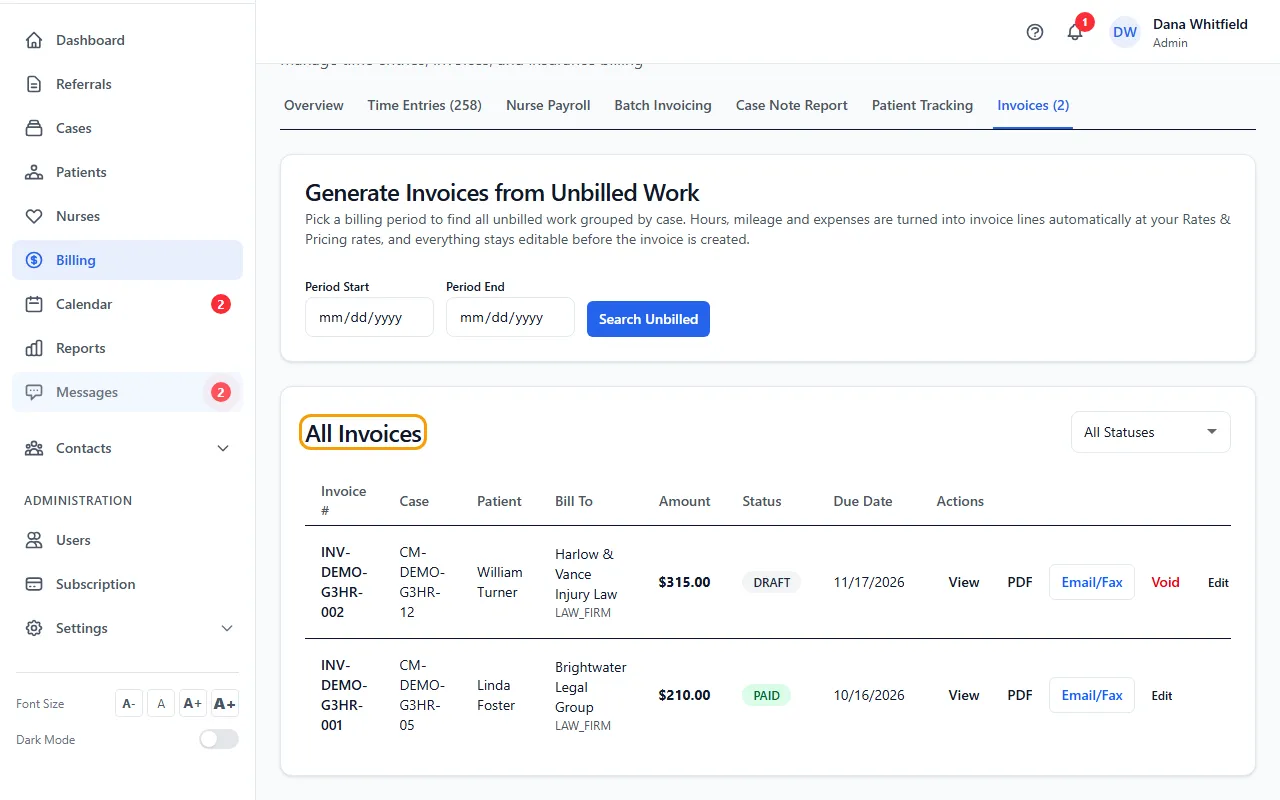
- Read the badge: Synced, Failed or Out of date. Point at a badge to see the details.
- To send an invoice that hasn't gone to QuickBooks yet, click Push.
- To try a failed one again, click Retry.
- For an invoice marked Out of date, update it in QuickBooks by hand, then click Clear to remove the warning.
When invoices go to QuickBooks
An invoice is pushed automatically when it changes to SENT. You can push any other eligible invoice with Push.
Draft and void invoices are not pushed. Invoices billed to a patient are never pushed, to protect patient privacy. These show n/a.
What the badges mean
Synced: the invoice is in QuickBooks. Point at it to see the date it was pushed.
Failed: the last push didn't work. Point at it to see why.
Out of date: the invoice's lines were edited in CaseMgmt after it was pushed. CaseMgmt doesn't change the QuickBooks copy for you.
If something goes wrong
- “QuickBooks push failed: Not connected to QuickBooks”
- Your company's QuickBooks connection has ended. Ask your Admin to connect QuickBooks again, then click Retry.