Send an invoice and record its payment
Open or download an invoice PDF, email or fax it, record payments as they arrive, and void or restore it.
Last updated October 23, 2026
Who can do this: Admin, Billing Staff
Steps
- Open Billing and click the Invoices tab. Use the All Statuses list to show only one status.
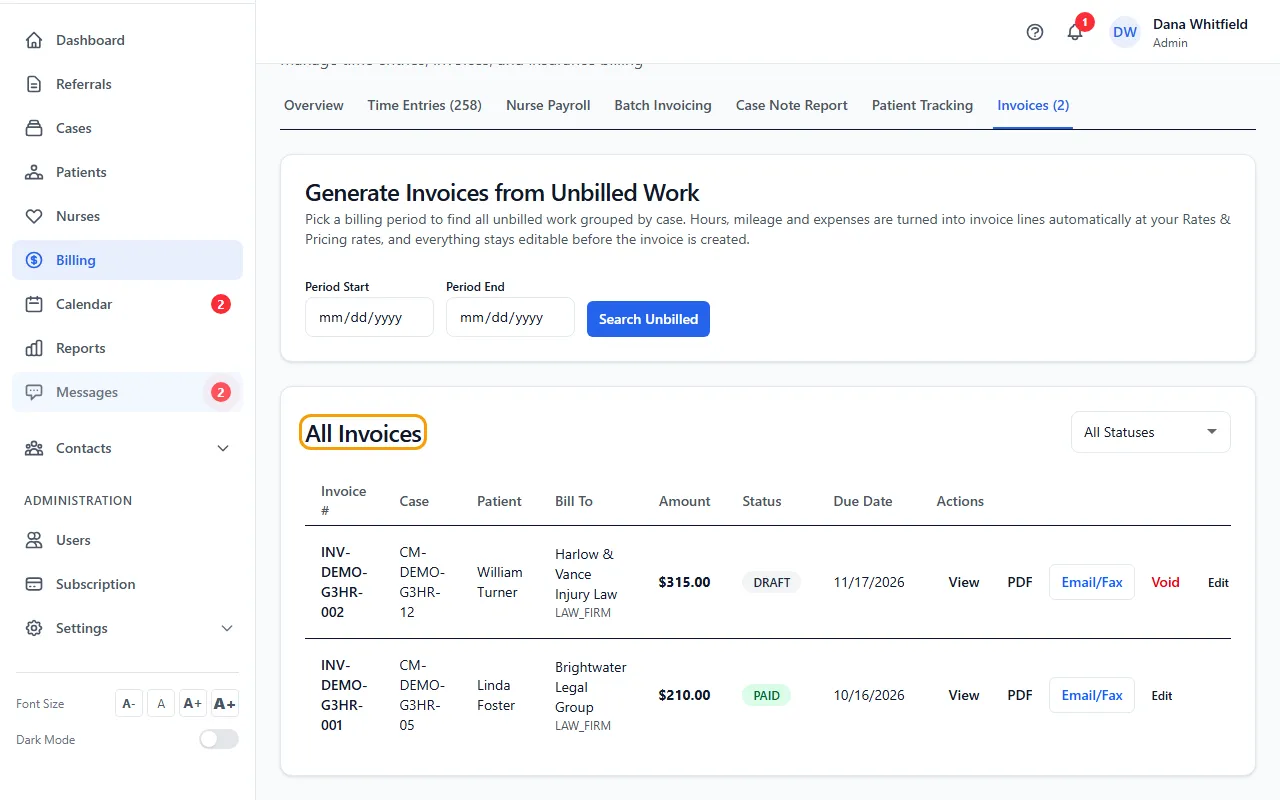
- Click View to open the invoice PDF in a new browser tab, or PDF to download it.
- Click Email/Fax. Choose Email or eFax under Send Method, enter the Recipient Email or Recipient Fax Number, and check the Subject and Message.
- Click Send Email or Send eFax. The PDF is attached and the invoice changes to SENT. A fax goes with a cover letter.
- When money arrives, click Record Payment. Enter the Amount Received for this payment, the Payment Method and the Reference # (check number, transaction ID), then click Record Payment.
- To change an invoice, click Edit, change the bill-to details, due date, line items or notes (or its status between Draft and Sent), and click Save Changes.
Payments add up
Record Payment appears on invoices that are SENT, OVERDUE or PARTIAL. The amount starts at the balance still owed.
Each payment is added to what was paid before. When the total reaches the invoice amount, the invoice becomes PAID. Until then it is PARTIAL, and the list shows how much has been paid.
Void and restore
Void cancels the invoice and returns its time to the unbilled pool so it can be billed again. An invoice with a payment recorded can't be voided: it stays as part of your billing record.
On a void invoice, Restore brings it back as a draft and marks its time as billed again. If any of that time has been billed on another invoice or batch since, the restore is refused and the message names that bill.
Editing line items
Removing a line that came from a time entry returns those hours to the unbilled pool. Totals recalculate when you save.
A line can only add time that isn't billed yet. A paid or void invoice's lines can't be changed.
Paid and Partial come from Record Payment, and Void from the Void button, so they aren't choices in Edit.
Tips
- A sent or part-paid invoice past its due date shows OVERDUE under the due date. Choose Overdue in All Statuses to list them.
If something goes wrong
- “SRFax not configured. Please set up your fax credentials in Settings → Fax Configuration.”
- An Admin needs to enter your company's fax account under Fax Configuration (SRFax) in Settings. Until then, send by email.
- “Invalid fax number. Must be at least 10 digits.”
- Enter the full fax number, including the area code.
- The Record Payment button isn't there.
- It shows only on invoices that are sent, overdue or partly paid. Send the invoice first.
- “… some of these hours are already billed on …”
- That time is on another invoice or batch (the message names it). Each hour can be on only one bill. Void the other bill first if it's the mistake.