Record a payment on a batch
Log each check or EFT against a batch, attach the EOB, and let CaseMgmt mark the batch paid or partly paid.
Last updated October 22, 2026
Who can do this: Admin, Billing Staff
Steps
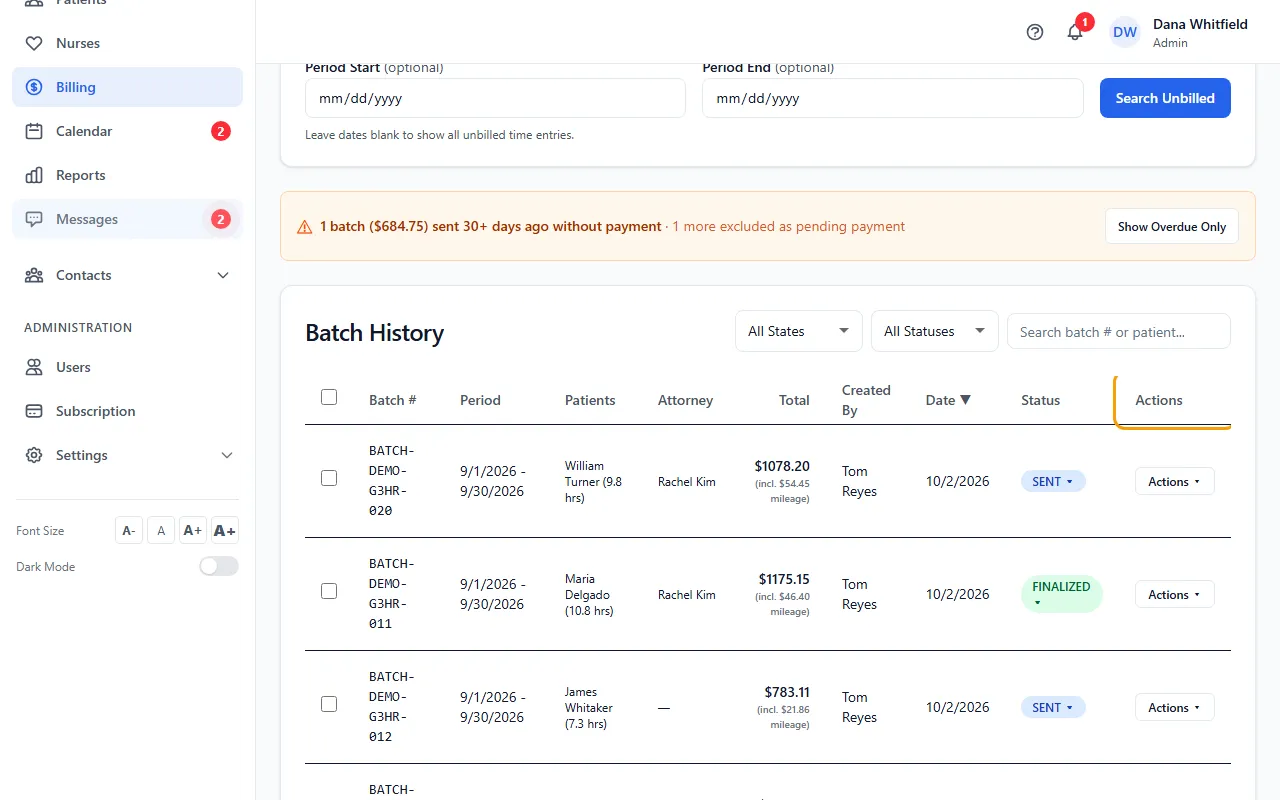
- On Billing > Batch Invoicing, click Actions on the batch and choose Payment.
- Leave Action set to Record a payment received.
- Enter Amount received — this payment ($). It starts at the remaining balance; change it for a partial payment.
- Fill in Check / Reference #, Payment Date and Payment Method, and add Notes if needed.
- To attach the EOB, click Attach EOB and choose the file. It's saved to the EOBS tab of every patient on the batch.
- Click Save Payment.
Partial payments
Each payment is added to the ones before it. The top of the dialog shows Billed, Paid so far and Remaining. Billed includes mileage, so the batch becomes PAID only when the payments cover the case management and the mileage; until then it is PARTIAL. Before you save, the dialog tells you which it will be.
Recording a payment also ends a pending-payment hold on the batch.
Fix a payment entered by mistake
The payments already recorded are listed at the top of the dialog. Click Remove next to one; the batch's paid amount and status are recalculated. If you remove the last payment, the batch goes back to SENT.
Denied or under investigation
Under Action, choose Mark as Denied (and add a Denial Reason) or Mark as Investigation. This also sets the claim status on each patient's Insurance & Claims tab.
If the batch already has money recorded when you mark it denied, choose Remove it (the payment was recorded in error) or Keep it (the payer paid part and denied the rest).
A payment recorded later on a denied batch moves it back to PARTIAL or PAID.
Tips
- Once an EOB is attached, View EOB appears in the batch's Actions menu.
If something goes wrong
- “Payments can't be recorded on a void batch.”
- Restore the batch with Undo Void first. Draft batches can't take payments either.
- “Payment amount must be greater than zero.”
- Enter the amount of this payment.
- “Heads up: total payments … now exceed the billed amount …”
- Check the amount. If it's wrong, open Payment again and Remove that payment.