Mark a batch as waiting for a check
When the payer confirms payment is on the way, set the expected date so the batch isn't flagged overdue until then.
Last updated October 22, 2026
Who can do this: Admin, Billing Staff
Steps
- Open Billing and click Batch Invoicing.
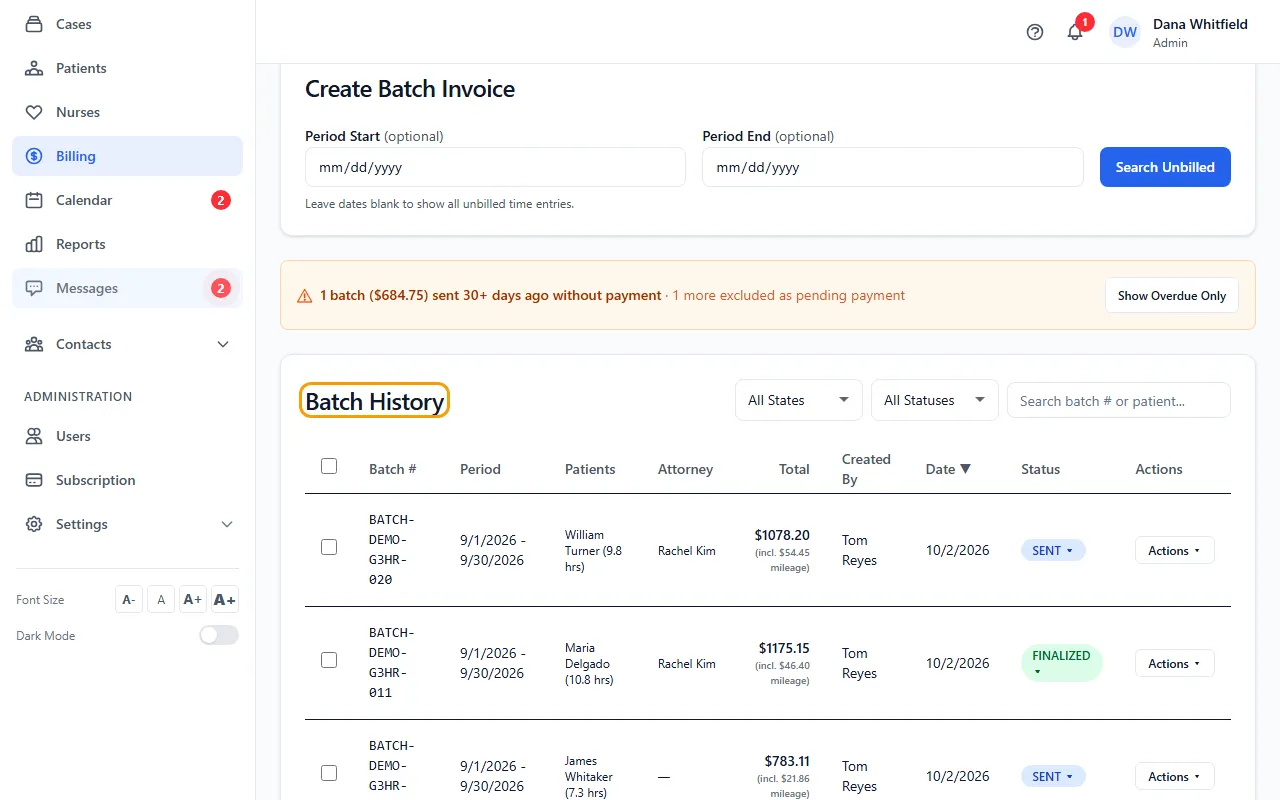
- In Batch History, click the batch's status badge and choose Mark as Pending Payment…
- Set Payment expected by. It starts three weeks from today.
- Click Save Payment.
- Find the batch under Waiting for Payment, below the main list, until that date passes.
- When the check arrives, click Record payment on its row. If the hold was a mistake, click Clear hold.
What a hold changes
The batch keeps its status and still counts as owed in every total. It just isn't flagged 30+ days overdue, and it sits under Waiting for Payment until the expected date. After that date it goes back to normal on its own.
You can also set or clear a hold from Actions > Payment, under Action.
Overdue batches
A batch is overdue when it's SENT, was sent 30 or more days ago, and has no expected-payment date still to come.
The orange banner above Batch History shows how many batches are overdue and their total. Click Show Overdue Only to list just those, and Show All to go back.
If something goes wrong
- The batch didn't move to Waiting for Payment.
- Check that the expected date is after today. A date that has already passed doesn't hold the batch.