Run the AR Aging report
See every claim still owed, grouped by how long it's been out, for everyone or for one patient.
Last updated October 23, 2026
Who can do this: Admin, Nurse Case Manager, Internal Case Manager, Billing Staff
Steps
- Open Reports and click AR Aging.
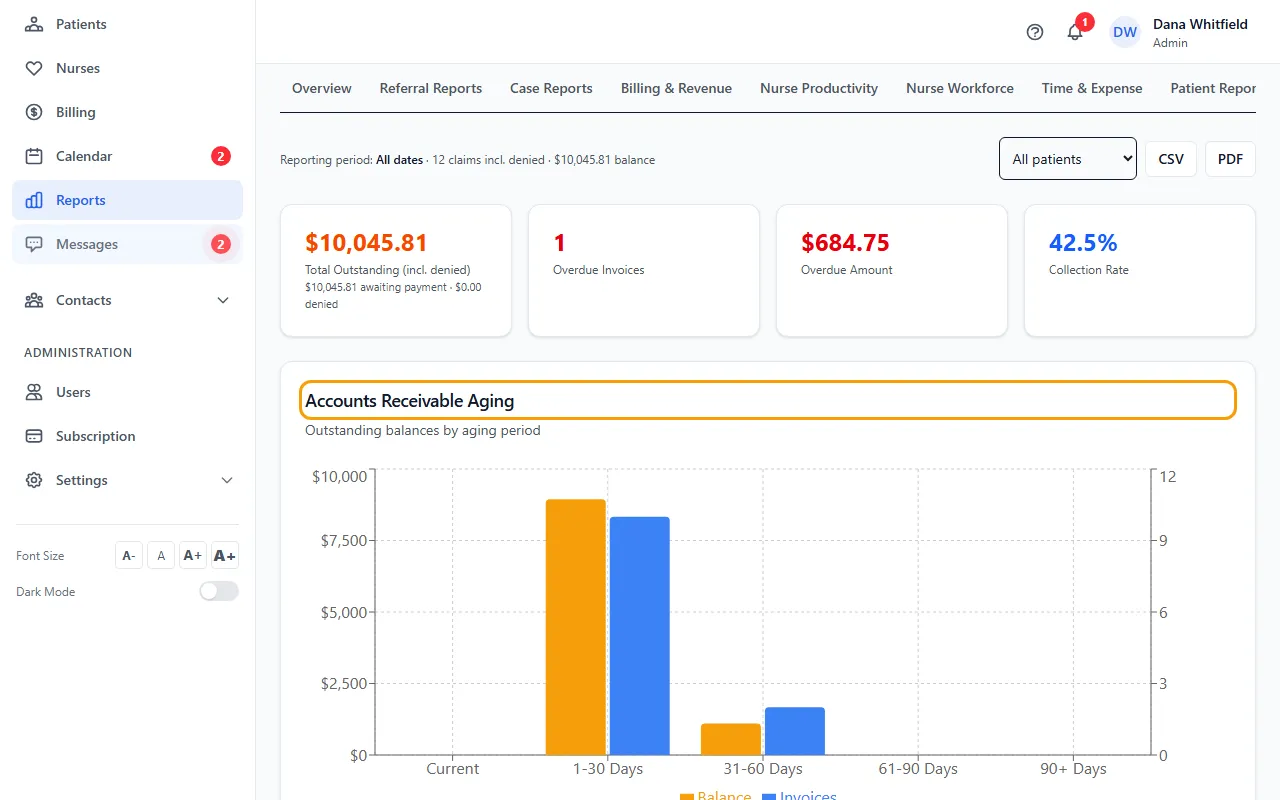
- Read Total Outstanding (incl. denied), Overdue Invoices, Overdue Amount and Collection Rate.
- To see one patient, choose them in the patient list (it starts on All patients).
- Read Accounts Receivable Aging: balances grouped as Current, 1-30 Days, 31-60 Days, 61-90 Days and 90+ Days.
- Read Outstanding Invoice Detail for each claim's billed, paid and balance amounts, sent date and Days Out.
- Click CSV or PDF to export it.
What's counted
The report lists every bill still owed: batches that are FINALIZED, SENT, PARTIAL, INVESTIGATION or DENIED, and single invoices that are draft, sent or part-paid. Each bill is listed once. Denied claims stay in the total because they're still owed until they're settled.
Days out are counted from the day the bill was sent, or from the day it was created if it was never sent. The balance is the amount billed minus payments and write-offs.
Overdue Invoices counts bills past their due date: sent batches 30 or more days old that aren't waiting for a confirmed payment, and single invoices past their own due date.
Money figures are read from batch invoices, which only people with the Manage Billing permission can see (Admins and Billing Staff by default). For everyone else they show $0.