Run the Billing & Revenue report
See what was invoiced, collected and still owed for a period, with trends and claim status, and export it.
Last updated October 23, 2026
Who can do this: Admin, Nurse Case Manager, Internal Case Manager, Billing Staff
Steps
- Open Reports and click Billing & Revenue.
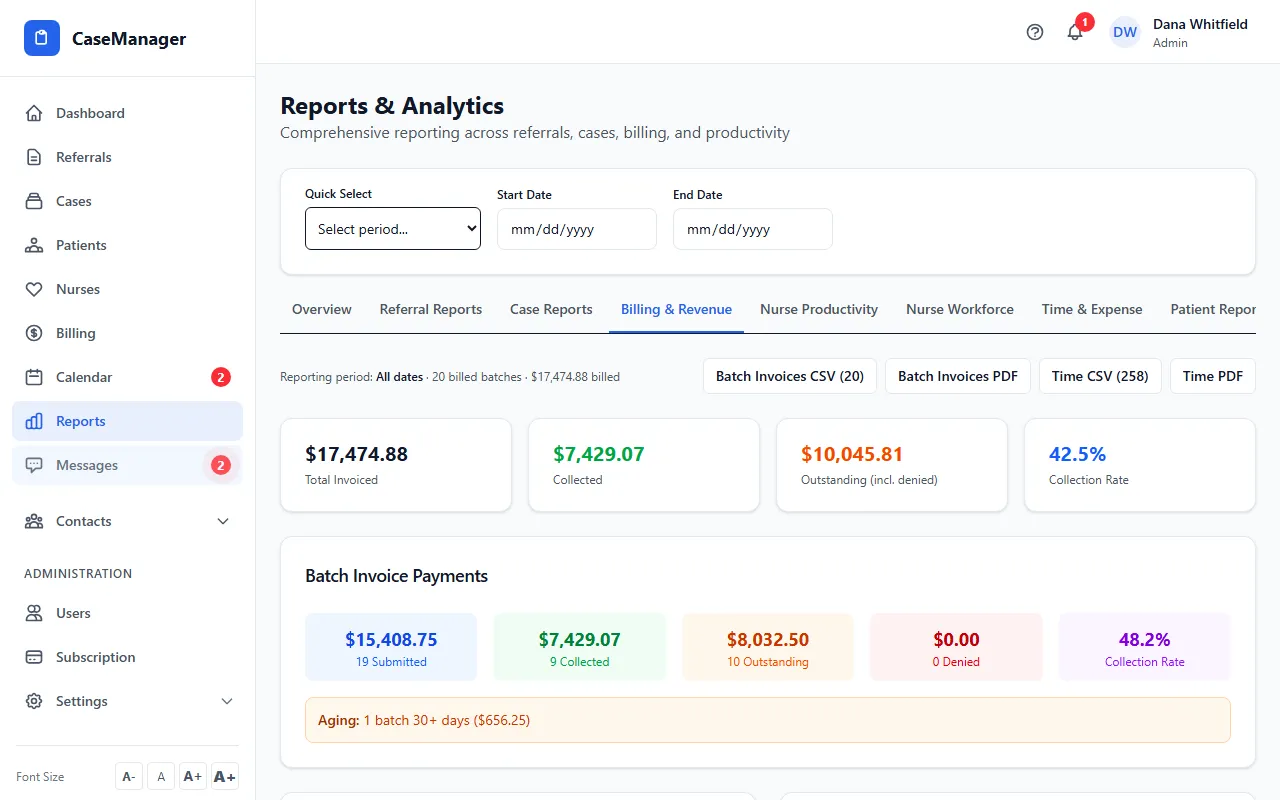
- Read the totals: Total Invoiced, Collected, Outstanding (incl. denied) and Collection Rate.
- Under Batch Invoice Payments, see how much was submitted, collected, outstanding and denied, and how many batches are 30, 60 or 90+ days old.
- Read the charts: Revenue Trend, Revenue by Claim Status, Batch Claim Status and Hours by Service Type.
- Export with Batch Invoices CSV, Batch Invoices PDF, Time CSV or Time PDF.
What's counted
Totals and charts include batches and single invoices, each bill once.
Totals come from batch invoices and include case management and mileage. Draft and void batches are left out.
Collection Rate is the money collected divided by the amount billed.
Money figures are read from batch invoices, which only people with the Manage Billing permission can see (Admins and Billing Staff by default). For everyone else they show $0.