Track billing and payments by patient
See each patient's batches with what was billed, paid and still owed, including denied claims.
Last updated October 23, 2026
Who can do this: Admin, Billing Staff
Steps
- Open Billing and click Patient Tracking.
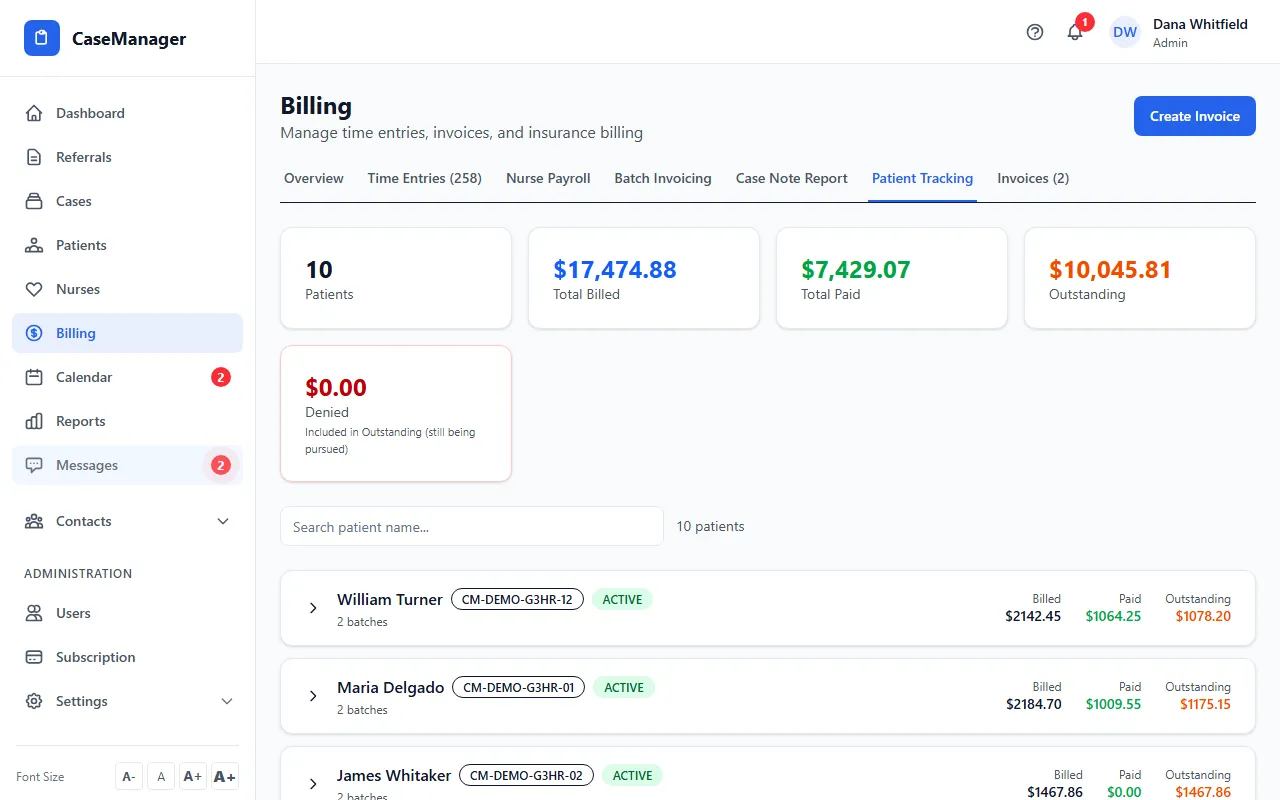
- Read the totals: Patients, Total Billed, Total Paid, Outstanding and Denied.
- Type a name in the search box to find a patient.
- Click the patient's row to see each bill (batches and single invoices) with its period, hours, billed amount, and what's paid or owed.
- To update a batch from here, use the Change Status buttons: Finalized, Sent, Paid, Partial Paid or Denied.
How the totals work
Billed amounts include mileage. Outstanding includes denied claims, which are still being pursued; the Denied card shows how much of it is denied.
Paid records a payment for the rest of the batch's billed amount (including mileage) after you confirm. Partial Paid opens Log Partial Payment, where you enter the Amount Paid, a reference and notes; it's added to what was paid before. Both record a payment you can see and correct later in the batch's Actions > Payment.
Finalized and Sent aren't shown once a batch has payments.
A single invoice is counted in the patient's totals too. Its payments and status are changed on the Invoices tab, so it has no Change Status buttons here.
Tips
- To record payments one by one, with a list you can correct later, use Payment in the batch's Actions menu on Batch Invoicing.