Approve or reject time entries
Check the hours nurses logged and approve them for billing and payroll, or reject them.
Last updated October 23, 2026
Who can do this: Admin, Nurse Case Manager, Internal Case Manager, Billing Staff
Before you start
- You need permission to approve time. Admins, Nurse Case Managers, Internal Case Managers and Billing Staff have it by default; an Admin can change it per user.
Steps
- Open Billing and click the Time Entries tab.
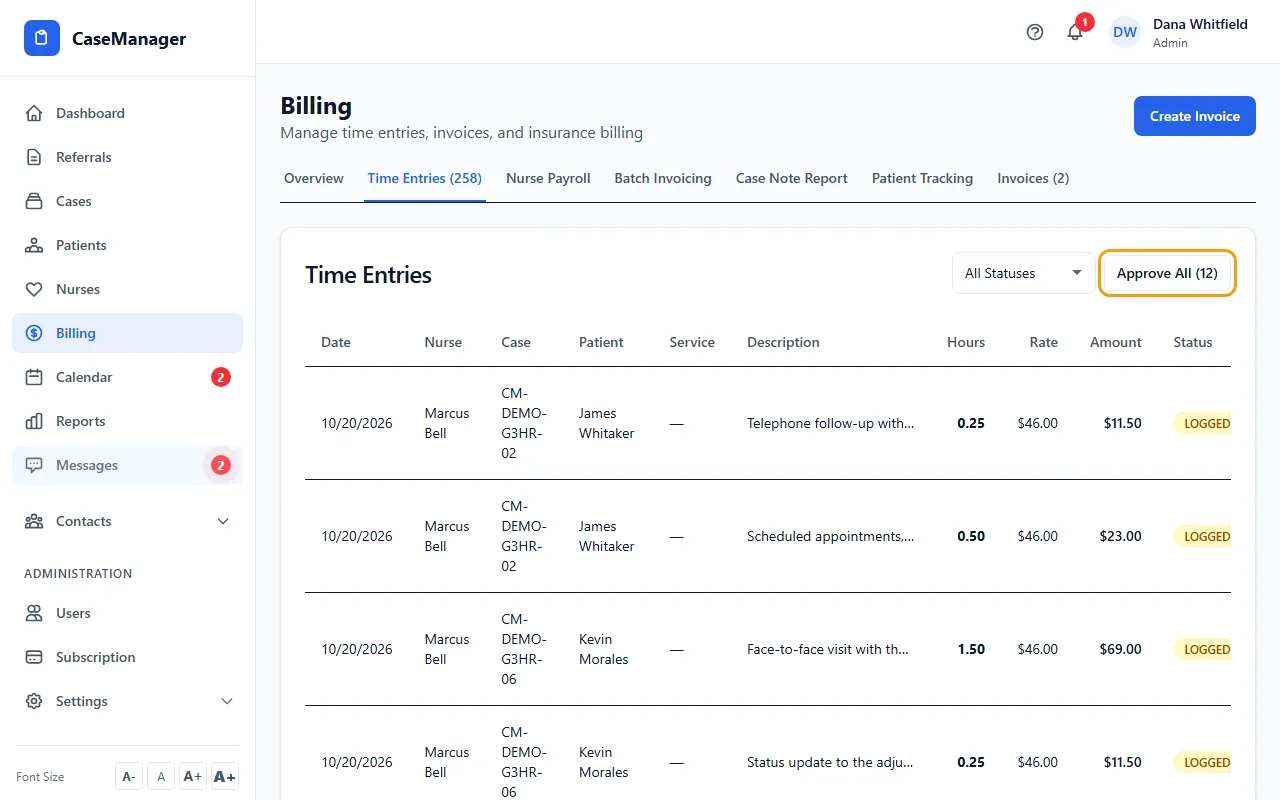
- Set the status menu to Logged to see only the entries waiting for approval.
- Check each entry's date, nurse, patient, description and hours. To fix one, click Edit, change the hours, description or rate, and click Save.
- Click Approve on an entry, or Reject if it shouldn't be paid or billed.
- To approve everything that is waiting, click Approve All. The number on the button is how many entries are waiting.
Rejected entries
A rejected entry is greyed out. Click Re-log to send it back to Logged, or Delete and confirm to remove it.
Deleting a rejected entry that came from a case note removes the time entry only. The note stays on the patient's Case Notes tab.
Entries that aren't rejected have no Delete button here. To remove time that came from a case note, delete the note.
Where nurses see it
Each nurse sees their own entries move from Pending to Approved in My Hours on the dashboard. The case's Billing tab also counts what is Pending Approval and Approved.
Tips
- Approve All approves every logged entry in your company, not just the page you're looking at.
- Approve and Reject are also on the Nurse Payroll tab.
If something goes wrong
- I don't see an Approve All button.
- It only shows when there are entries waiting for approval.
- “This time is on a bill — void the bill first.”
- Billed time can't be approved, rejected or have its hours or date changed, so it can't be billed twice. Void the invoice or batch it's on first. (Pay corrections are made on Nurse Payroll.)