Check your hours on the dashboard
See how many of your hours are pending, approved and billed for any period, and what they are worth at your pay rate.
Last updated October 22, 2026
Who can do this: Admin, Nurse Case Manager, Internal Case Manager, Billing Staff
Steps
- Open Dashboard and find My Hours.
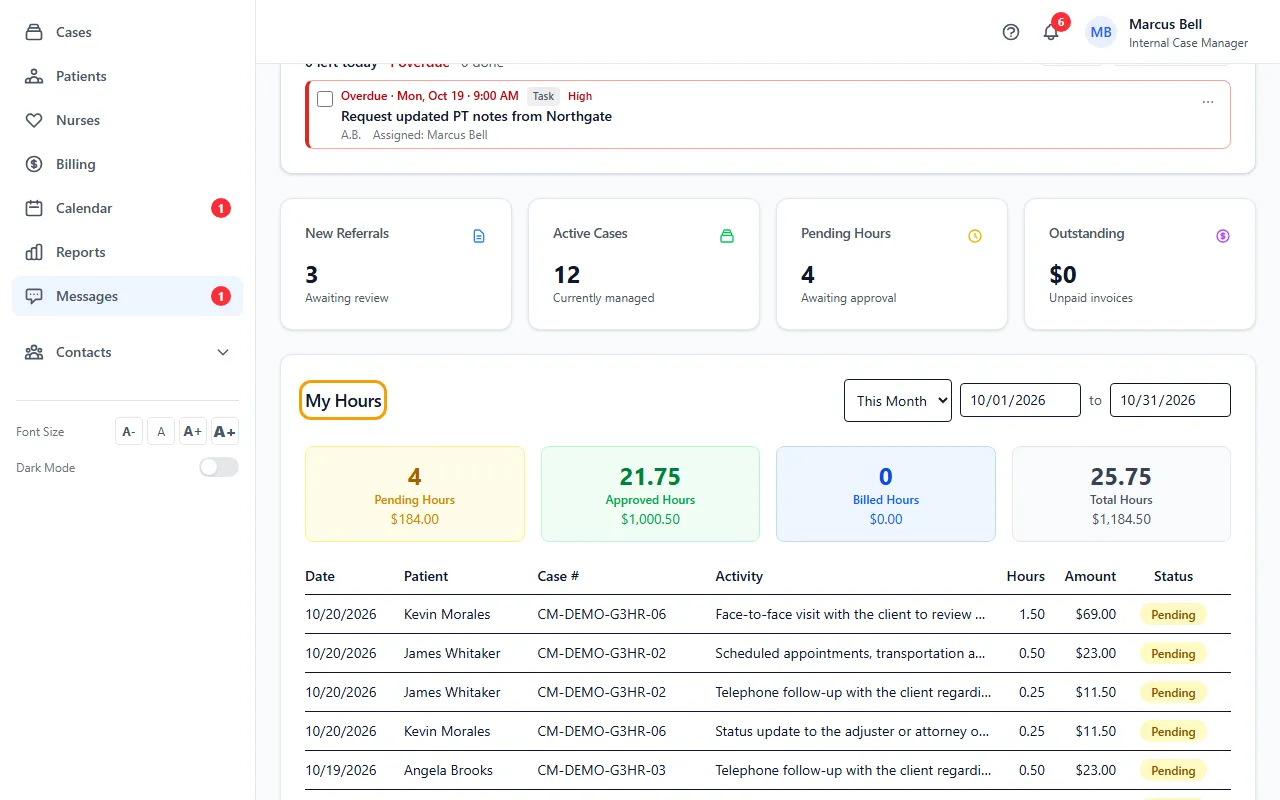
- Pick a period: This Week, Last Week, This Month (the default), Last Month or This Year. Or set your own start and end dates.
- Read the four boxes: Pending Hours, Approved Hours, Billed Hours and Total Hours, each with its dollar amount.
- Check the list below for each entry's date, patient, case number, activity, hours, amount and status.
What the numbers mean
Pending hours are logged and waiting for approval. Approved hours are ready for billing and payroll. Billed hours are on an invoice.
Total Hours adds pending, approved and billed. Rejected hours are not counted.
Amounts are hours times the pay rate on each time entry, which comes from your user profile when the time is logged.
The list shows up to 20 entries. Pick a shorter period to see the rest.
Tips
- The card refreshes when you come back to the browser tab, so changes made by a manager show up without reloading.
If something goes wrong
- "No time entries for this period."
- Pick a longer period. Hours only appear when a case note has hours or time was logged on a case.
- My amount shows $0.00.
- Your user may not have a pay rate set. Ask your Admin.