Add a case note with hours and miles
Log what you did for a patient, with billing guides, hours, miles and an invoice description, so the work can be billed and paid.
Last updated October 22, 2026
Who can do this: Admin, Nurse Case Manager, Internal Case Manager, Billing Staff
Before you start
- The patient needs a case. If they don't have one, the tab says so and + Add Case Note is greyed out: see Create a new case.
- Billing guides are the services you bill for. An Admin sets up the list under Billing Guides in the side menu.
Steps
- Open the patient and click the Case Notes tab.
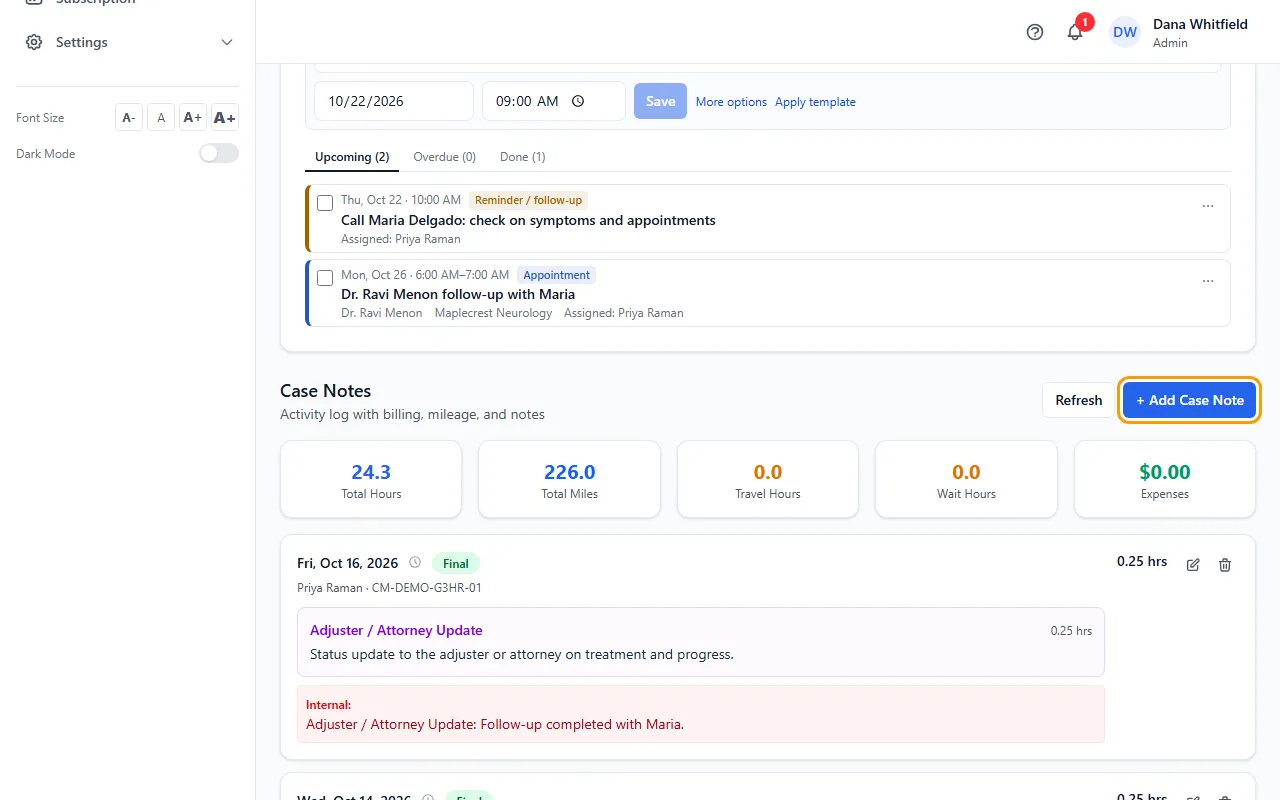
- Click + Add Case Note. Check the Date (today by default).
- Under Billing Guides, click Search and add billing guides... and pick the service. Add more than one if you did several things.
- For each billing guide, enter the Hours and the Miles you drove.
- Check each Invoice Description. It starts with the billing guide's standard wording; change it to describe this work.
- Add Internal Notes if you need to. They are marked confidential and show in red on the note.
- Click Save Case Note.
What happens when you save
The note's hours and miles are the totals of its billing guides. The note shows at the top of the list with the date, a Final badge, your name and the case number.
If the note has hours, CaseMgmt creates a time entry for you at your pay rate. It starts as Logged, shows as Pending in My Hours on your dashboard, and waits for approval on Billing > Time Entries.
The time entry's description is your invoice descriptions, one per line.
If you weren't assigned to the case yet, CaseMgmt adds you.
Which case the note goes on
The note is filed on the patient's newest case that isn't Closed. The case number shows on the note.
Totals
Above the notes, Total Hours and Total Miles add up every note on the patient. Click Refresh to reload the list.
Tips
- Hours are in tenths. Hold your mouse over the clock icon next to Date to see the Hours to Minutes Breakdown (0.1 hrs = 6 min, 0.5 hrs = 30 min).
- Hours and miles are entered per billing guide, so add at least one billing guide to log time.
- Click Remove on a billing guide to take it off the note before saving.
If something goes wrong
- + Add Case Note is greyed out.
- The patient has no case. Create one first.
- "No active case found for this patient. Please create a case first."
- All of the patient's cases are Closed. Create a new case, or change a case's status back from Closed.
- "No billing guides found"
- Nothing matches what you typed, or your company has no billing guides yet. Ask your Admin to add them under Billing Guides.