Add travel, wait time and expenses to a case note
Record travel hours, wait hours and out-of-pocket expenses with a receipt on each billing guide of a case note.
Last updated October 22, 2026
Who can do this: Admin, Nurse Case Manager, Internal Case Manager, Billing Staff
Your company must have this turned on. Ask support at admin@casemgmt.io.
Steps
- Open the patient, click the Case Notes tab and click + Add Case Note.
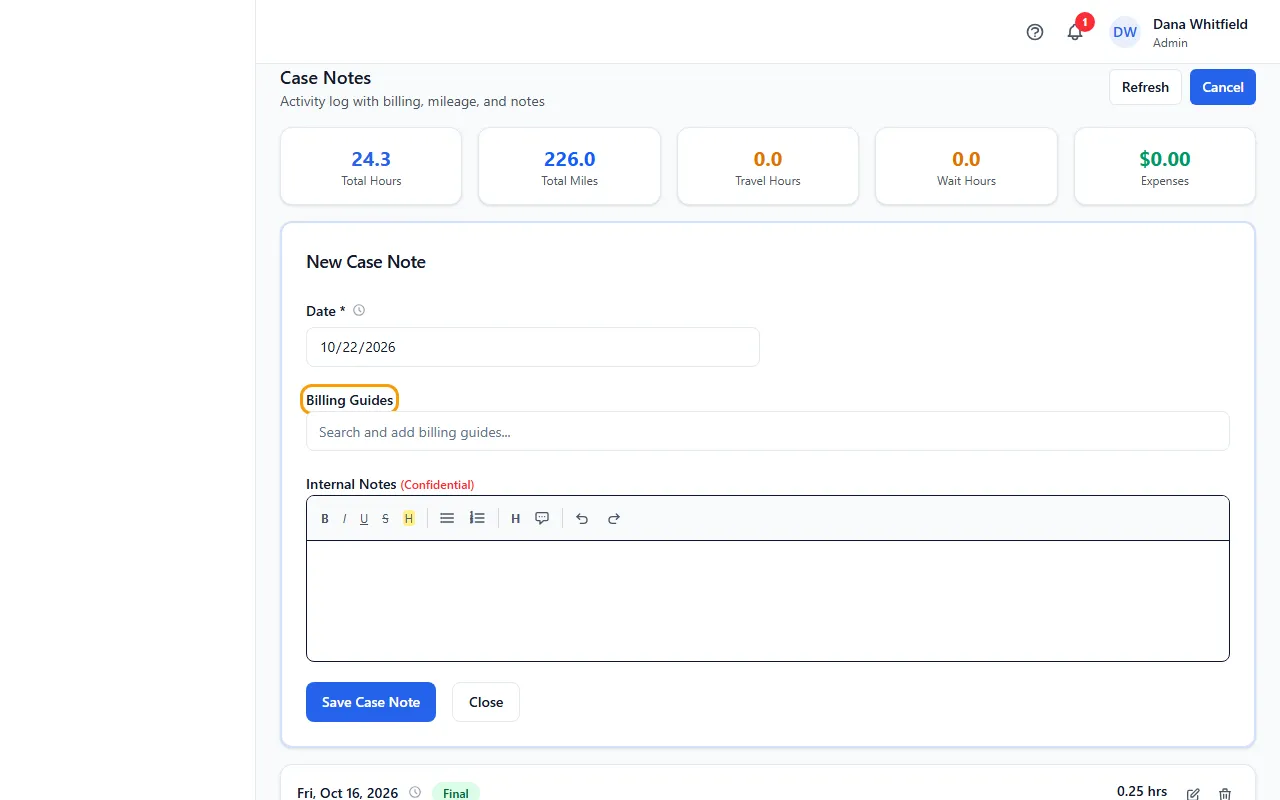
- Add a billing guide and enter its Hours and Miles as usual.
- Under that billing guide, click + Travel, Wait Time & Expenses.
- Enter Travel Time (hours) and Wait Time (hours).
- For an expense, enter the Expense Amount and an Expense Description (for example parking or tolls), and choose the receipt file under Receipt (optional). A photo or a PDF works.
- Click Save Case Note.
Where it shows
Each billing guide on the note shows its travel, wait and expense amounts, with a View receipt link.
With this switched on, the totals above the notes add Travel Hours, Wait Hours and Expenses.
Receipts are filed in a Receipts folder in the patient's Documents. CaseMgmt creates the folder the first time.
Travel and wait time are always billable.
Tips
- Click Hide to fold the travel and expense fields away again.
- To add or replace a receipt later, edit the note: the billing guide shows View current receipt and lets you choose a new file.
If something goes wrong
- "Receipt upload failed. The note will be saved without the receipt; you can attach it by editing the note."
- The note saved. Edit it and choose the receipt file again.
- I don't see + Travel, Wait Time & Expenses.
- It shows under each billing guide once you've added one, and only when your company has travel, wait and expenses turned on. Ask support at admin@casemgmt.io.