Run the Time & Expense report
Break down case hours, travel, wait time, mileage and expenses by nurse or by patient, priced from your rates.
Last updated October 22, 2026
Who can do this: Admin
Your company must have this turned on. Ask support at admin@casemgmt.io.
Before you start
- You need the View Financial Reports permission. Admins have it by default.
Steps
- Open Reports and click Time & Expense. It shows this month so far.
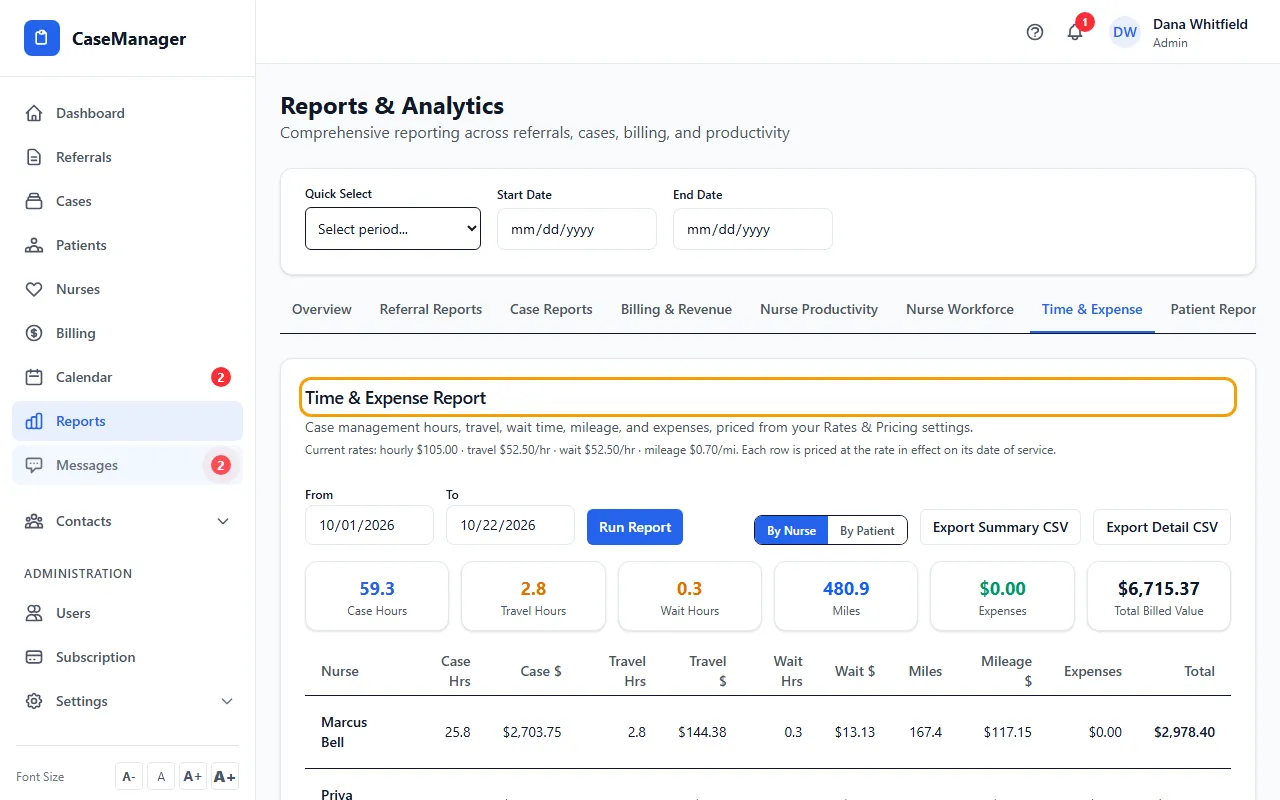
- To change the period, set From and To and click Run Report.
- Switch between By Nurse and By Patient.
- Read the totals: Case Hours, Travel Hours, Wait Hours, Miles, Expenses and Total Billed Value.
- Click Export Summary CSV for the table, or Export Detail CSV for every line.
How it's priced
The report reads your case notes and prices them from your Rates & Pricing settings. Each row is priced at the rate in effect on its date of service; the current rates are shown under the title.
If something goes wrong
- “Time & Expense report is not enabled for this account”
- Ask support at admin@casemgmt.io to turn it on for your company.
- “Forbidden”
- You need the View Financial Reports permission. Ask your Admin.
- “No case notes in the selected period.”
- Widen From and To.