Edit or delete a case note
Fix a case note's date, hours, miles or wording, or delete it, and see what happens to its time entry.
Last updated October 22, 2026
Who can do this: Admin, Nurse Case Manager, Internal Case Manager, Billing Staff
Before you start
- You can edit or delete your own notes. Admins, Nurse Case Managers and Internal Case Managers can also edit or delete other people's notes by default.
Steps
- Open the patient and click the Case Notes tab.
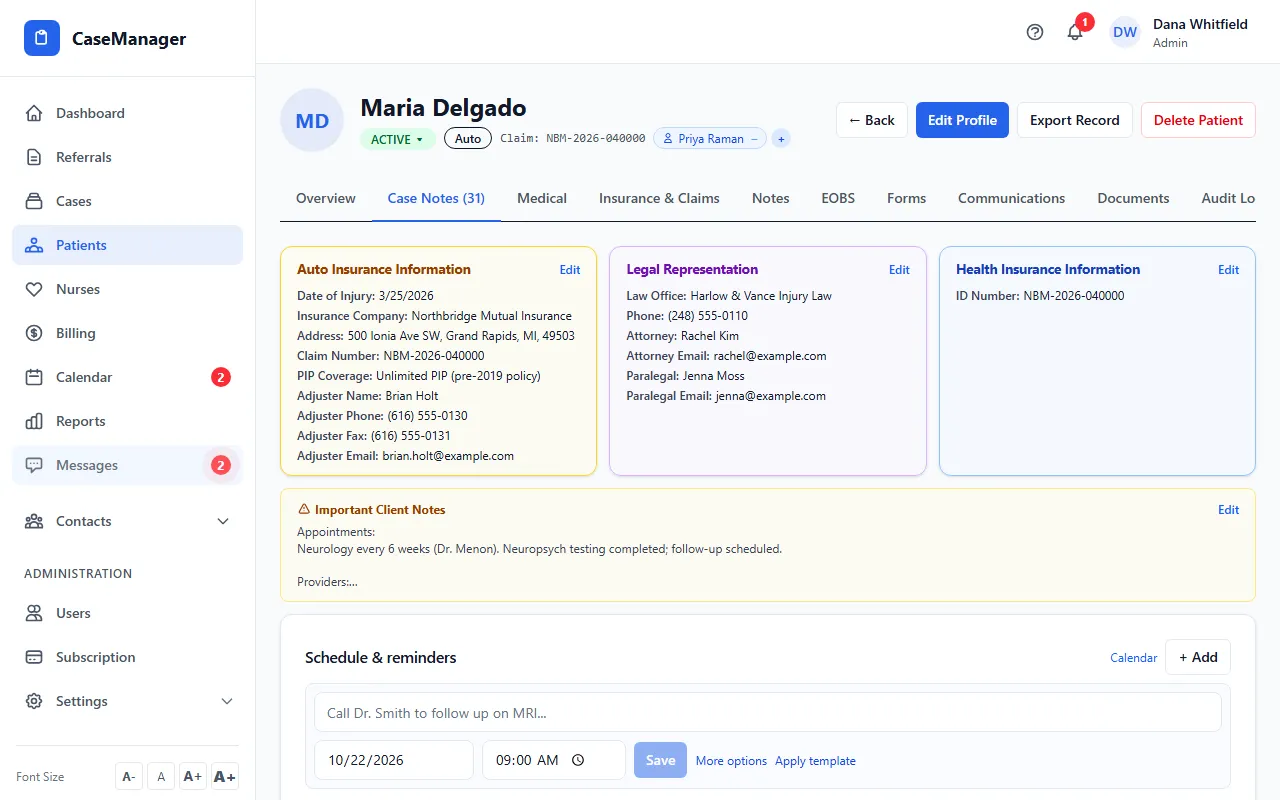
- Find the note and click the pencil icon (Edit) on its right.
- Change the Date, the Hours and Miles on each billing guide, the Invoice Description or the Internal Notes. You can add or Remove billing guides too.
- Click Save, or Cancel to leave it as it was.
- To delete a note instead, click the trash can icon (Delete) and click OK to confirm.
What happens to the time entry
When you edit a note, its new hours, date and invoice description are copied to its time entry.
If that time was already approved, changing the hours, rate or date sends it back to Logged, so it's approved again with the new numbers. CaseMgmt tells you when this happens.
If the time has already been billed, invoiced or paid to the nurse, the hours, miles, rate, date, travel, wait time and expenses are locked. You can still fix the note's wording.
If the note had no hours before and you add some, CaseMgmt creates a time entry for it, starting as Logged.
When you delete a note, its time entry is deleted too, so the hours leave My Hours and payroll.
A note whose time has already been billed or paid to the nurse can't be deleted. Void the invoice or payroll entry first.
It works the other way too: when someone edits the hours, description or rate of a time entry on Billing > Time Entries, the note's total hours and description change to match.
If something goes wrong
- "This note's time has already been billed or paid, so it can't be deleted. Void the related invoice or payroll entry first."
- Ask whoever handles billing to void the related invoice or payroll entry, then delete the note.
- "This note's time has already been billed or paid to the nurse, so its hours, miles, rate, date, travel, wait time and expenses can't be changed …"
- Change only the wording, or ask whoever handles billing to void the batch or invoice first.
- "Only the author or admin can delete notes"
- Ask the person who wrote the note, or an Admin.
- "Forbidden" when saving an edit.
- You can only edit other people's notes if you have permission to review notes. Ask the author or an Admin.