Create a new case
Open a case for a new or existing patient and assign the nurses who will work it.
Last updated October 22, 2026
Who can do this: Admin, Nurse Case Manager, Internal Case Manager
Before you start
- You need permission to create cases. Admins, Nurse Case Managers and Internal Case Managers have it by default.
- If the patient came in as a referral, start from the referral instead: see Accept a referral and create the case.
Steps
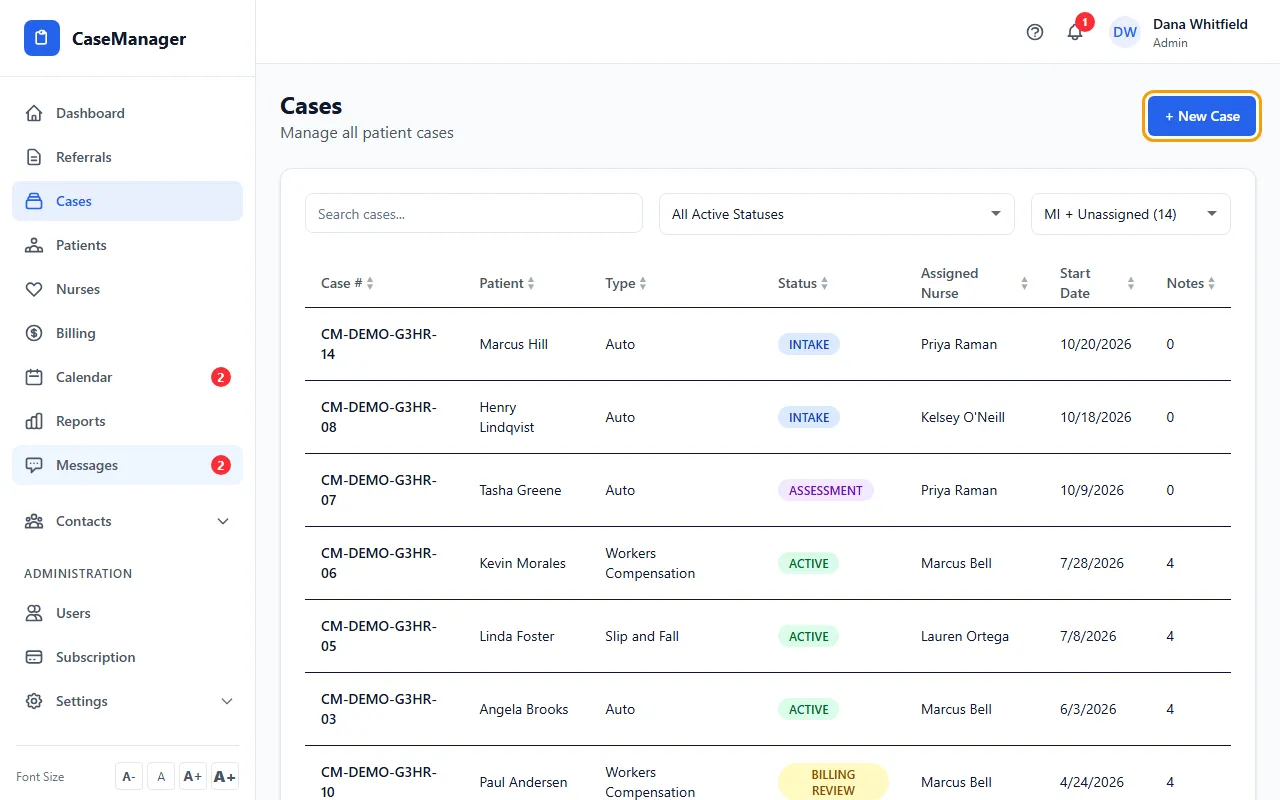
- Open Cases and click + New Case. The Create New Case form opens at the top.
- Under Patient, choose Select Existing Patient and search by name, or choose Create New Patient and fill in at least First Name, Last Name and Date of Birth.
- Pick the Case Type. If none fits, pick Other and type your own.
- Under Assign Nurse(s), pick one or more nurses. You can skip this and assign later.
- Click Create Case. CaseMgmt opens the patient's file so you can fill in the rest of their details.
What CaseMgmt sets up for you
Every new case gets the next case number for the year (for example CM-2026-00042) and starts in the Intake status, dated today.
If the patient has no folders yet, CaseMgmt adds the standard folders to their Documents.
A patient can have more than one case. Pick the same patient again to open another one.
If something goes wrong
- "Please fill in patient first name, last name, and DOB"
- When you create a new patient here, first name, last name and date of birth are required. Fill them in and click Create Case again.
- "Please select or create a patient"
- With Select Existing Patient, click a name in the list so it shows Selected: under the search box.
- "Forbidden"
- Your user doesn't have permission to create cases or patients. Ask your Admin.