Find a case on the Cases list
Search, filter and sort your cases, and find closed or ended ones.
Last updated October 22, 2026
Who can do this: Admin, Nurse Case Manager, Internal Case Manager, Billing Staff
Steps
- Open Cases.
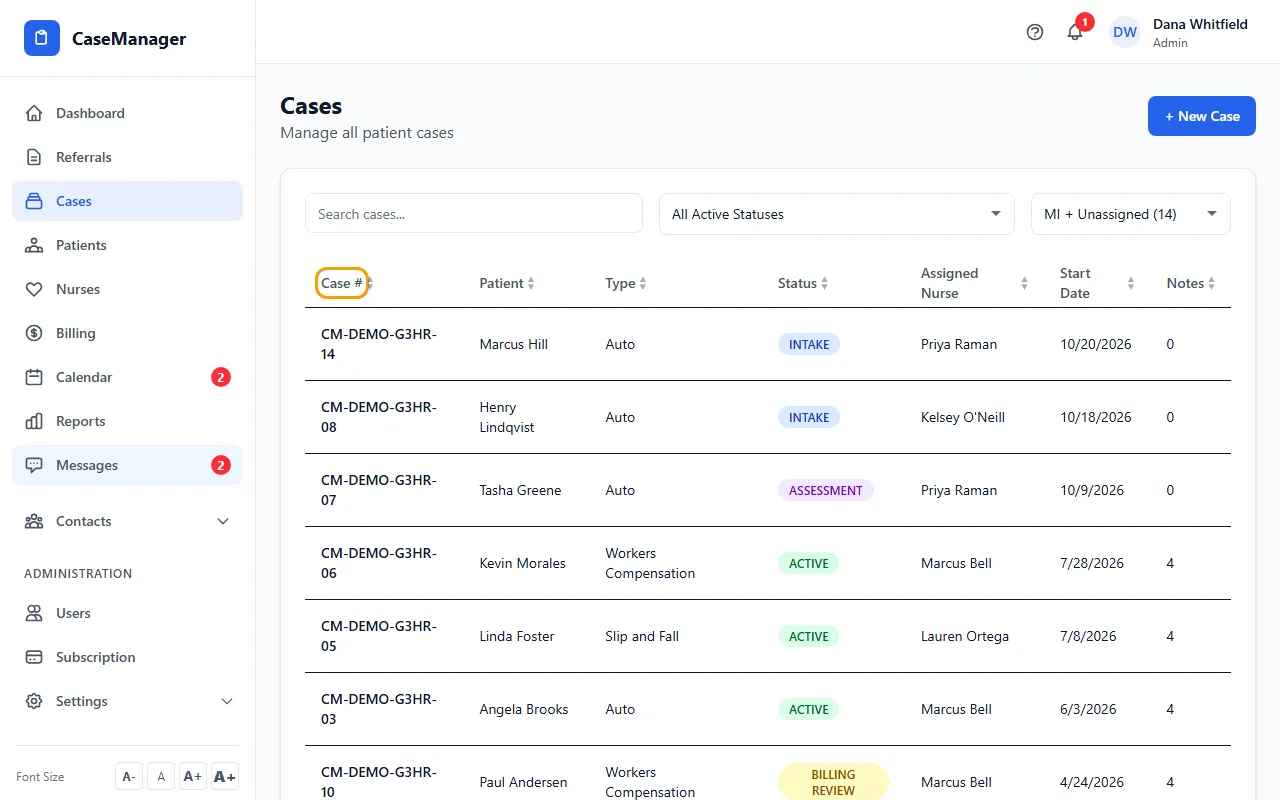
- Type a case number or the patient's first or last name in the Search cases... box.
- Narrow the list with the status menu (All Active Statuses, Intake, Assessment, Active or Billing Review) and the state menu (All States, MI + Unassigned, a single state, or No State Set). The state is the patient's state.
- Click a column heading such as Case #, Patient, Status or Start Date to sort. Click again to reverse, and a third time to go back to the normal order.
- Click a case's row to open it.
Closed and ended cases
Cases that are Closed, Discharged or Billed, and written-off (no coverage) cases, are not in the main list. They are in Closed / Ended Cases below it. Click that heading to show them.
The search box and the state menu apply to that section too.
Which cases you see
Admins, Nurse Case Managers, Internal Case Managers and Billing Staff see every case in the company by default. A user without the View All Cases permission sees only the cases they are assigned to.
If something goes wrong
- A case I know exists isn't in the list.
- The state menu starts on MI + Unassigned. Choose All States. Also check Closed / Ended Cases and set the status menu to All Active Statuses.
- "No cases found"
- Clear the search box and set both menus back to All Active Statuses and All States.