Change a case's status
Move a case through intake, assessment, active work, billing and closing.
Last updated October 22, 2026
Who can do this: Admin, Nurse Case Manager, Internal Case Manager
Before you start
- You can change a status if you have permission to manage cases (Admins, Nurse Case Managers and Internal Case Managers by default) or you are assigned to the case.
Steps
- On Cases, click the colored status badge in the Status column. A list of statuses opens; the one in use is marked current.
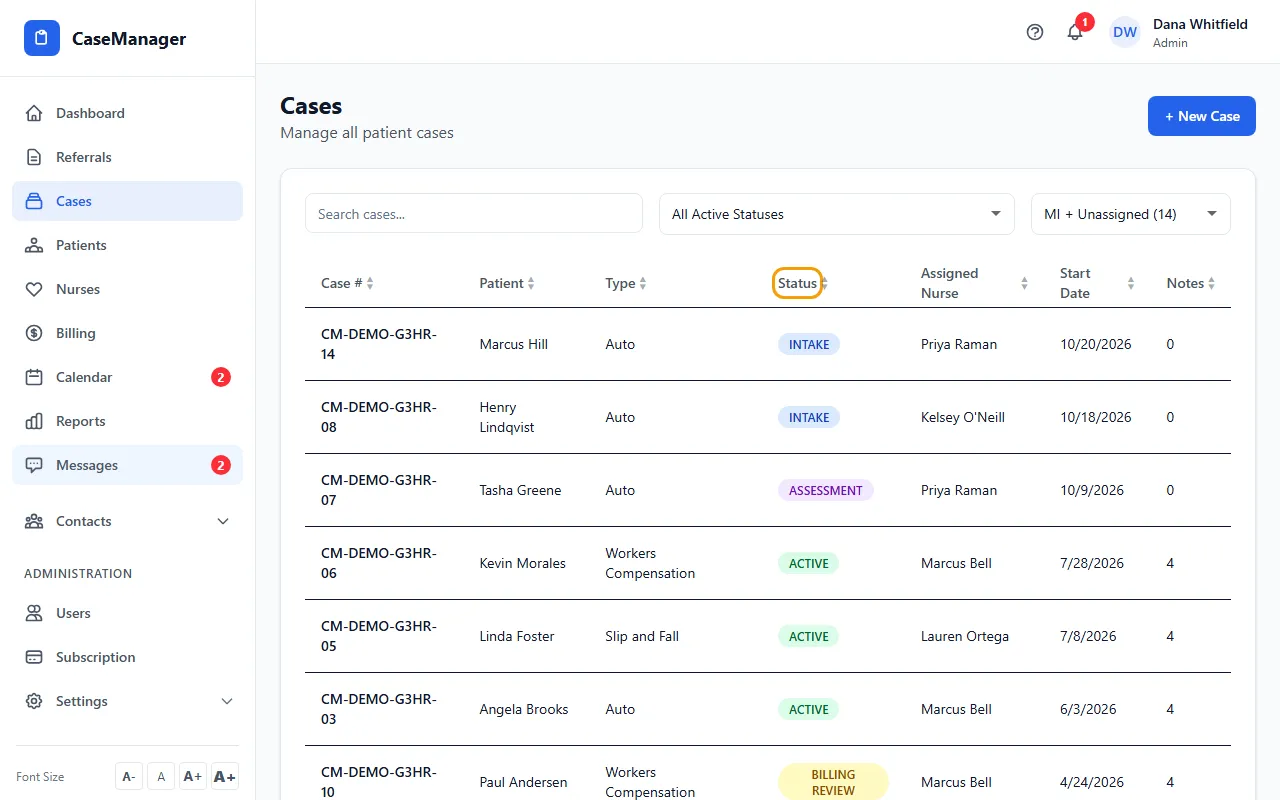
- Click the new status. The list refreshes.
- Or open the case and pick the status from the menu at the top right, next to Export PDF.
The statuses
Intake: the case is new. Every case starts here.
Assessment: you are assessing the patient.
Active: ongoing case management.
Billing Review: work is being checked before billing.
Billed: the work is complete and billed.
Discharged: the patient has been discharged.
Closed: the case is closed out.
Billed, Discharged and Closed cases move to Closed / Ended Cases on the Cases list. Pick an earlier status to bring a case back into the main list.
What else changes
Changing a case's status also sets the patient's status to match.
If something goes wrong
- "Failed to update status" or "Forbidden"
- You need permission to manage cases, or you must be assigned to the case. Ask your Admin.