Find your way around a case
What's on a case's Overview, Billing and Timeline tabs, and how to edit the case details.
Last updated October 22, 2026
Who can do this: Admin, Nurse Case Manager, Internal Case Manager, Billing Staff
Steps
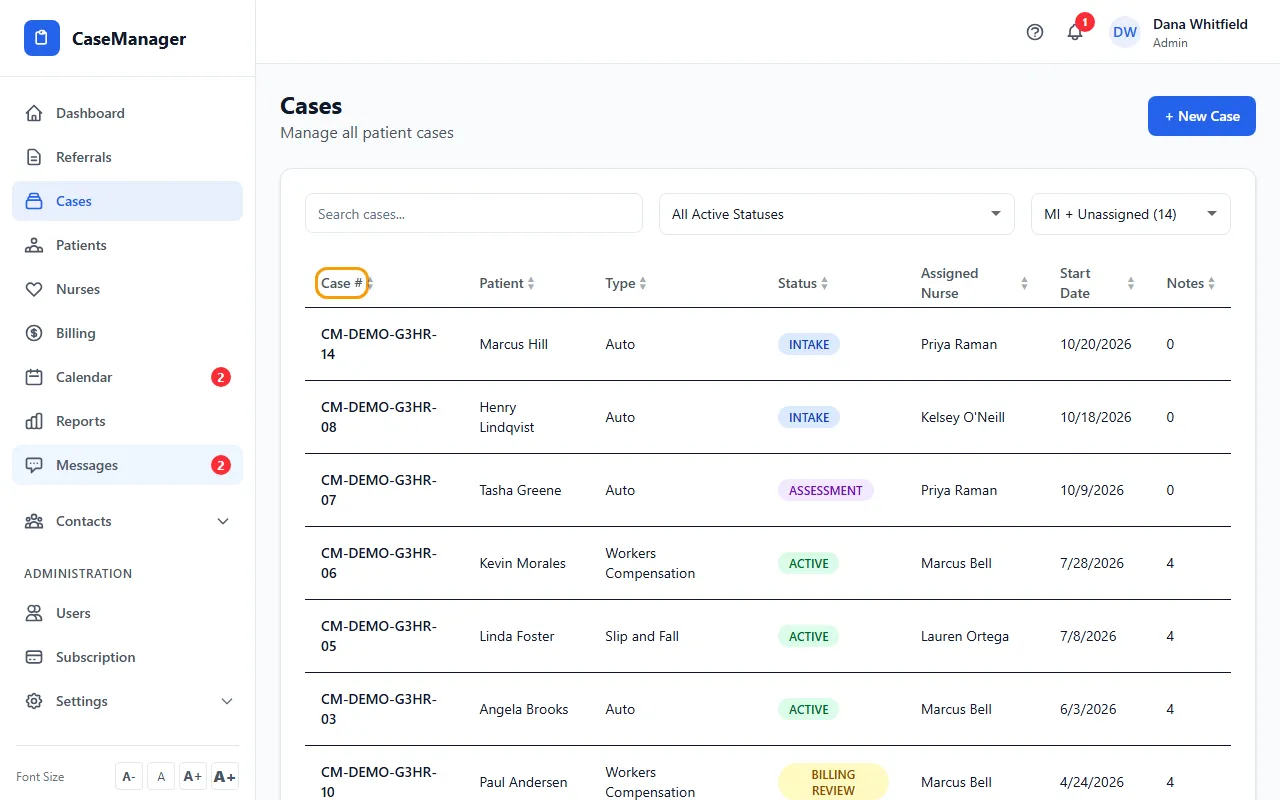
- Open Cases and click the case's row.
- The top shows the case number, its status, the patient, the case type and the assigned nurses, with Export PDF, the status menu and (for Admins) Delete Case on the right.
- Use the tabs: Overview, Billing and Timeline.
Overview
Case Details shows the case number, type, status, start date, assigned nurses and, if the case came from a referral, the referral number.
Admins and Nurse Case Managers can click Edit on Case Details to change the Type or the Start Date, then click Save.
Patient Information shows the patient's name and date of birth. Click Edit Patient to open the full patient file.
Quick Stats counts the case's Progress Notes, Time Entries and Invoices. Click a tile to jump to that list.
Below are the latest Assessments, Care Plans and Recent Progress Notes. Click View All on any of them to open the full list, where you add new ones.
Billing
Shows the time logged on this case: Total Hours, how many entries are Pending Approval and how many are Approved, and the list of Time Entries with each one's status.
Use Log Time to add time here. See Log time on a case.
Timeline
Activity Timeline shows when the case was created (Case Created, with the date and time).
Tips
- Day-to-day work (case notes with hours and miles, forms, documents) lives on the patient's file, not the case page.
If something goes wrong
- I don't see the Edit button on Case Details.
- Only Admins and Nurse Case Managers can edit the case type and start date.
- "Failed to save case details"
- Try again. If it keeps happening, email admin@casemgmt.io with the case number.