Add an assessment to a case
Record an intake, follow-up, discharge or other nursing assessment, and mark completed ones reviewed.
Last updated October 22, 2026
Who can do this: Admin, Nurse Case Manager, Internal Case Manager
Steps
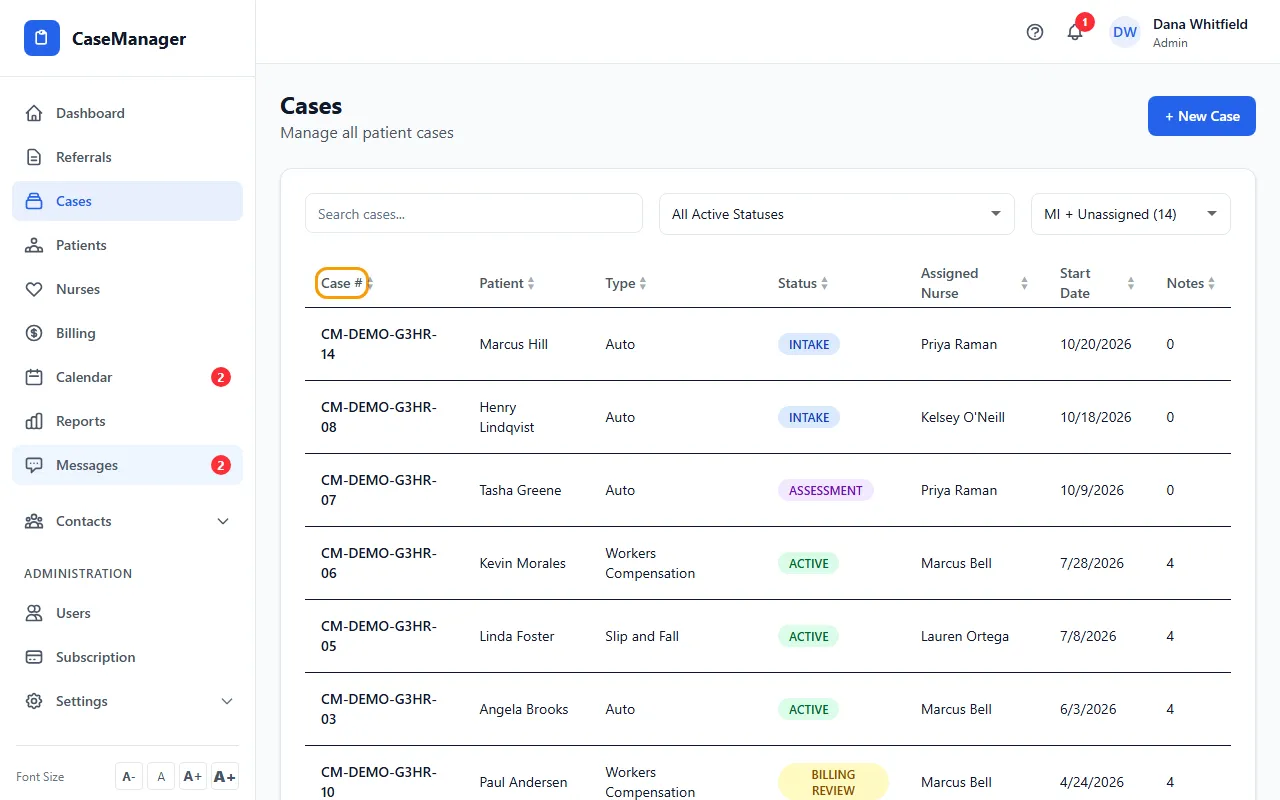
- Open Cases and click the case's row.
- On Overview, click View All on the Assessments card.
- Click New Assessment and pick the Assessment Type.
- Fill in Chief Complaint / Reason for Assessment and Nursing Assessment / Clinical Findings (both required), plus any of the other fields: history, medications, allergies, pain level (0-10), social history, functional status, mental status and recommendations.
- Set Status to Completed if it's finished, or leave Draft (save for later).
- Click Save Assessment. It appears in the list with its type, author, date and a DRAFT or COMPLETED badge.
Mark an assessment reviewed
A COMPLETED assessment shows a Mark Reviewed button. Click it and the badge changes to REVIEWED, with "Reviewed by" and the date underneath.
Anyone with the View All Cases permission can mark an assessment reviewed (Admins, Nurse Case Managers, Internal Case Managers and Billing Staff by default).
Tips
- A saved assessment can't be edited, deleted or changed from draft to completed on this screen. Choose Completed when you save a finished assessment.