Create and track a care plan
Write the goals and tasks for a case, activate the plan, tick off tasks and complete it.
Last updated October 22, 2026
Who can do this: Admin, Nurse Case Manager, Internal Case Manager
Steps
- Open Cases and click the case's row.
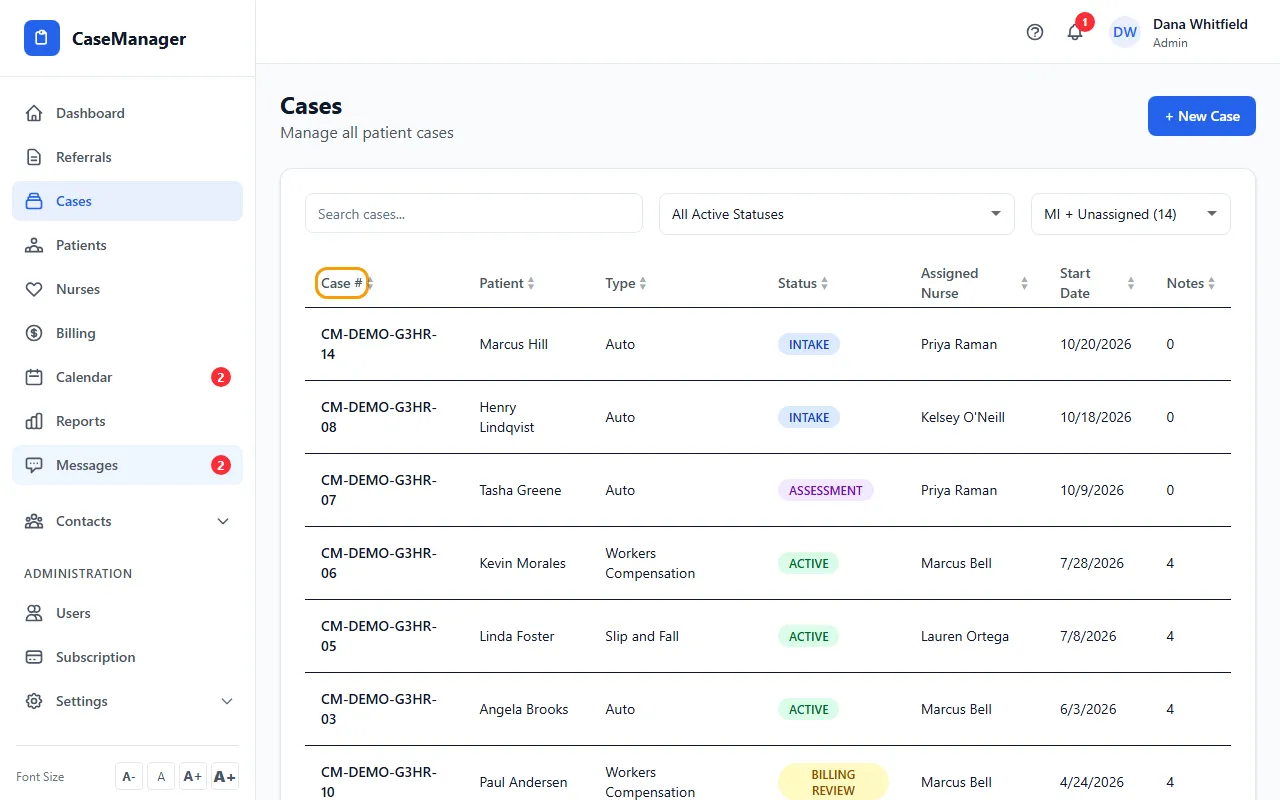
- On Overview, click View All on the Care Plans card, then click Create Care Plan.
- Check the Start Date (today by default) and add a Target End Date if you have one.
- Type the Goals, one per line. At least one goal is required.
- Type the Tasks, one per line, and pick a Task Category for them (optional).
- Click Save Care Plan. The new plan starts as DRAFT.
- Click Activate to make it ACTIVE. When the plan is done, click Complete.
Working the tasks
Tick a task's checkbox to mark it done (it's crossed out). Untick it to undo. The plan shows how many tasks are complete, for example "3 of 5 tasks complete".
The Task Category you pick applies to every task in that plan.
Tips
- Goals, tasks and dates can't be edited after you save. To change the plan, create a new one.