Apply a template to a patient
Add a company template's items to a patient's schedule, with a preview of every date and who gets it.
Last updated October 22, 2026
Who can do this: Admin, Nurse Case Manager, Internal Case Manager
Before you start
- Admins, Nurse Case Managers and anyone who can add patients can apply templates. An Admin or Nurse Case Manager makes them first.
Steps
- Open the patient. On the Schedule & reminders card, click Apply template.
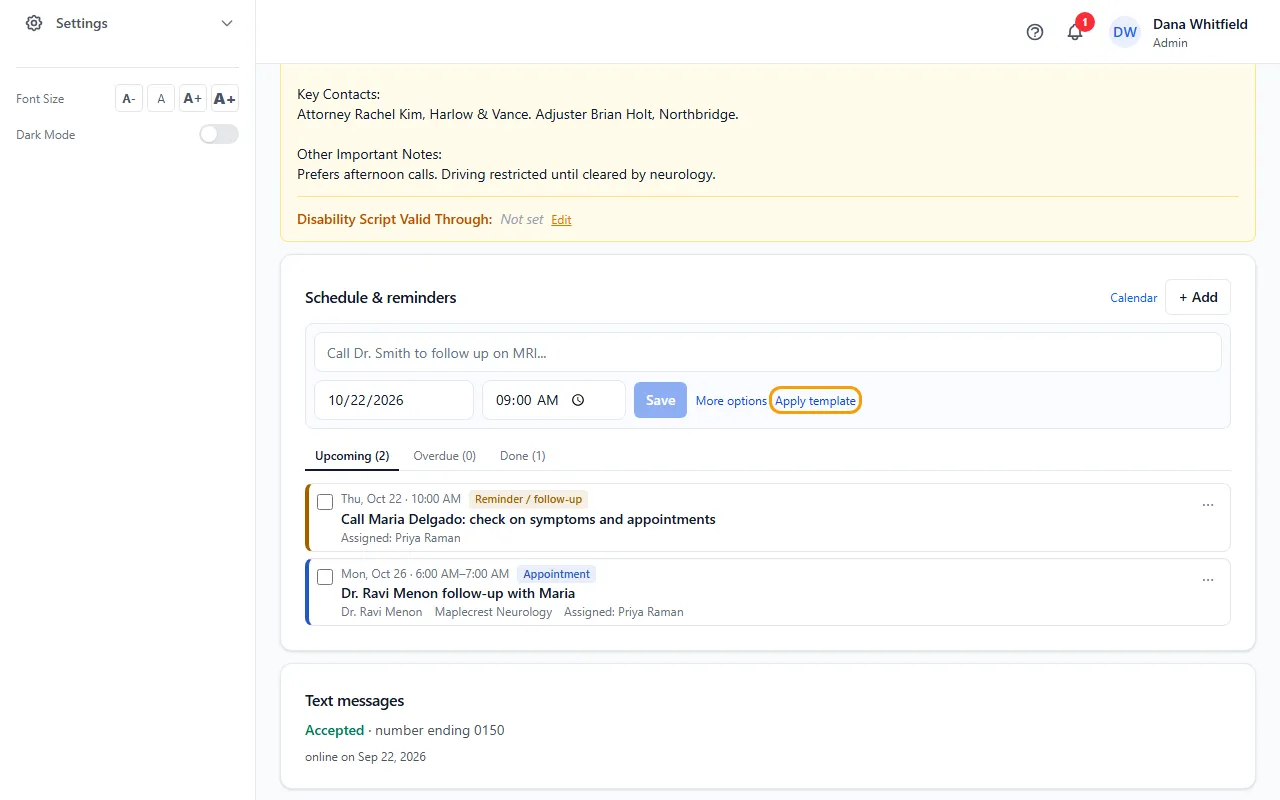
- Choose the Template and the Start date (day 0).
- Check the list of items that will be added: each one's date and time and who it goes to.
- Click the Add button (it shows how many items will be added).
Who the items go to
Items set to Patient's case manager go to the people assigned to the patient's open cases. If nobody is assigned, or if you can only assign items to yourself, they go to you.
Items set to Person applying it go to you.
Each person who gets items (other than you) gets one notice saying how many were assigned to them.
If something goes wrong
- “Your company has no templates yet. Admins and nurse managers can make them under Calendar > Templates.”
- Ask an Admin or Nurse Case Manager to make one. See Set up templates for new patients.
- The Apply template link isn't there.
- You need permission to add patients, or to be an Admin or Nurse Case Manager.