Set up templates for new patients
Build a list of calendar items, like an initial assessment in 3 days and a monthly progress report, that staff add to a patient in one go.
Last updated October 22, 2026
Who can do this: Admin, Nurse Case Manager
Before you start
- Only Admins and Nurse Case Managers can make and change templates.
Steps
- Open Calendar and click Templates. On a phone, it is under Filters.
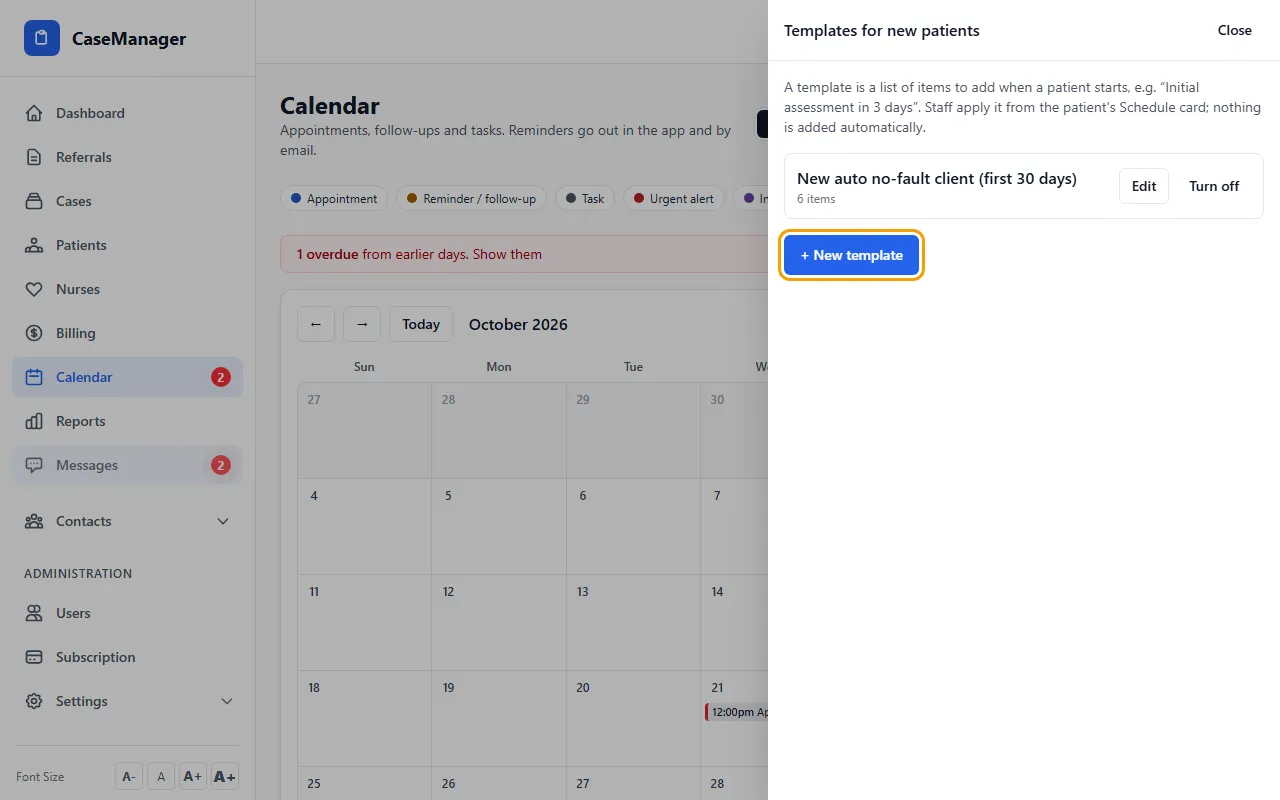
- Click + New template and type a Name, for example New workers' comp patient.
- For each item, type its title and choose the Type and the Day it falls on (day 0 is the start date chosen when the template is applied).
- Set a time or tick All day, choose a repeat (Every week, Every 2 weeks, Every month, Every N days or N days after the last one is done) and a reminder.
- Under assign, choose Patient's case manager or Person applying it. Tick Count business days only (skip Saturday and Sunday) to count Monday to Friday only.
- Click + Add item for the next one, then Save template.
Good to know
Nothing is added automatically: staff apply a template from a patient's Schedule & reminders card. See Apply a template to a patient.
Counting business days skips weekends but not holidays.
A template can have up to 30 items. Click Edit to change one, or Turn off to stop it being offered (Turn on brings it back).
If something goes wrong
- “Enter a name”
- Give the template a name before saving.
- An error like “Item 2: enter a title”
- Every item in the template needs a title. Fill it in or click Remove on that item.
- The Templates button isn't there.
- Only Admins and Nurse Case Managers see it.