Make an item repeat
Set an appointment, follow-up or task to come back every week, every month, or a number of days after the last one is done.
Last updated October 22, 2026
Who can do this: Admin, Nurse Case Manager, Internal Case Manager, Billing Staff
Steps
- Add a new item or open an existing one.
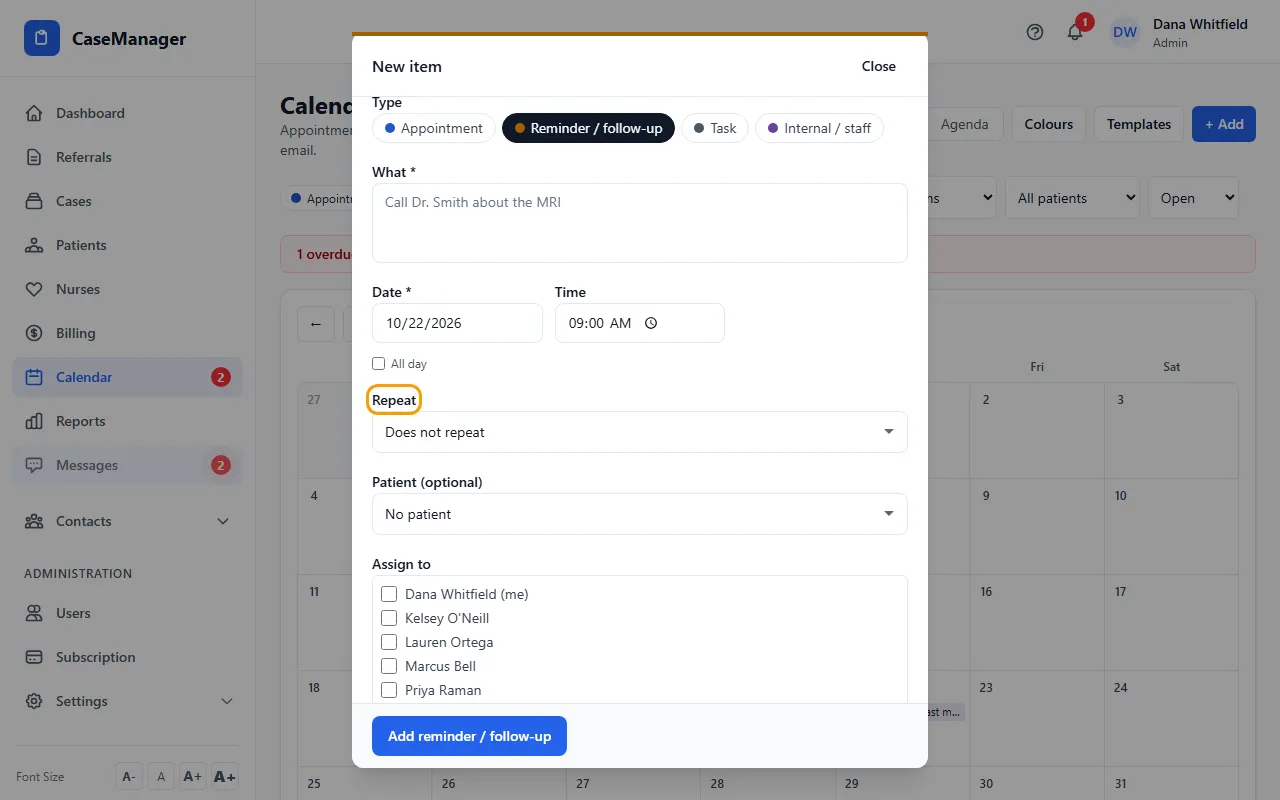
- Under Repeat, choose how often: Every day, Every weekday (Mon-Fri), every week or every 2 weeks on that day, every month on that date or on that weekday, Some days after the last one is done, or Custom....
- For Some days after the last one is done, type the number of days (1 to 365). The next one is added when the current one is marked done.
- For Custom..., choose every so many day(s), week(s) or month(s); for weeks, tap the days of the week.
- Under Ends, choose Never, On a date, or After a number of times (2 to 500).
- Save the item. Repeating items show ↻ Repeats in lists.
Changing or stopping a repeat
When you save a change to a repeating item, you are asked: This item only or This and all future items.
If you change the repeat pattern itself, the new pattern applies from that item on.
To stop a repeat, click Delete on an item and choose This and all future items (stop repeating), or This item only to skip just that one.
When repeats stop by themselves
A repeat stops when its end is reached, when the case closes, or when the patient is discharged. Its future open items are marked Cancelled and stay in the history (set the status filter to All to see them).
An item from a repeat that has ended says so, and its Repeat starts at Does not repeat. Choose a repeat to start it again from that item.
CaseMgmt keeps the next 60 days of a repeat on the calendar and adds more as time goes on.
Tips
- Tasks with no due date can't repeat. Give the task a date first.
If something goes wrong
- “An item with no date cannot repeat”
- Untick No due date and pick a date.
- “Repeat 2 to 500 times”
- Under After a number of times, enter a number from 2 to 500.