Mark done, push or resend a calendar item
Finish an item, move it to later, or send its reminder again, from any list it shows in.
Last updated October 22, 2026
Who can do this: Admin, Nurse Case Manager, Internal Case Manager, Billing Staff
Steps
- Find the item in a list: the agenda or day view, a day you clicked in the month view, the Today card on your dashboard, or the patient's Schedule & reminders card.
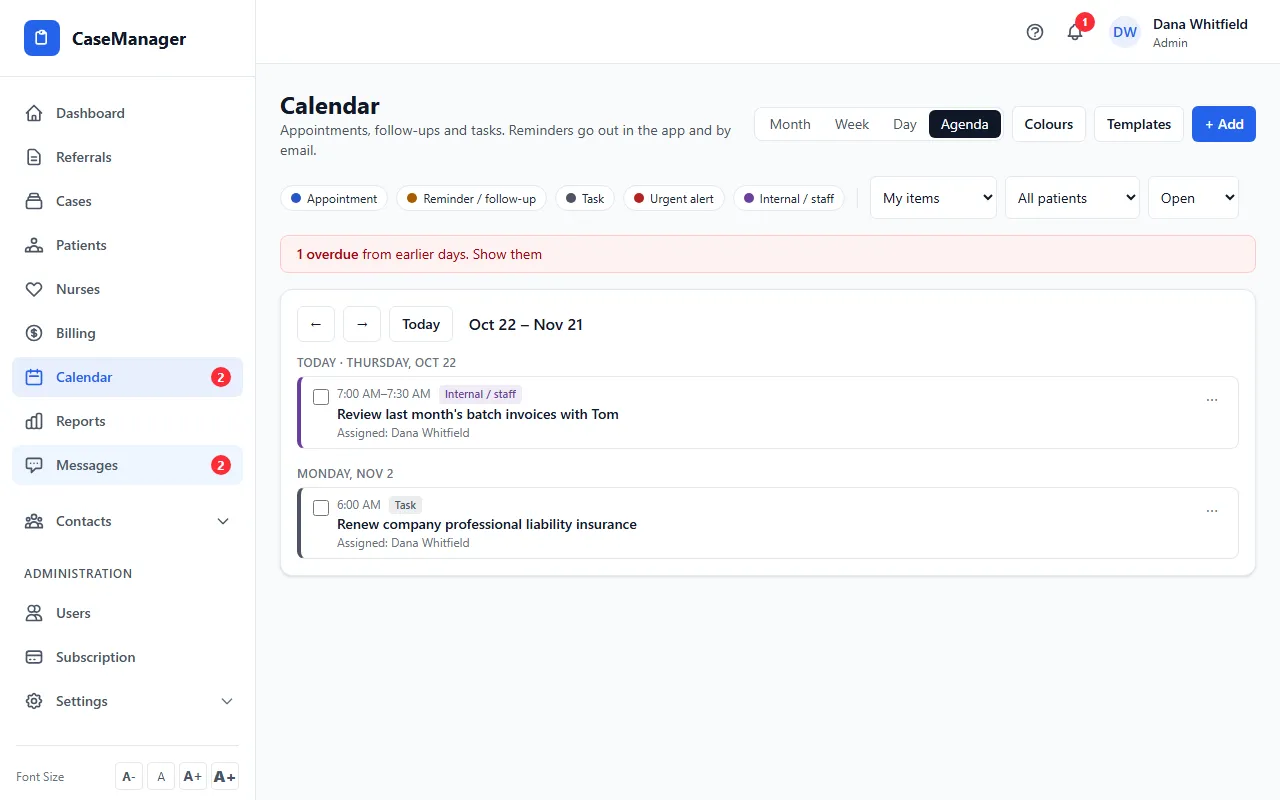
- To finish it, tick the box next to it (or open it and click Mark done).
- If the item is on a patient, a box offers Write case note & log time. Click it to open the patient's case notes with a new note, or click Not now.
- To move it, click the ⋯ button. Under Push, choose +1 hour (items with a time), Tomorrow, or pick a date and click Move.
- To nudge the people assigned, click ⋯ and Send reminder now.
What each action does
Tomorrow keeps the item's time. All-day items and tasks with no date move to 9:00 AM tomorrow, and a task with no date gets that date.
Send reminder now goes to everyone responsible for the item except you: in the app, and by email for people who get reminder emails.
Reopen puts a done item back on the open list. Everyone assigned can mark an item done.
Delete is there for the person who added the item and for Admins and Nurse Case Managers. It asks first; the change history is kept.
Inside an item
Click an item's title to open it. Change anything and click Save changes. The bottom shows who added it and, when done, who finished it and when.
View change history lists every change. Only Admins can see it.
If something goes wrong
- “Nobody else is assigned to this item.”
- A reminder never goes to the person sending it. Assign someone else first.
- “A reminder for this item was just sent. Try again in a couple of minutes.”
- Reminders for the same item can be sent again after two minutes.
- “This item is already done.”
- Reopen it first if it still needs doing.
- The Delete option isn't there.
- Only the person who added the item, Admins and Nurse Case Managers can delete it. Mark it done instead.