Find your items on the calendar
Switch between month, week, day and agenda views and filter by person, patient, type and status.
Last updated October 22, 2026
Who can do this: Admin, Nurse Case Manager, Internal Case Manager, Billing Staff
Steps
- Open Calendar. It opens on your own items (My items) for this month.
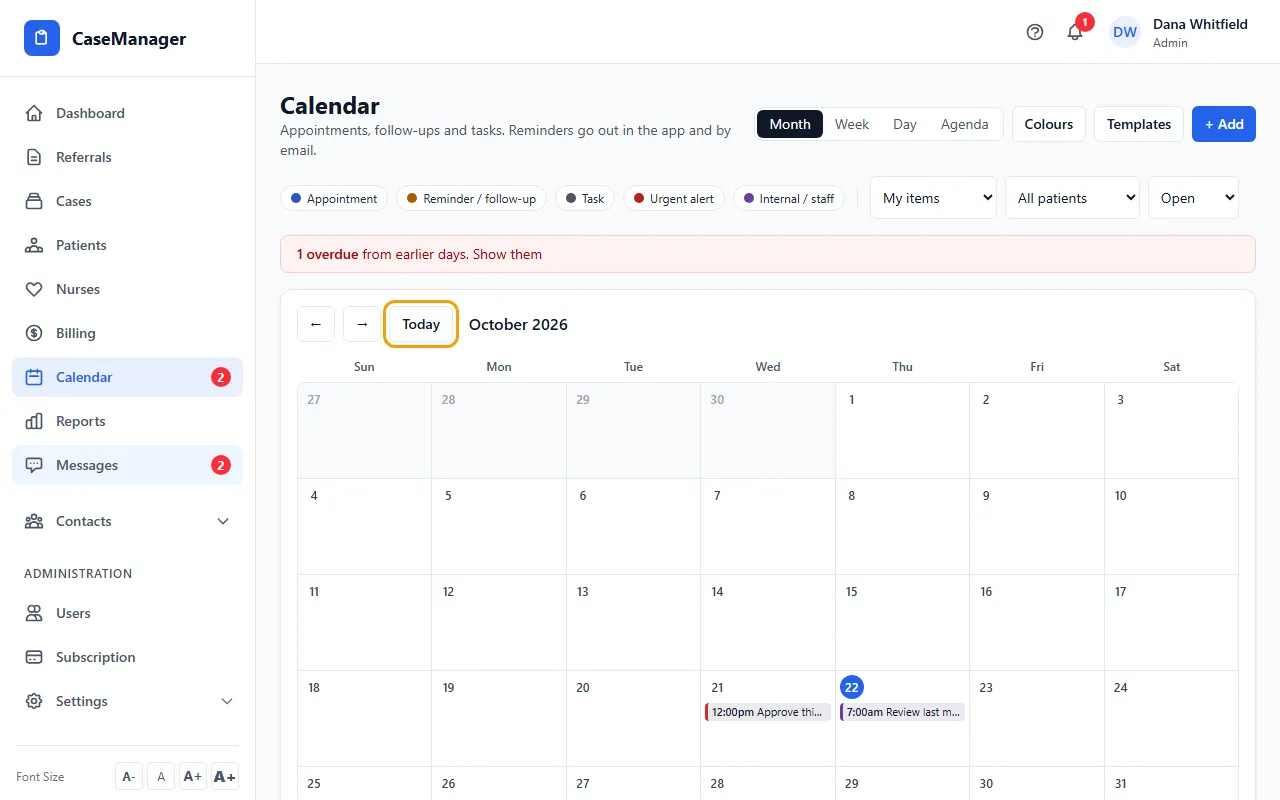
- Pick a view at the top: Month, Week, Day or Agenda. Agenda lists the next 30 days from the date you are on. Use the arrows to move and Today to come back.
- Click a type chip (for example Appointment or Task) to show only that type. Click more chips to add types, or All types to show everything again.
- Use the person list to see My items, one colleague's items, or Everyone. The list remembers your choice on this device.
- Use the patient list to see one patient's items (it lists the patients who have items in what you are looking at), or All patients.
- Use the status list: Open (the default), Overdue, Done or All.
- In the month view, click a day to open that day's full list. It has its own type and person filters and a + Add button.
Overdue items and tasks with no date
Open items from earlier days are overdue. They have a red edge, and a red bar above the calendar says how many there are. Click the bar to list them all.
Tasks saved with No due date are listed under Tasks with no date: at the bottom of the agenda view, or in a card under the calendar in the other views.
Done items are crossed out. Done shows completed items; repeats that were stopped show only under All.
Who sees which items
Admins and Nurse Case Managers see every item in the company, so their person list ends with Everyone.
Everyone else sees items they added or are assigned to, plus every item on a patient they can open. Their list ends with All I can see.
An item with nobody assigned belongs to the person who added it.
On a phone
The calendar works like a phone calendar app: a month grid with the chosen day's items below it, or a list. Switch with the buttons at the bottom, next to Today and Filters.
Tap the name under the month to choose whose items show. Filters holds the status, patient and type filters, plus Colours and Templates.
Tap the circle next to an item to mark it done, tap the item to open it, or use the ⋯ button to push it or send a reminder.
Tips
- Times on the calendar screen are shown in your device's time zone.
- Links in reminder emails and in the notification bell open the item itself.
If something goes wrong
- “The calendar is not turned on for your company.”
- The calendar is switched off for your company. Ask support at admin@casemgmt.io.
- “That item no longer exists, or you don't have access to it.”
- The item was deleted, or it belongs to someone else and is not on a patient you can open.
- “Could not load the calendar. Check your connection and try again.”
- Check your internet connection and click Try again.
- A colleague's item is missing.
- Check the person, patient, type and status filters. If you are not an Admin or Nurse Case Manager, you only see their items when they are on a patient you can open.