Add your logo and PDF watermark
Upload your company logo for PDFs, invoices, forms and reports, and an optional faint watermark for your PDFs.
Last updated October 22, 2026
Who can do this: Admin
Steps
- Go to Administration > Settings. The Company Logo and PDF Watermark Logo cards are near the top.
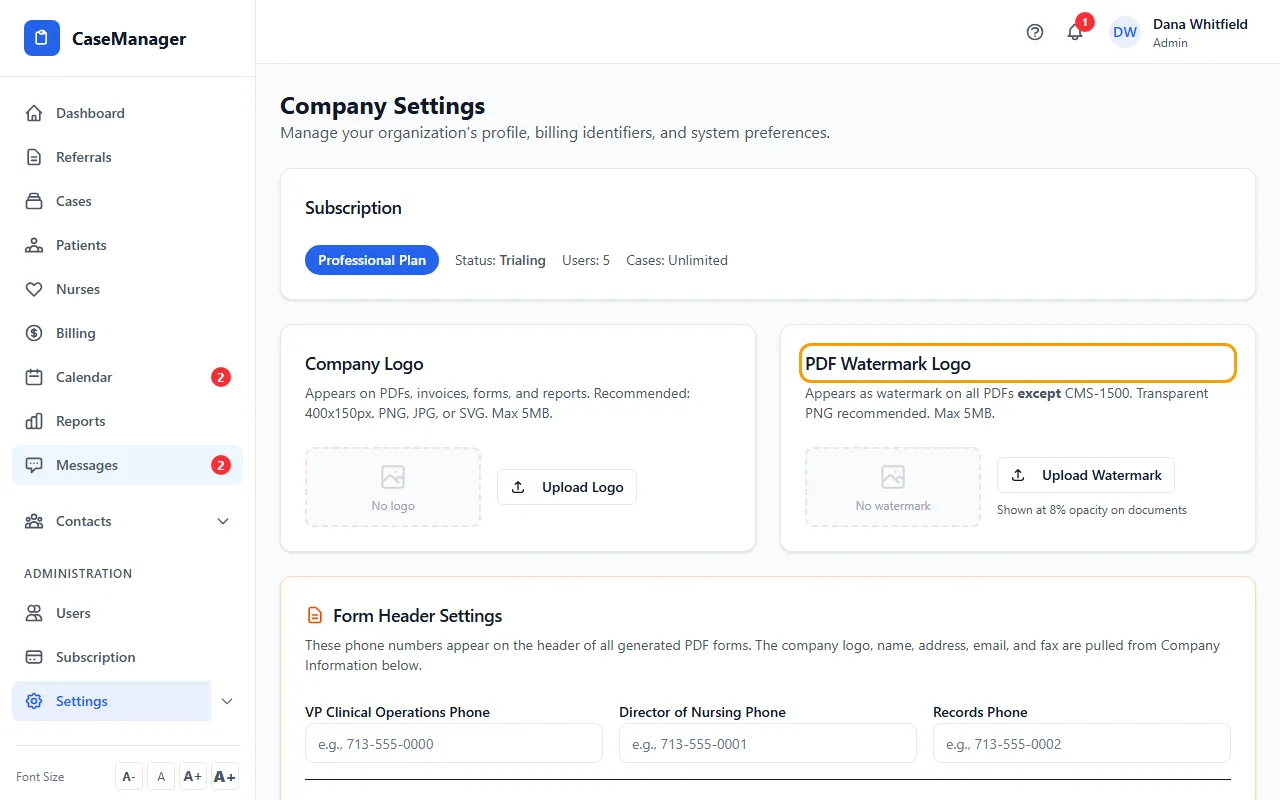
- Click Upload Logo (or Change Logo if you already have one) and choose a PNG, JPG, SVG or WebP image under 5 MB.
- In the crop window, drag across the image to select just the logo. Use Zoom to get closer. You can also skip cropping.
- Click Crop & Upload (or Upload Full Image if you didn't select an area). You'll see “Logo uploaded successfully!”
- For a watermark, click Upload Watermark on the PDF Watermark Logo card and do the same. You'll see “Watermark logo uploaded!”
Sizes that work
Logo: wider than tall works best. The card recommends 400x150px. The saved logo is at most 800px wide.
Watermark: a transparent PNG works best. It's printed at 8% opacity on all PDFs except the CMS-1500, and saved at most 600px wide. The watermark takes PNG, JPG or SVG.
Removing them
Remove Logo takes the logo off PDFs, invoices, forms and reports. Remove Watermark stops the watermark. You can upload new ones anytime.
If something goes wrong
- “Please select an image file (PNG, JPG, SVG, WebP)”
- The file isn't an image. Save it as a PNG or JPG and try again.
- “Logo file must be under 5MB” or “Watermark file must be under 5MB”
- Save a smaller copy of the image and try again.
- My company logo shows the watermark image.
- Before October 22, 2026, uploading a watermark also replaced the logo. That no longer happens. Upload your logo again with Change Logo; the watermark stays as it is.