Set up faxing with SRFax
Connect your SRFax account so you can fax CMS-1500 forms, invoices and other documents from CaseMgmt.
Last updated October 22, 2026
Who can do this: Admin
Before you start
- An SRFax account with a fax number (sign up at srfax.com). In SRFax, My Account → Summary shows your account number and fax number.
Steps
- Go to Administration > Settings and find Fax Configuration (SRFax).
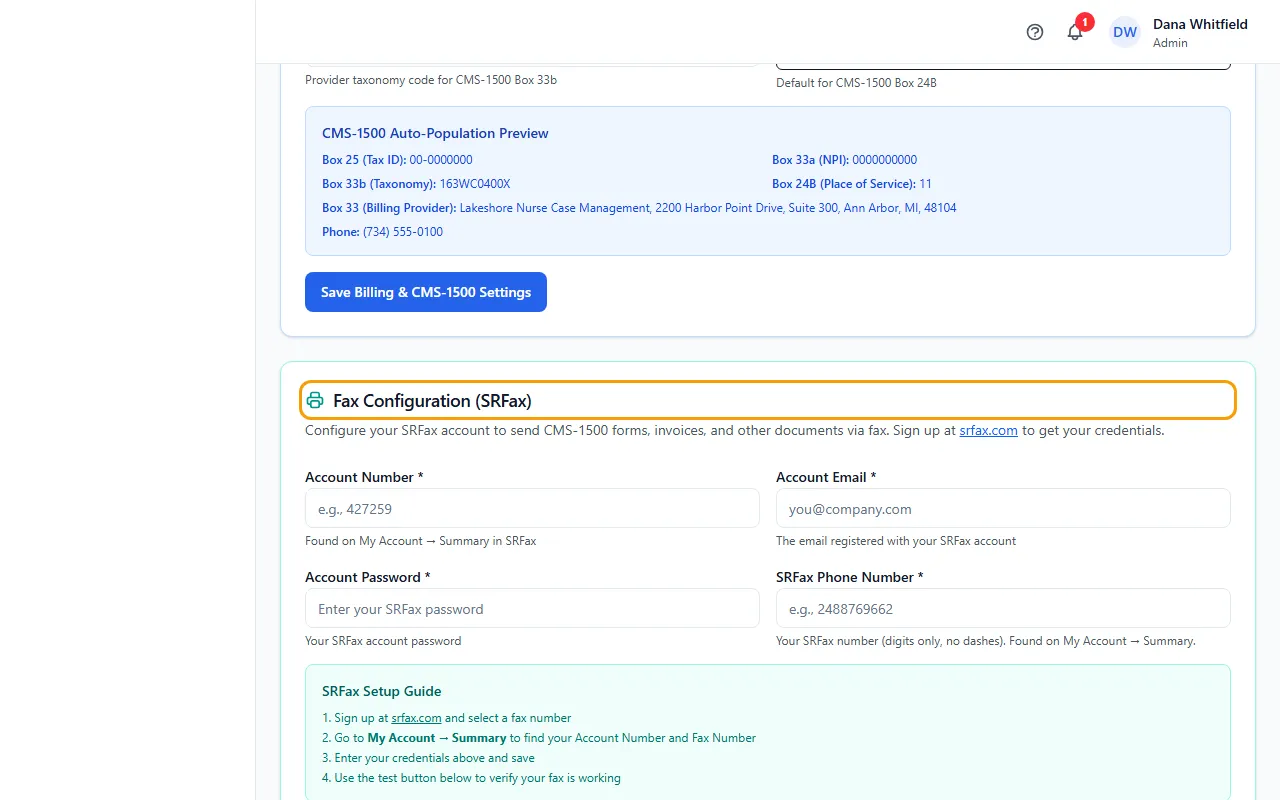
- Enter your SRFax Account Number, Account Email and Account Password.
- Enter your SRFax Phone Number: digits only, no dashes.
- Click Save Fax Settings. You'll see “SRFax settings saved!”
- Type a fax number you can check into the test box (with or without the leading 1) and click Send Test Fax.
- When you see “Test fax queued successfully!”, check your SRFax dashboard in a few minutes to confirm it was delivered.
Tips
- A 10-digit test number gets the US country code 1 added for you.
If something goes wrong
- Send Test Fax is grayed out.
- Save your Account Number first with Save Fax Settings.
- “Enter a fax number to test”
- Type the number to send the test to in the box next to Send Test Fax.
- “Fax failed: Invalid fax number. Must be at least 10 digits.”
- Enter the full number including the area code.
- “Fax failed: SRFax not fully configured.”
- Fill in all four boxes (account number, email, password and SRFax phone number) and click Save Fax Settings.
- “Fax failed:” followed by another message
- That message comes from SRFax. Check that the account number, email and password match your SRFax account. If it keeps happening, contact SRFax or contact support.