Search all files on the Documents page
The Documents page lists the files you can see across your company, with search, a type filter and links to the patient, case or referral.
Last updated October 22, 2026
Who can do this: Admin, Nurse Case Manager, Internal Case Manager, Billing Staff
Steps
- Go to casemgmt.io/documents. (This page isn't in the menu on the left; most work with files happens on each patient's Documents tab.)
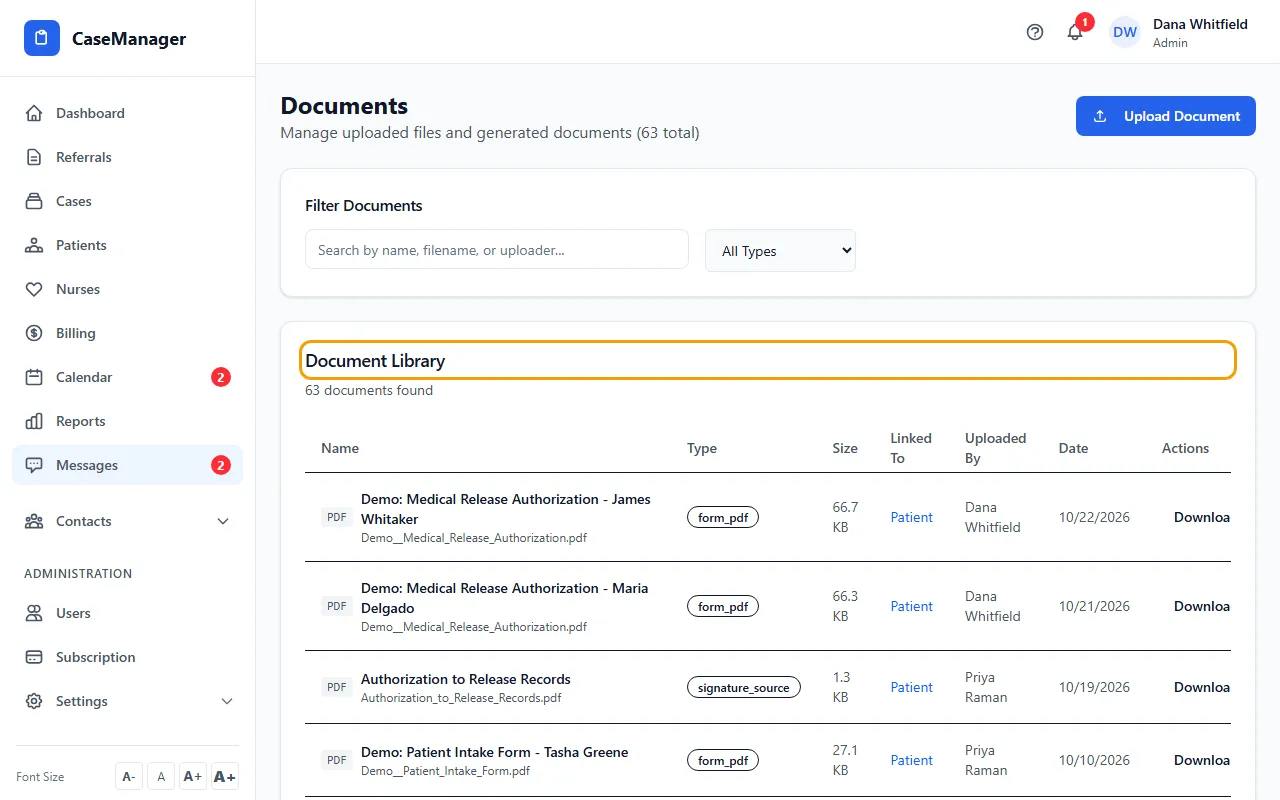
- Under Filter Documents, type part of a file name or the uploader's name, or choose a type in All Types.
- In the Document Library, the Linked To column shows whether a file belongs to a case, referral or patient. Click it to open that record.
- Click Download to save a copy, or Delete to remove the file for good.
Tips
- Upload Document on this page adds files that aren't attached to any patient. To file something for a patient, upload it on that patient's Documents tab instead.