Upload, view and download a patient's files
Add a file to a patient's folder, look at it in the browser, rename it, download it or delete it.
Last updated October 22, 2026
Who can do this: Admin, Nurse Case Manager, Internal Case Manager, Billing Staff
Steps
- Open the patient, click the Documents tab and open the folder the file belongs in.
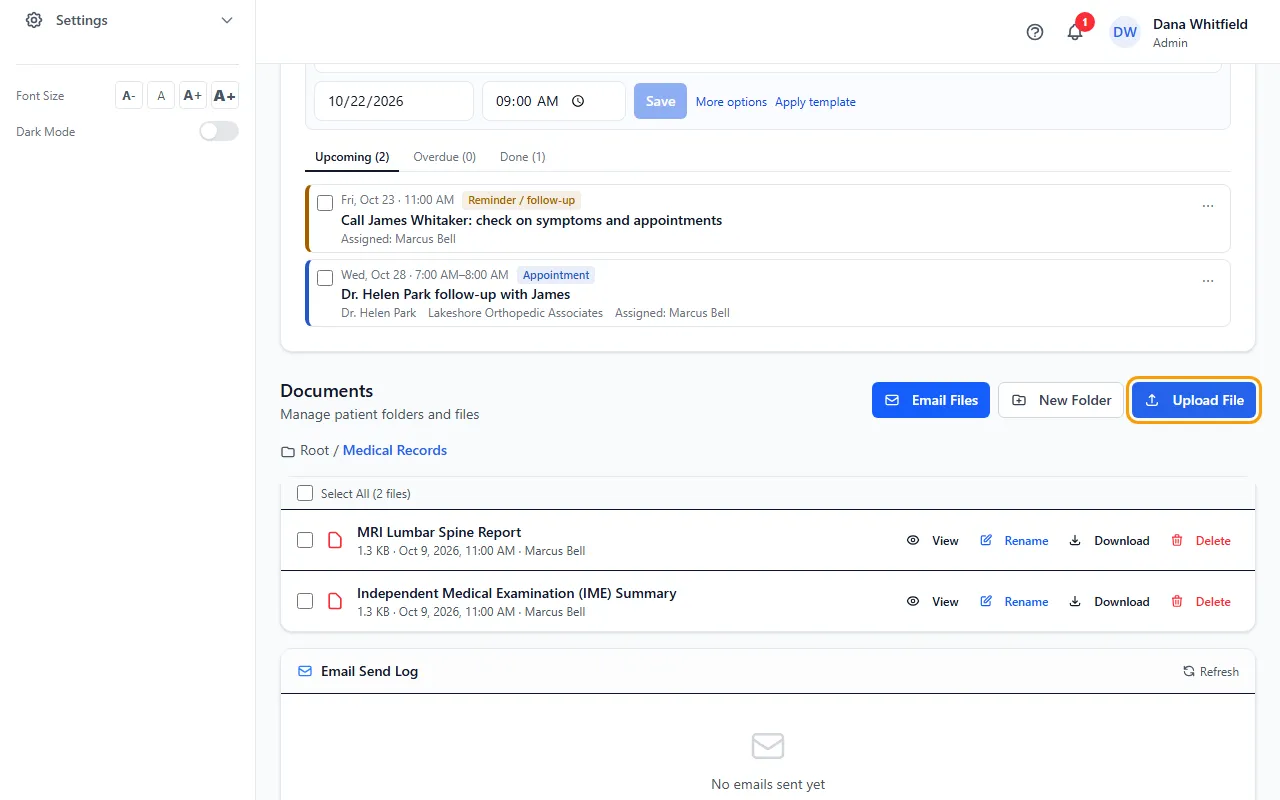
- Click Upload File and choose the file. It's added to the folder you're in.
- Click View to open a PDF or picture right in CaseMgmt. Other file types show Download to view.
- Click Rename, type the new name and click Save.
- Click Download to save a copy to your computer.
- Click Delete to remove a file. This can't be undone.
Tips
- Upload inside a folder. The top level (Root) lists folders only.
- Files are up to 50 MB each, one at a time.
- Form PDFs made in CaseMgmt have an Edit Form button: change the form and click Save & Update PDF.
If something goes wrong
- "File is too large" with "Maximum size is 50MB."
- Make the file smaller (for example scan at a lower resolution or split it) and upload again.
- The file type "is not allowed for security reasons".
- Programs, scripts, web pages and macro-enabled Office files can't be uploaded. Save it as a PDF, a JPG or PNG picture, or a regular Word or Excel file.
- "Preview not available for this file type."
- Click Download to view and open it on your computer.