Email a patient's files to an adjuster or attorney
Pick files from any of the patient's folders and email them as attachments; every email is listed in the Email Send Log.
Last updated October 22, 2026
Who can do this: Admin, Nurse Case Manager, Internal Case Manager, Billing Staff
Before you start
- Set up your email in My Settings (click your name in the top-right), in My Email Configuration. The email goes out from your own address. If yours isn't set up, the company email (Administration > Settings > Email) is used.
Steps
- Open the patient and click the Documents tab.
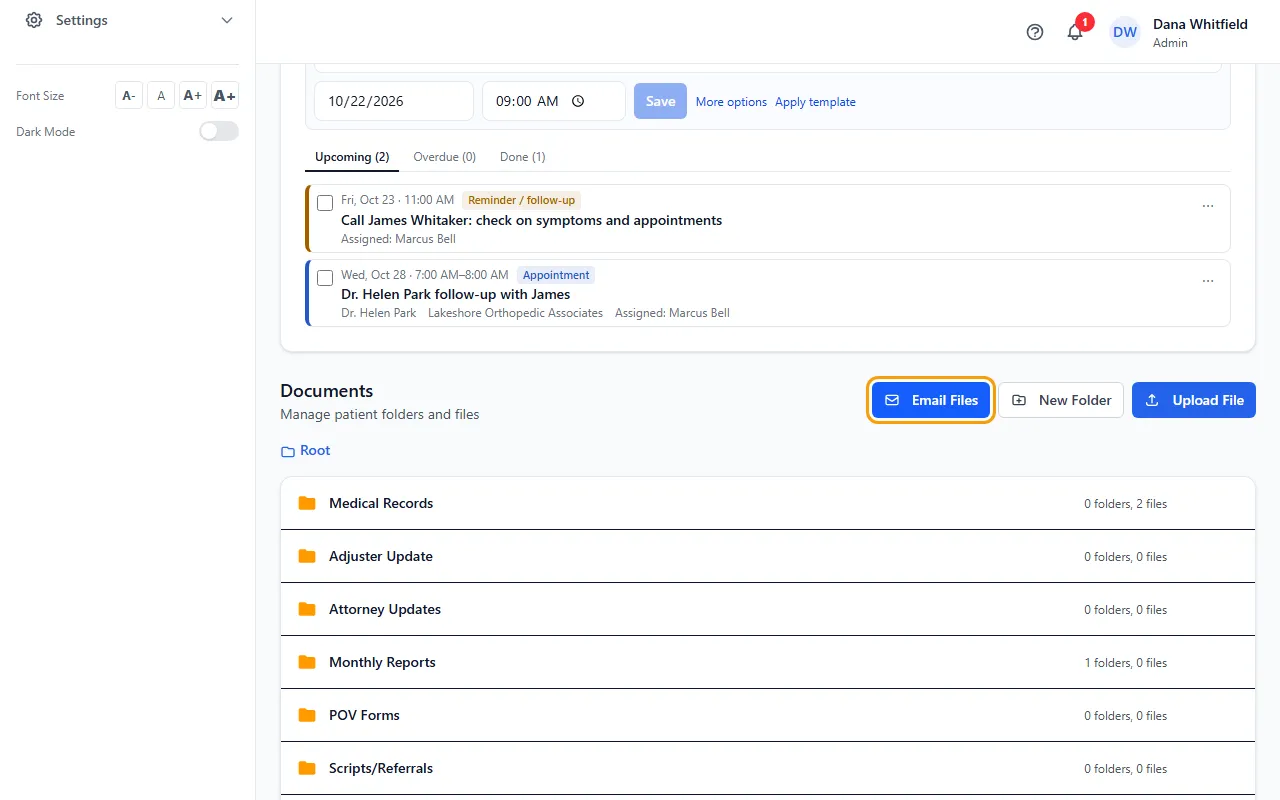
- Tick the files to send. You can tick files in different folders, or use Select All in a folder.
- Click Email Files. Under Select Files to Attach you can add or remove files from any folder.
- Under Send To, choose Enter email manually, Select Adjuster or Select Attorney, and pick or type the address.
- Check the Subject and Message (they fill in with the patient's name) and click Send Email.
Email Send Log
The Email Send Log under the folders lists every email sent from this patient's Documents: who it went to, how many files, the subject, the date and time, and who sent it.
Click an email to see Documents Sent, From Folders and the Message.
If something goes wrong
- “Nothing was sent: no email is set up. Set up your email in My Settings, or ask an Admin to set up the company email in Administration > Settings > Email.”
- Go to My Settings and fill in My Email Configuration, or ask an Admin to set up the company email. Then send again.
- "Email authentication failed."
- Check your email address and password in My Settings. For Gmail, use an App Password, not your regular password.
- "Please select at least one file to attach"
- Tick at least one file under Select Files to Attach.