Organize a patient's documents in folders
Each patient's Documents tab has folders; open them, add your own, rename them, and remove empty ones.
Last updated October 22, 2026
Who can do this: Admin, Nurse Case Manager, Internal Case Manager, Billing Staff
New patients get the standard folders unless your company asked support to turn this off. Ask support at admin@casemgmt.io.
Steps
- Open the patient and click the Documents tab.
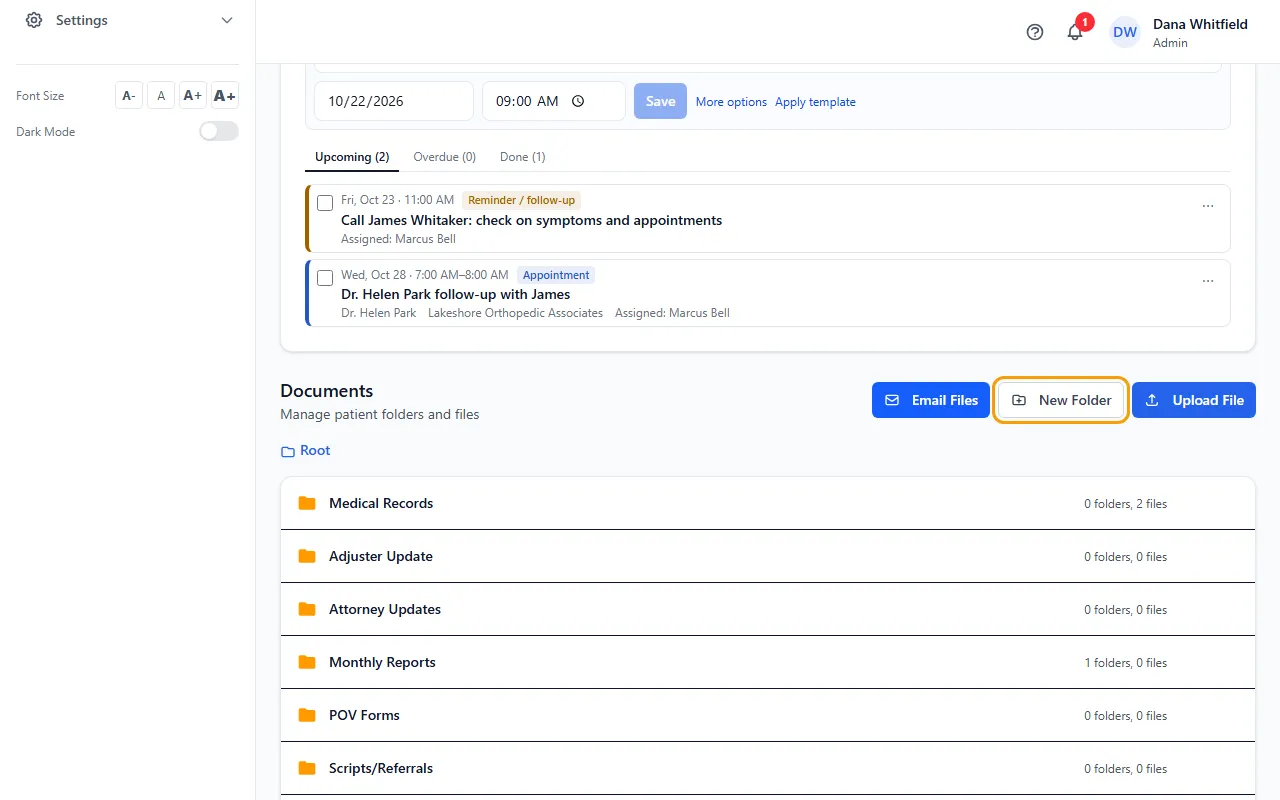
- Click a folder's name to open it. The path above the list shows where you are; click Root or a folder name in it to go back.
- To add a folder, open the folder it should go in (or stay at Root), click New Folder, type the name and click Create.
- To rename a folder, point at it and click the Rename icon that appears on the right. Type the new name and click Save.
- To remove a folder, empty it first, then point at it and click the Delete icon.
The standard folders
New patients start with eight folders: Medical Records, Adjuster Update, Attorney Updates, Monthly Reports, POV Forms, Scripts/Referrals, Demographics Folder and Onboarding Folder.
Your company can ask support to turn this off; then adding a new patient doesn't create them. Folders like Monthly Reports or Signed Documents are still created when a form PDF or a signed document needs them.
Empty folders
Every folder shows on the Documents tab, even when it's empty. Your company's Hide Empty Document Folders setting doesn't change this today.
If something goes wrong
- "Folder is not empty. Remove all files and subfolders first."
- Open the folder, move out or delete what's inside, then delete the folder.
- A folder your coworkers see is missing for you.
- Your Admin can limit which folders a user sees. Ask them.
- You only see the Documents and Billing tabs and there's no Upload File button.
- Your account is set up to view patient documents only. Ask your Admin if you need more.