Reuse a PDF from the Form Library
Every PDF you upload for signature is saved to your company's Form Library, so you can add it to any patient with its fields already placed.
Last updated October 22, 2026
Who can do this: Admin, Nurse Case Manager, Internal Case Manager
Steps
- Open the patient, click the Forms tab, then Uploaded Documents.
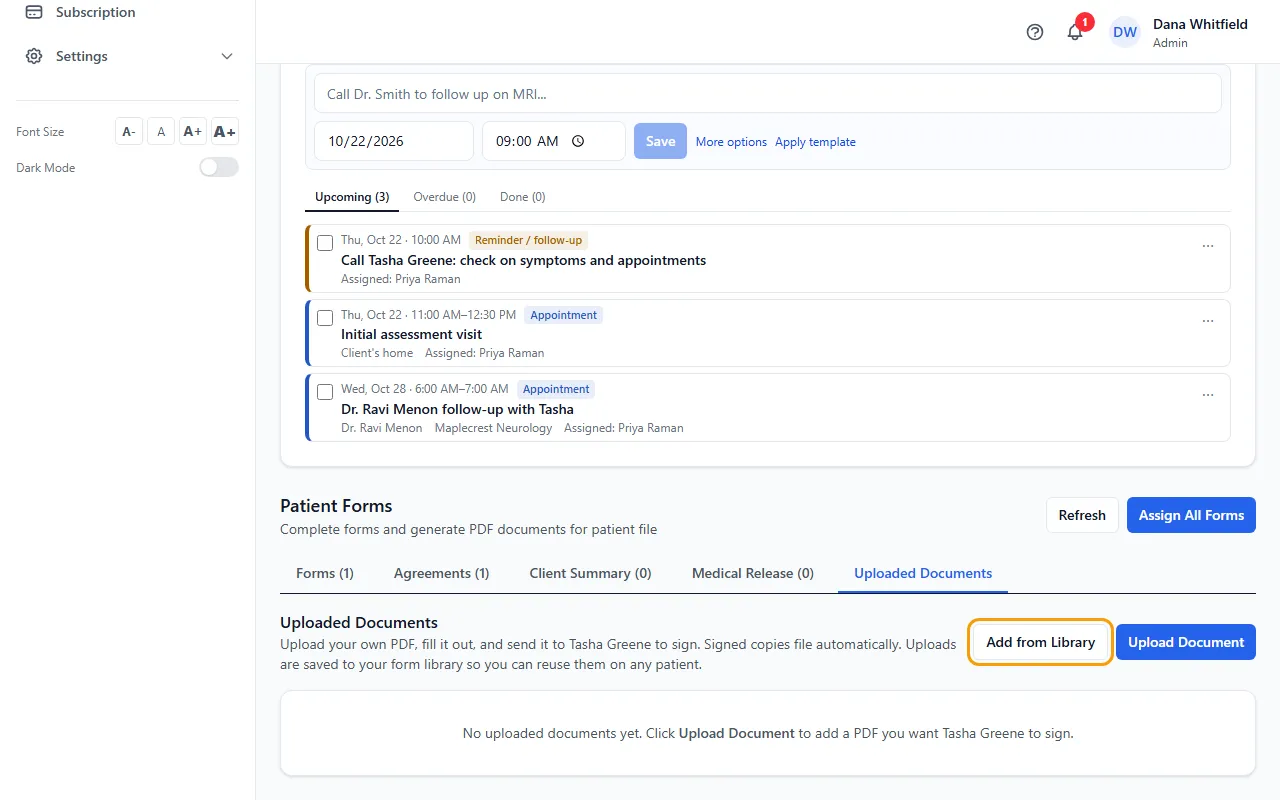
- Click Add from Library. The Form Library lists every PDF uploaded on any patient in your company.
- Click the Add to button next to the form you want (it shows the patient's first name). The patient gets a fresh copy with the fields already placed.
- Click Set Up & Fill to fill in your own fields for this patient, then Send for Signature.
How the library stays up to date
Uploads go into the library by themselves. If a PDF isn't in the library, its row shows Save to Library.
When you change and save the field layout on the PDF that was first uploaded, the library copy gets the new layout. Copies added to patients from the library don't change the library.
Values you typed for one patient are never copied to the next one.
Remove takes a form out of the library. Copies already added to patients stay as they are.