Upload your own PDF and send it for signature
Upload any PDF, place the fields the patient must fill and sign, and send it by email or text; the signed copy files itself.
Last updated October 22, 2026
Who can do this: Admin, Nurse Case Manager, Internal Case Manager
Before you start
- Only PDF files can be sent for signature.
- To send by email, set up your email in My Settings (click your name in the top-right), in My Email Configuration. The email goes out from that address. If yours isn't set up, the company email (Administration > Settings > Email) is used. With neither, nothing is sent and CaseMgmt tells you.
- To send by text, the patient's number must have agreed to texts (see How texting works).
Steps
- Open the patient, click the Forms tab, then Uploaded Documents.
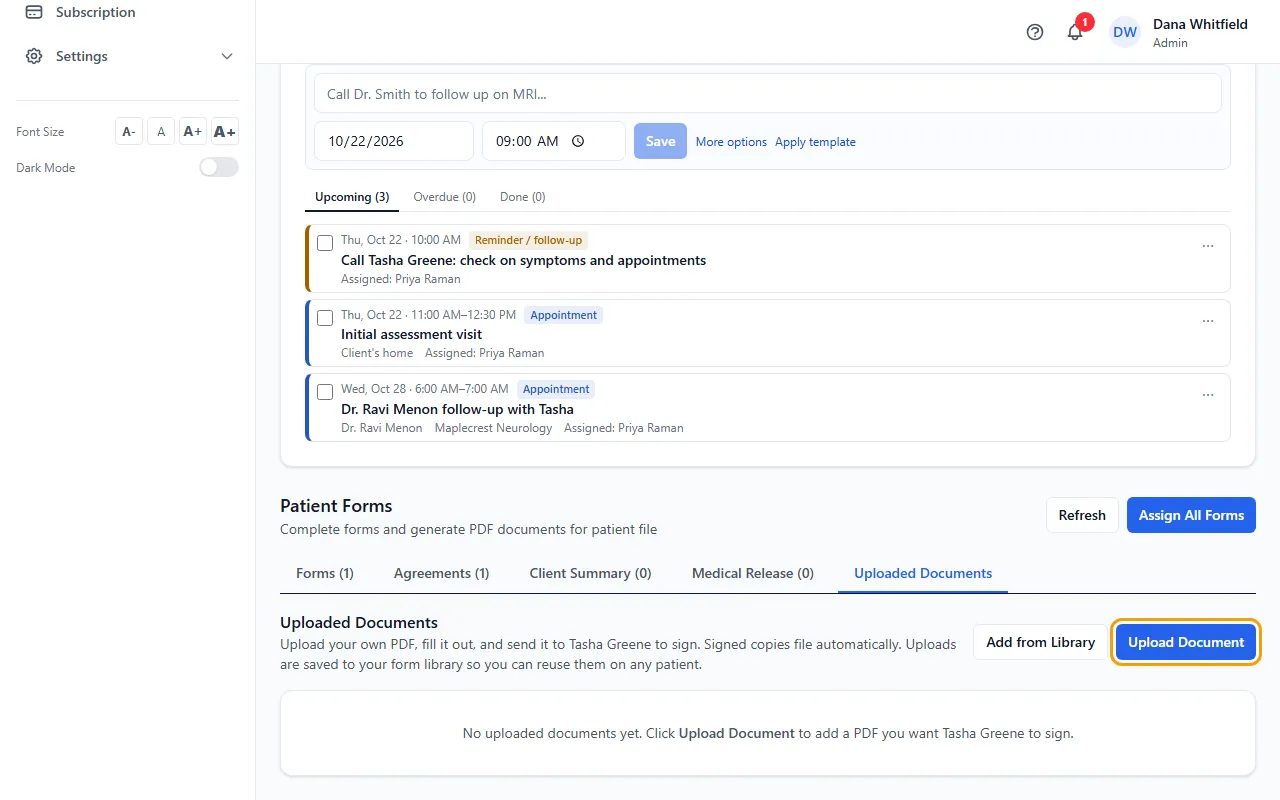
- Click Upload Document and choose the PDF.
- Click Set Up & Fill. Under Add field for, pick Patient (they fill it) or You (you fill it now).
- Click a tool button (Text, Date, Checkbox, Signature or Initials), then click the spot on the document where it goes. Repeat for each field.
- Click a field to change it: Who fills this?, Label (optional) and Required. For your own fields, enter Your value or click Sign now. Then click Save Layout.
- Click Send for Signature, choose Email or Text (SMS), check the address or number and click Send.
- Watch the status: Sent, then Opened, then Signed. Click View Signed to open the signed copy.
Checking it's the patient
Require date-of-birth verification before the patient can open the document is ticked unless you untick it. The patient then enters their date of birth before the document opens.
If you untick it, the patient enters the last 4 digits of the phone number on their file instead. With neither check possible, the patient can't open the document.
What the patient sees
The link works for 14 days. The patient fills the highlighted fields, types their full legal name, ticks the electronic signature consent and taps Sign & Submit.
If you didn't place any fields, they read the document, type their name and draw their signature at the bottom.
Where the signed copy goes
The signed PDF is saved in the patient's Signed Documents folder on the Documents tab, with "(Signed)" after its name.
Tips
- Every upload is also saved to your company's Form Library, so you can reuse it on other patients. See Reuse a PDF from the Form Library.
- Placing fields works best on a computer. On a narrow screen like a phone, the panel for changing a field is hidden.
- After you send it, the button changes to Resend so you can send the link again.
If something goes wrong
- "Please upload a PDF file. Other formats can't be sent for signature."
- Save or print the document as a PDF first, then upload that.
- “Nothing was sent: no email is set up. Set up your email in My Settings, or ask an Admin to set up the company email in Administration > Settings > Email.”
- Neither your email nor the company email is set up, so nothing was sent or saved. Set up My Email Configuration in My Settings (or ask an Admin to set up the company email), then send again.
- The patient says their date of birth isn't accepted.
- Check the date of birth on the patient's file and correct it if it's wrong, then ask them to try again. Or send it again with the date-of-birth box unticked: the patient then confirms the last 4 digits of their phone number instead.
- The text was refused.
- The patient's number hasn't agreed to texts, or they replied STOP. Choose Email instead.