Send a form to a patient by email or text
The patient fills in and signs the form on their phone or computer, and the finished PDF is saved to their file.
Last updated October 22, 2026
Who can do this: Admin, Nurse Case Manager, Internal Case Manager
Before you start
- To text it, the patient's number must have agreed to texts (see How texting works). Email always works.
Steps
- Open the patient and click the Forms tab.
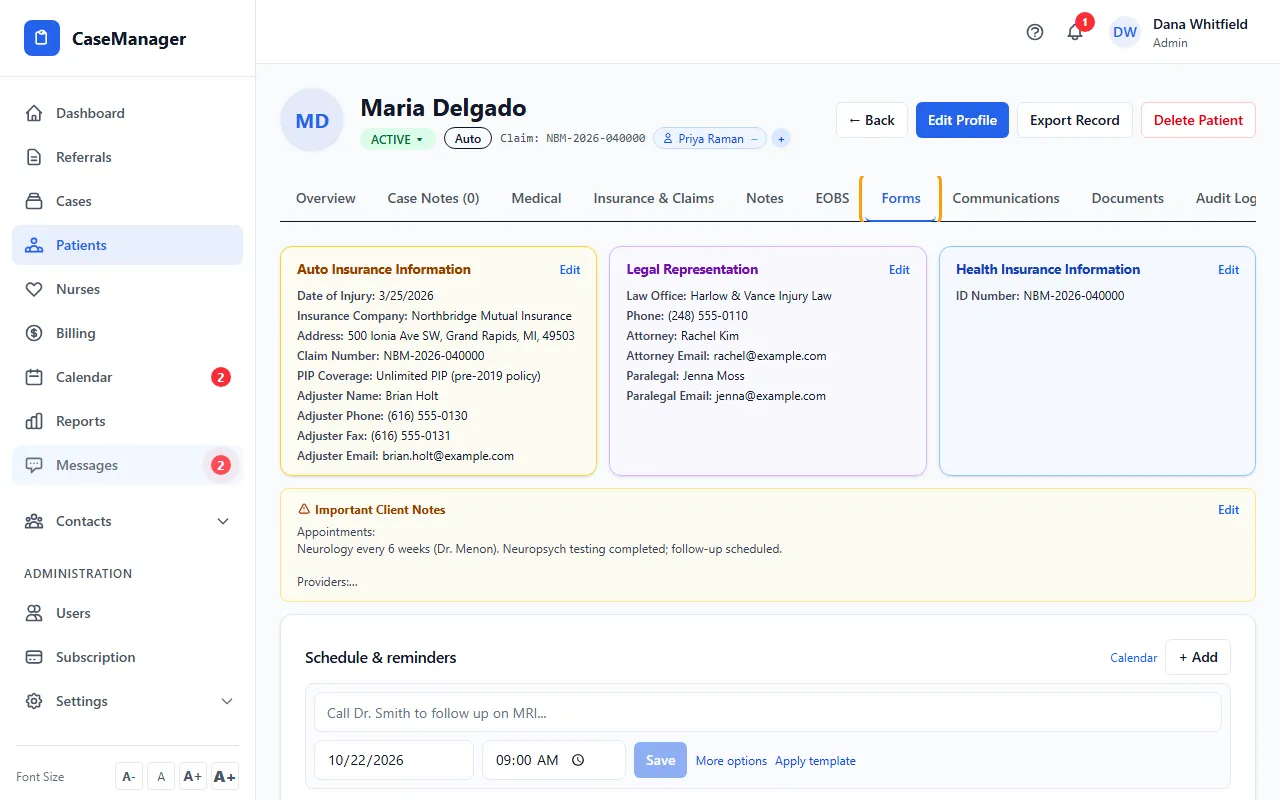
- Find the form and click Send. (Send appears on forms that have a signature line.)
- Choose Email or Text (SMS) and check the email address or mobile number.
- Click Send via Email or Send via SMS. The link works for 7 days.
- Follow it under Sent Forms (Awaiting Signature): it shows Sent until the patient finishes, then Signed. When it's signed, the PDF is filed in the patient's Documents automatically.
Tips
- Patients confirm their date of birth before the form opens when it's on file, and they can draw or type their signature.
If something goes wrong
- The text was refused.
- Use Send by email instead, or get consent with Email the opt-in link / Ask in person.
- The patient says the link expired.
- Send the form again; a new link works for another 7 days.