Message your team
Start a conversation with one or more colleagues inside CaseMgmt and reply in one place.
Last updated October 22, 2026
Who can do this: Admin, Nurse Case Manager, Internal Case Manager, Billing Staff
Steps
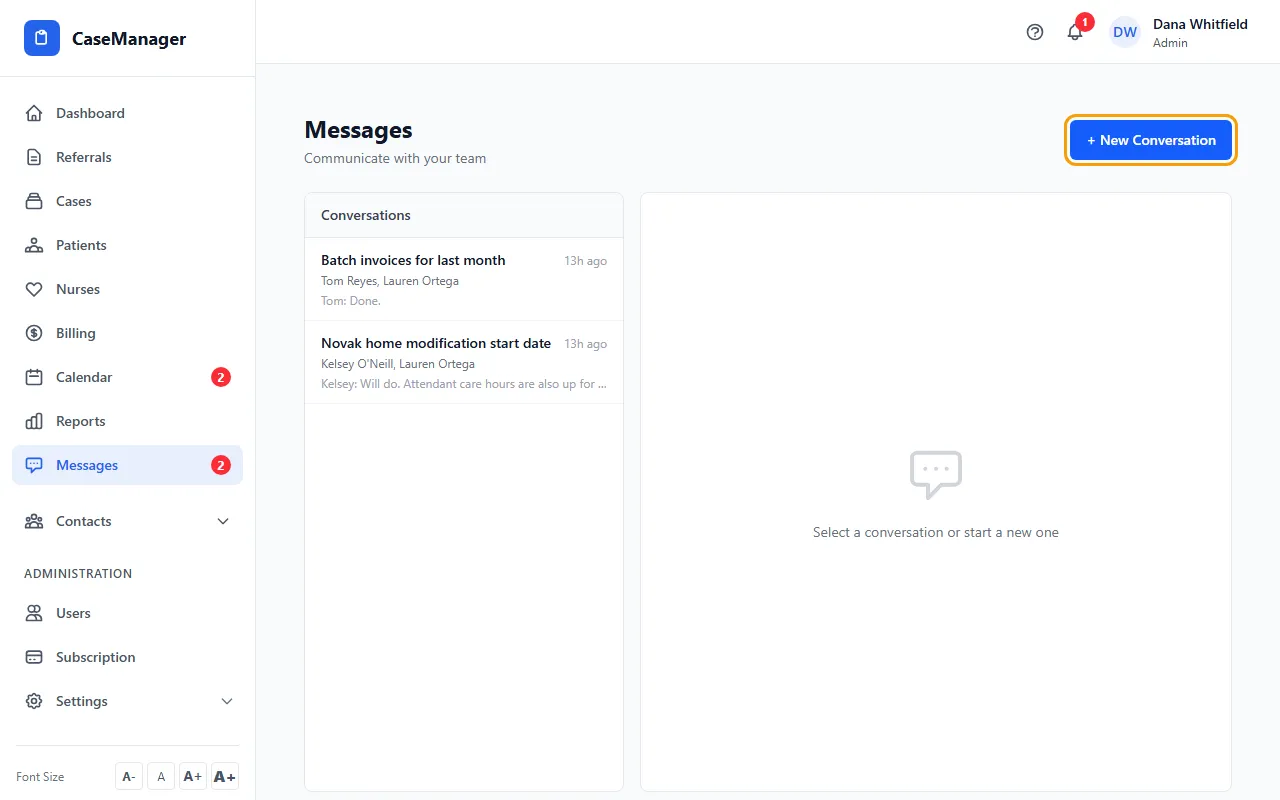
- Open Messages and click + New Conversation.
- Type a Subject.
- Under Participants, tick everyone who should be in it.
- Write your first Message and click Start Conversation.
- To reply, click the conversation under Conversations, type your message and press Enter or click Send.
How people know there's a new message
Everyone else in the conversation gets a notice in the bell. The red number on Messages in the menu counts conversations with messages you haven't read.
Messages stay inside CaseMgmt; they are not emailed. While a conversation is open, new messages appear by themselves.
Conversations about a patient
If your company shows the Communications tab on patients, a conversation started there with + New Thread is linked to that patient. The patient's name shows at the top of the conversation here too.
Tips
- You can add everyone in your company except referral sources.
- You can't add people once a conversation has started. Start a new conversation instead.