Use the notification bell
See what needs your attention, jump straight to it, and clear what you've read.
Last updated October 22, 2026
Who can do this: Admin, Nurse Case Manager, Internal Case Manager, Billing Staff
Steps
- Click the bell at the top of the screen. A red number shows how many notices you haven't read.
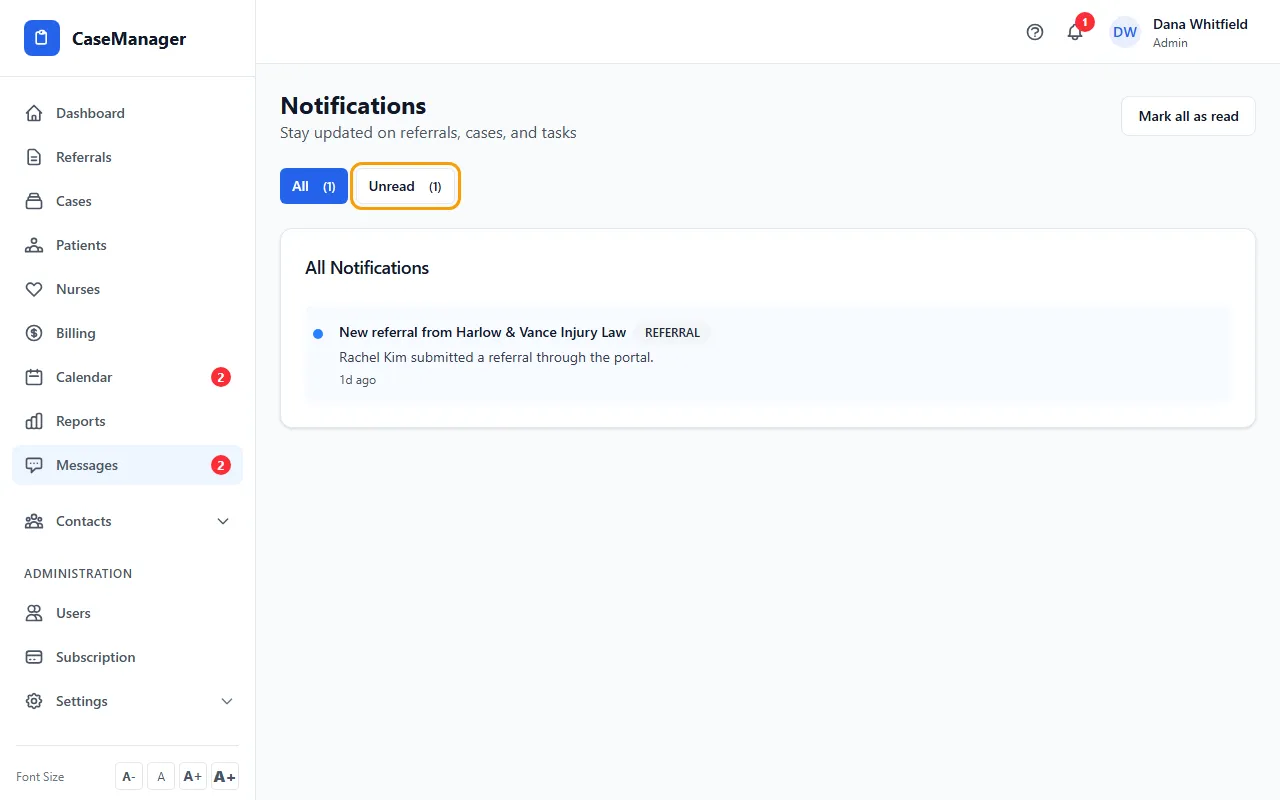
- Click a notice to go straight to it: a message, a referral, a case, a calendar item, a patient, or an urgent alert.
- Click Mark all read to clear the count.
- Click View all notifications to see every notice. Switch between All and Unread, and use Mark all as read.
What shows in the bell
New messages and conversations, referral and case updates, calendar reminders, items assigned to you, your daily summary, and urgent alerts.
Admins also get “Email isn't set up” when someone's email to a patient couldn't be sent because neither their own email nor the company email is set up (at most once a day per person). Clicking it opens Users, which shows who isn't set up.
The bell shows your five newest notices and checks for new ones every 30 seconds. Opening a notice marks it read.
Turning an email off in My Settings never hides the notice from the bell.