Choose how notices reach you
Pick app, email or text for reminders, assignments and your daily summary, and choose when the summary arrives.
Last updated October 22, 2026
Who can do this: Admin, Nurse Case Manager, Internal Case Manager, Billing Staff
Steps
- Click your name at the top right and choose My Settings.
- If your company has notification choices turned on, you see the Notifications card. Tick App, Email or Text for each notice.
- Pick your Daily summary time (5 AM to 12 PM, in your time zone).
- Each change saves as soon as you tick it.
The notices
Reminders: at the times set on each calendar item. App and email to start with.
Assigned to me: when someone gives you an item or applies a template. App only to start with.
Daily summary: what is due today and overdue. App and email to start with; this is the only one you can take out of the app.
Texting usage (Admins only): when your company reaches 80% and 100% of its texts. It can't go by text.
Reminders, assignments and texting usage always show in the app.
Texts
The Text boxes work once you add and confirm your mobile on the Text messages card below. See Get work texts on your phone.
If your company doesn't have notification choices
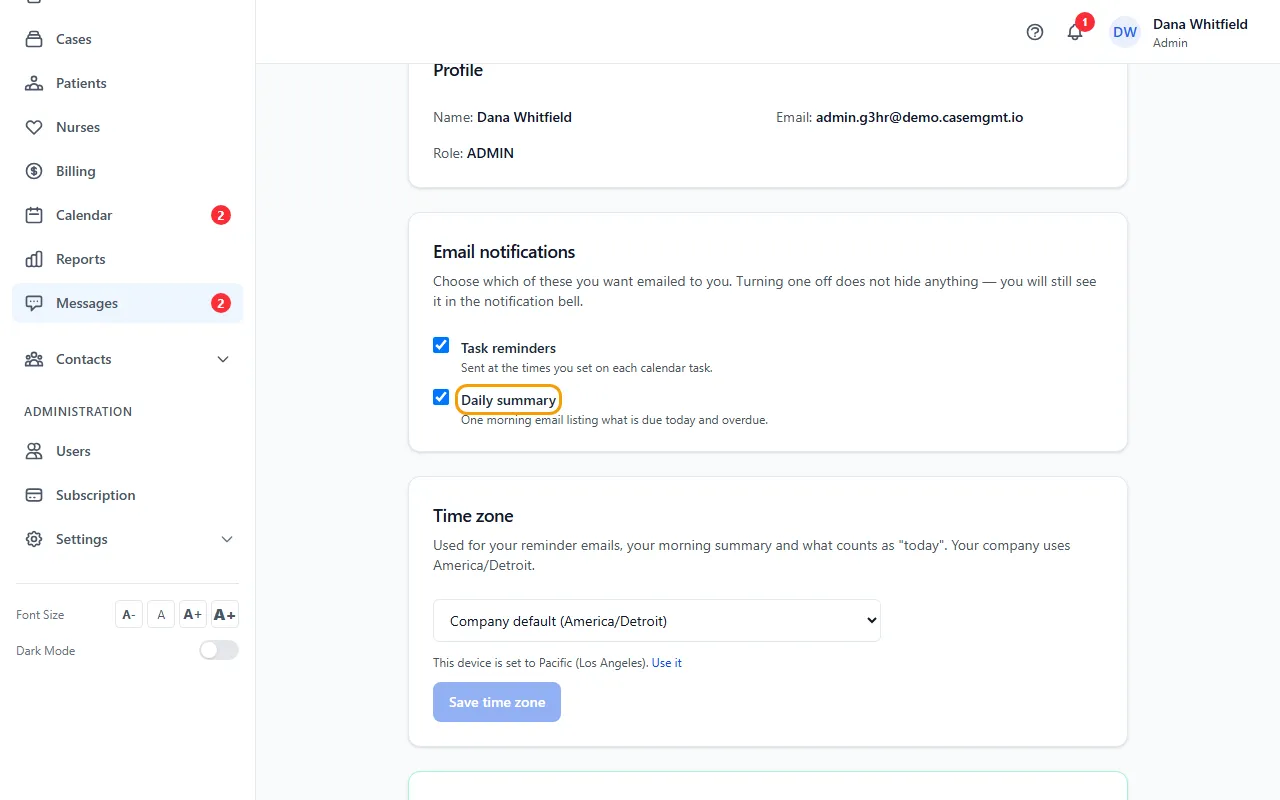
You see the Email notifications card instead, with two boxes: Task reminders and Daily summary. Untick one to stop those emails; you still see them in the bell. The daily summary comes at 8 AM in your time zone.
To get the full choices and work texts: Your company must have this turned on. Ask support at admin@casemgmt.io.
Tips
- Set your own time zone on the Time zone card on the same page. It decides when your summary arrives and what counts as today.
If something goes wrong
- The Text boxes are greyed out.
- Add and confirm your mobile number on the Text messages card first.
- “Could not load your notification settings. Reload the page to try again.”
- Reload the page. If it keeps happening, contact support.