Track EOBs and upload EOB paperwork
Record what the insurer paid or denied, keep the EOB letters with the patient, and compare against what you billed.
Last updated October 23, 2026
Who can do this: Admin, Billing Staff
The EOBS tab shows unless your company has hidden it. Ask support at admin@casemgmt.io.
Before you start
- You need the View EOBs (Explanation of Benefits) permission. Admins and Billing Staff have it by default; an Admin can give it to other users.
Steps
- Open the patient and click the EOBS tab.
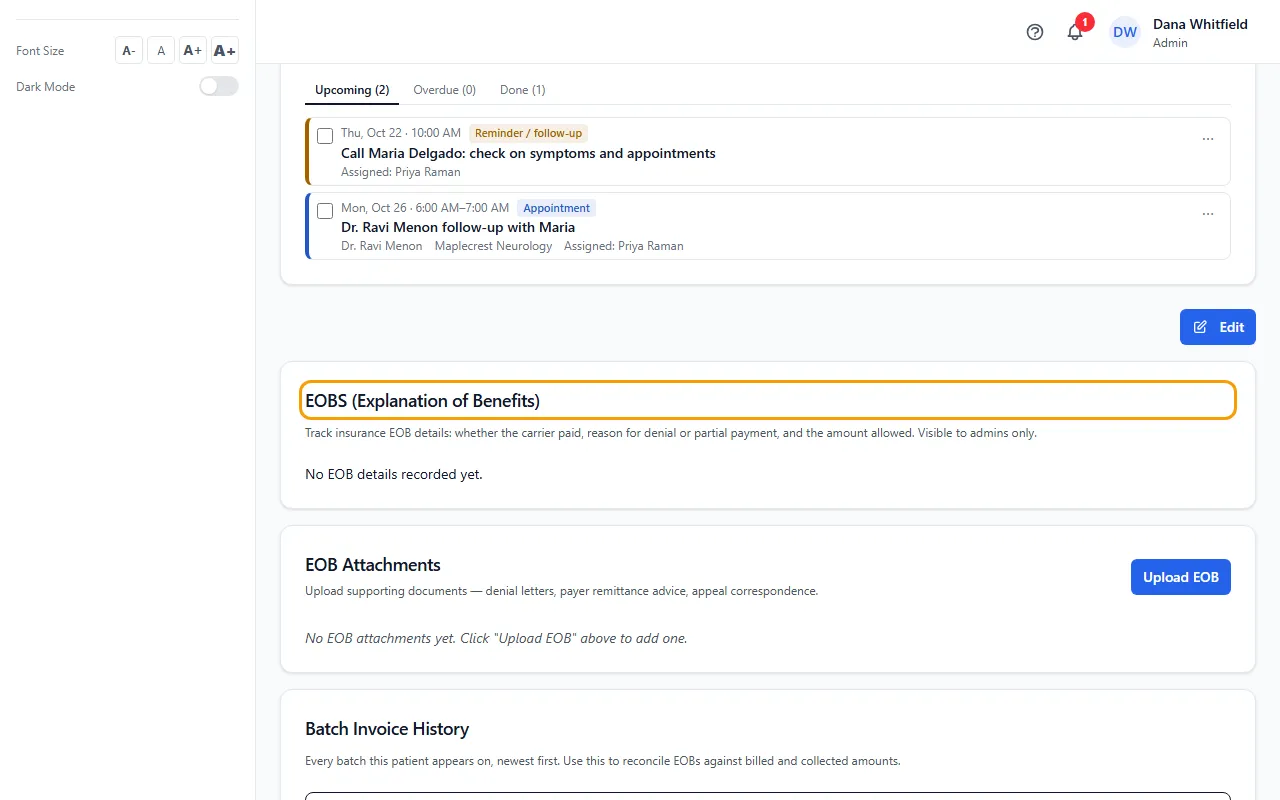
- Click Edit, write what the EOB says (whether the carrier paid, why it denied or paid part, the allowed amount) and click Save.
- Under EOB Attachments, click Upload EOB and choose the file (PDF, Word, Excel or a picture).
- Use View, Download, Rename or Delete on an attachment's row.
- Check Billing History to compare: it lists every batch and single invoice this patient is on, newest first, with total, paid and outstanding amounts and a Totals row.
Reading Billing History
Totals include mileage. A denied amount still counts as outstanding and is marked denied, still owed.
A single invoice shows its own status (such as Draft or Sent). Each bill counts once in the totals.
The Details column shows the denial reason, notes, payment method and reference, and the paid date recorded on the batch.
Tips
- Billing Staff can save the EOB notes even though they can't edit the rest of the patient's details.
If something goes wrong
- There's no EOBS tab.
- Ask your Admin for the EOB permission. If nobody in your company sees it, ask support at admin@casemgmt.io to turn the tab on.
- Deleted an EOB attachment by mistake.
- Deleting can't be undone. Upload the file again.