Filter, sort and export referrals
Narrow the referral list by status, law firm, person or date, and download it as a spreadsheet.
Last updated October 22, 2026
Who can do this: Admin, Nurse Case Manager, Internal Case Manager
Steps
- Open Referrals. Click a status button (All, New, Accepted and so on) to show only that status. Each shows how many referrals have it.
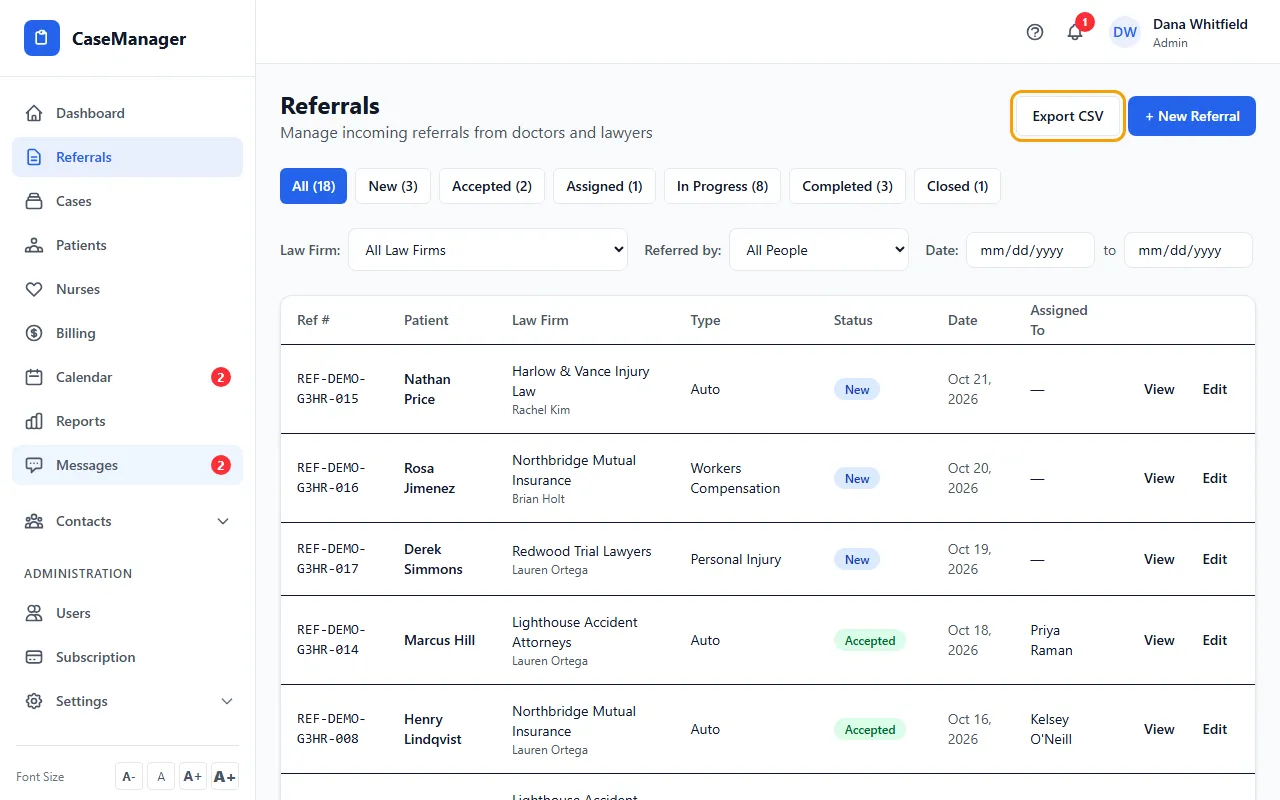
- Use Law Firm to show one firm's referrals, or Referred by to show one person's.
- Use Date to pick a from and to date. It filters by the day the referral was entered.
- Click a column heading (Ref #, Patient, Law Firm, Type, Status, Date, Assigned To) to sort. Click again to reverse; a third click turns sorting off.
- Click Export CSV to download what the list shows now as a spreadsheet file.
Closed Referrals
When All is selected, referrals with the status Closed move to a Closed Referrals section under the main list. Click it to open or fold it.
Click the Closed status button to see only closed referrals in the main list.
What's in the export
One row per referral: date of referral, status, patient first and last name, date of birth, phone, email, law office, who referred, and the attention notes.
“Who referred” is the Referred by person when there is one, otherwise the law firm, otherwise the login that entered it.
The export follows your filters, closed referrals included. The file is named with today's date.
Tips
- Law Firm and Referred by only list firms and people that have referrals.
- The Referrals counts on Contacts > Law Firms and Contacts > Referral Sources open this list already filtered.
- The export contains patient information. Store and share the file the way your company handles patient records.
If something goes wrong
- Export CSV is greyed out.
- Your filters match no referrals. Click All and set Law Firm to All Law Firms, Referred by to All People, and clear the dates.