Review a referral and add notes
Open a referral to see everything that was sent, keep internal notes, and accept it.
Last updated October 22, 2026
Who can do this: Admin, Nurse Case Manager, Internal Case Manager
Steps
- Open Referrals and click View on the referral.
- Check Patient Information, Referral Details (type, urgency, assigned nurse) and Reason for Referral. Attention notes show in a red Attention box.
- Check the Source card: who submitted it, the law firm and the person who referred it.
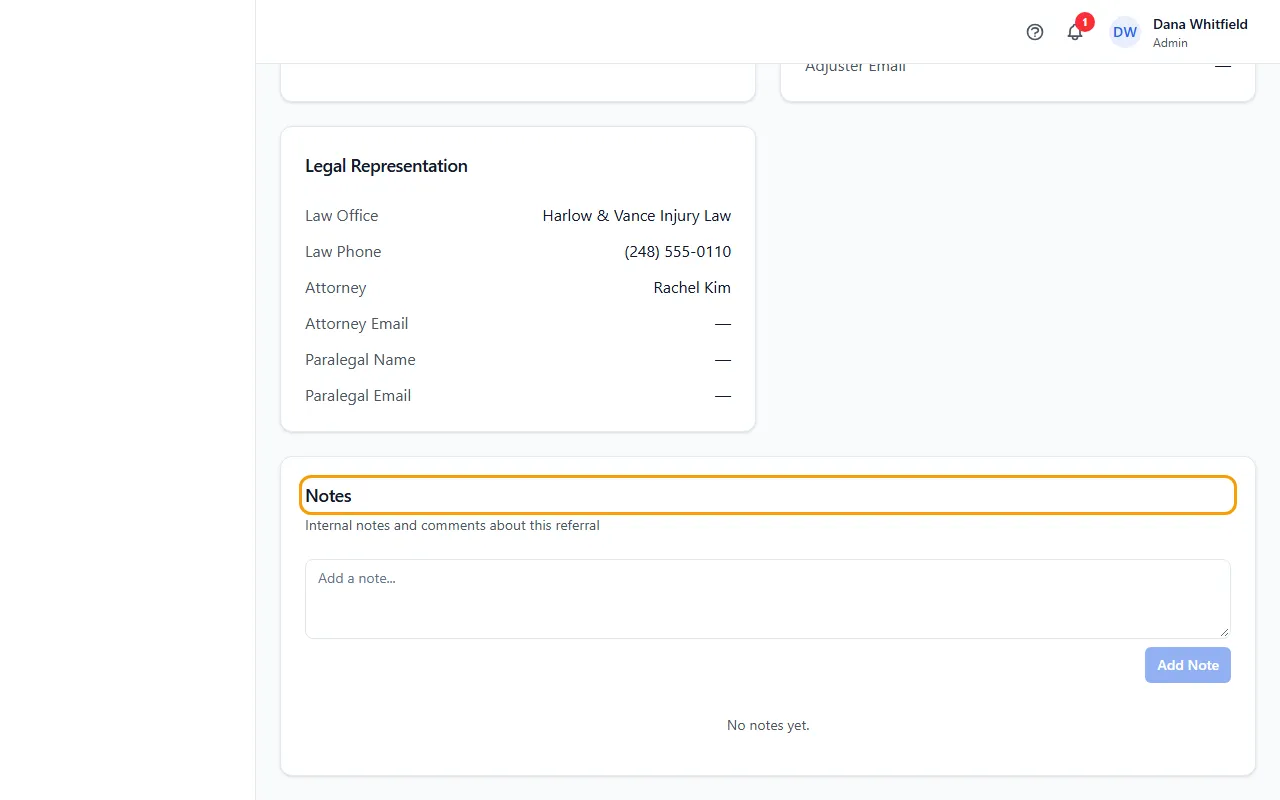
- The Auto Insurance, Legal Representation and Health Insurance cards appear when the referral has those details.
- To leave a note for your team, type it under Notes and click Add Note. Each note shows who wrote it and when.
- When you're ready, click Accept Referral, then Create Case. See Accept a referral and create the case.
Tips
- Notes are for your team. They don't show in the referral portal. Attention notes do: a partner sees them on referrals they sent.
- To change the details, go back to Referrals and click Edit on the row.
If something goes wrong
- I clicked Delete and nothing happened.
- Only Admins can delete a referral. Deleting removes the referral and its notes for good, so ask an Admin.
- “Referral not found”
- The referral was deleted, or the link is for another company's referral. Go back to Referrals.