Update your card and see your invoices
Manage Billing & Invoices opens your company's secure billing page at Stripe, our payment processor.
Last updated October 22, 2026
Who can do this: Admin
Steps
- Go to Administration > Subscription.
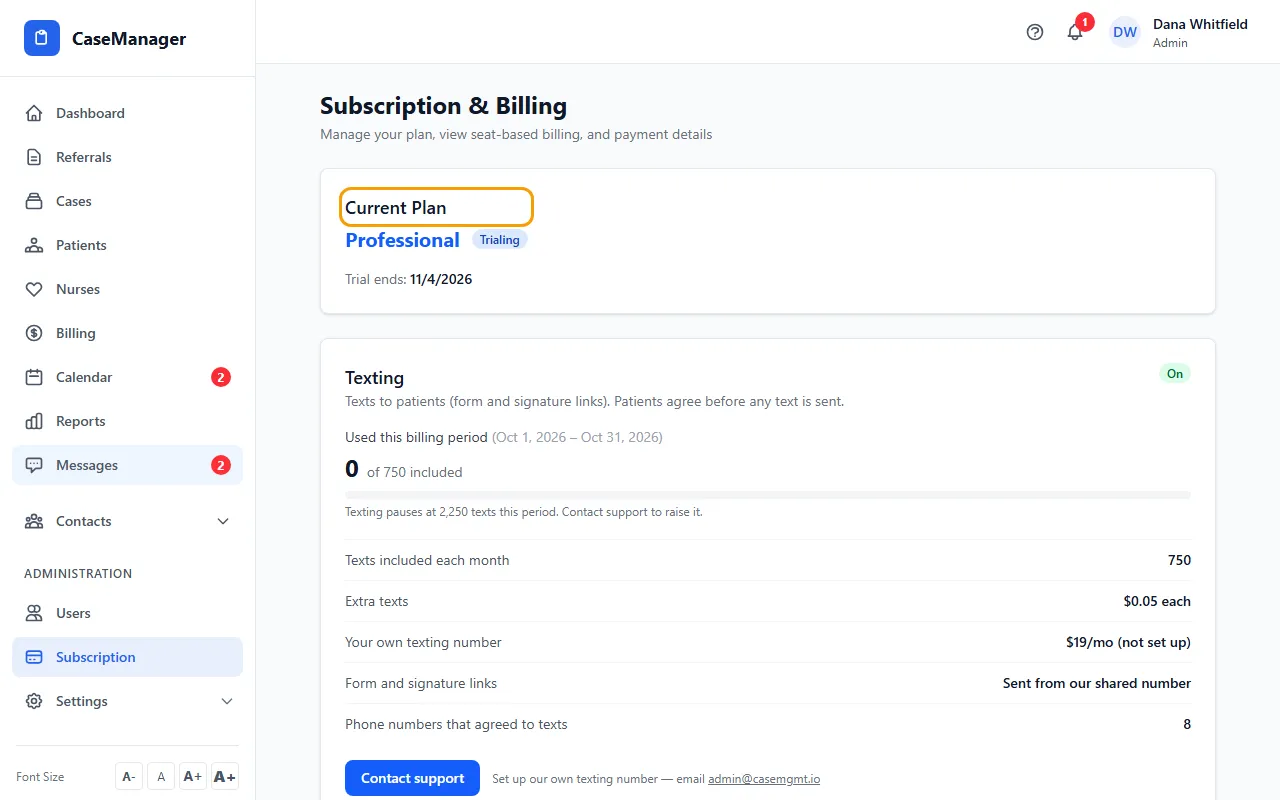
- Click Manage Billing & Invoices at the top right of Current Plan.
- On the Stripe page, update the card on file or open your past invoices.
- When you're done, use the link back to CaseMgmt on that page to return to the Subscription page.
Tips
- No card on file yet (during a free trial, or after a subscription ended)? The button says Add card & subscribe instead. See Read your Subscription page and monthly bill.
- Your subscription is charged to the card on file automatically.
- If you see neither button, email admin@casemgmt.io.
If something goes wrong
- A red bar says “Your payment has failed. Please update your payment method to avoid service interruption.”
- Click Manage Subscription in the bar, then Manage Billing & Invoices, and update your card.