Email or fax a batch with its claims and documents
Send a batch's CMS-1500 claims by email or eFax, with activity logs, scripts, EOBs and signed AOBs attached.
Last updated October 22, 2026
Who can do this: Admin, Billing Staff
Steps
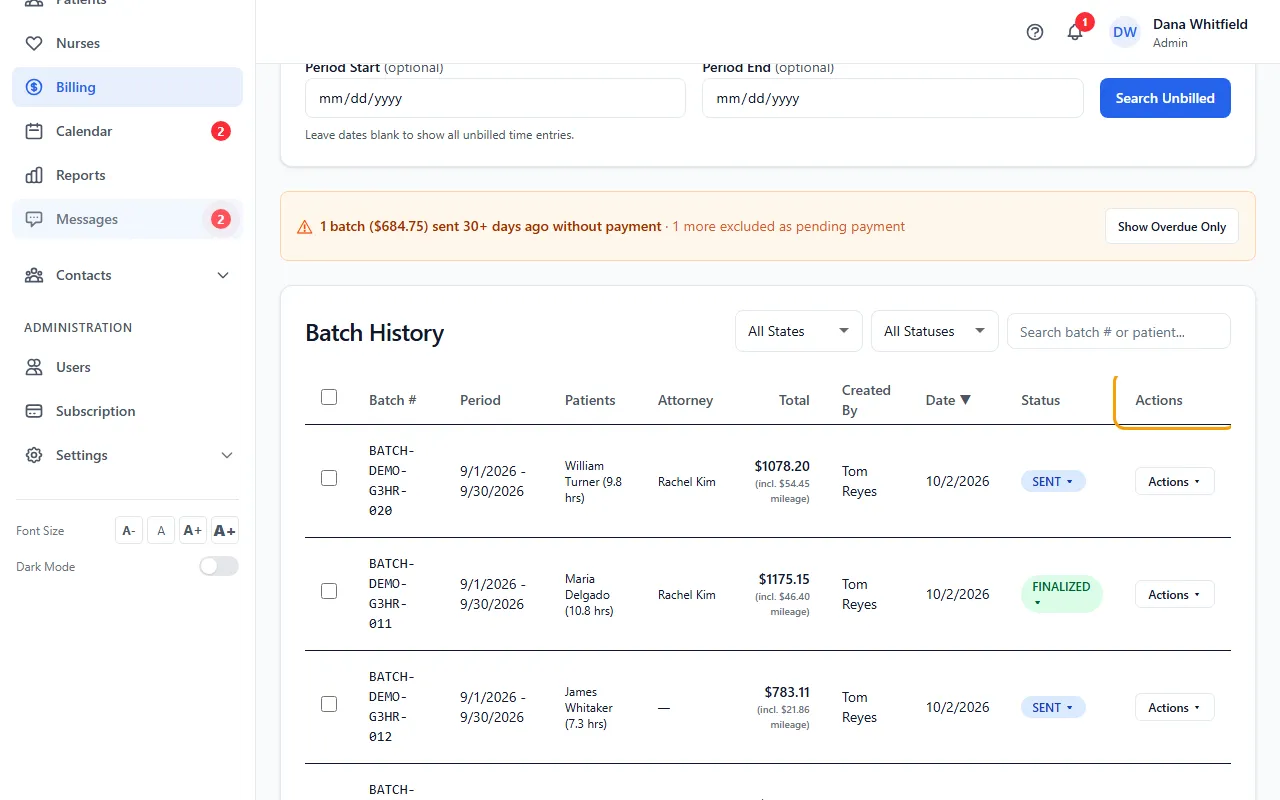
- On Billing > Batch Invoicing, click Actions on the batch and choose Email/Fax.
- Pick Email or eFax under Send Method. Use Select Recipient to fill in an address or fax number from the patient's insurance, adjuster, attorney and paralegal contacts, or type it in.
- For email, check the Subject and Message. They already name the batch and its period, and the claim number when the patient has one.
- Under Activity Log, choose the Month and tick each patient whose activity log should go along. All patients start ticked.
- Under Patient Documents (all folders), open the folders and tick the scripts, referrals or other documents to include.
- Tick any EOBs (Explanation of Benefits) to include, check the AOBs (Assignment of Benefits) (signed ones start ticked), and add other files under Attach Additional Documents.
- Click Send Email or Send eFax. The batch changes to SENT.
What gets attached
Every patient's CMS-1500 is generated and attached, along with the activity logs and documents you ticked.
By fax, everything is merged into one fax behind a cover letter. Files that aren't PDFs are sent alongside it.
EOBs start unticked. The documents you tick can total about 18 MB before the CMS-1500 forms are added.
If something goes wrong
- “Selected documents total … MB, which is too large to email …”
- Untick some scripts, EOBs or AOBs and send again.
- “Could not load signed agreements. The invoice can still be sent without them.”
- Send without them, or close the window and open Email/Fax again.
- “No signed Assignment of Benefits found for the patients on this batch.”
- The patients have no signed AOB on file. You can send one to sign from the patient's file.
- “Warning: … PDF(s) could not be merged into the fax”
- Click OK to send the rest, or Cancel and untick the file that failed.
- “Failed to generate any CMS-1500 forms”
- Use Actions > View to see what's wrong with the form, then fix it in the CMS-1500 Editor.
- “SRFax not configured. Please set up your fax credentials in Settings → Fax Configuration.”
- An Admin needs to enter your company's fax account under Fax Configuration (SRFax) in Settings. Until then, send by email.