Edit a CMS-1500 claim before sending
Open a batch's CMS-1500 in the editor, change any box, then download the PDF or save it with the batch.
Last updated October 22, 2026
Who can do this: Admin, Billing Staff
Before you start
- Use a computer. The editor is laid out like the paper form and doesn't fit a phone screen; on a phone you can still download the PDF.
Steps
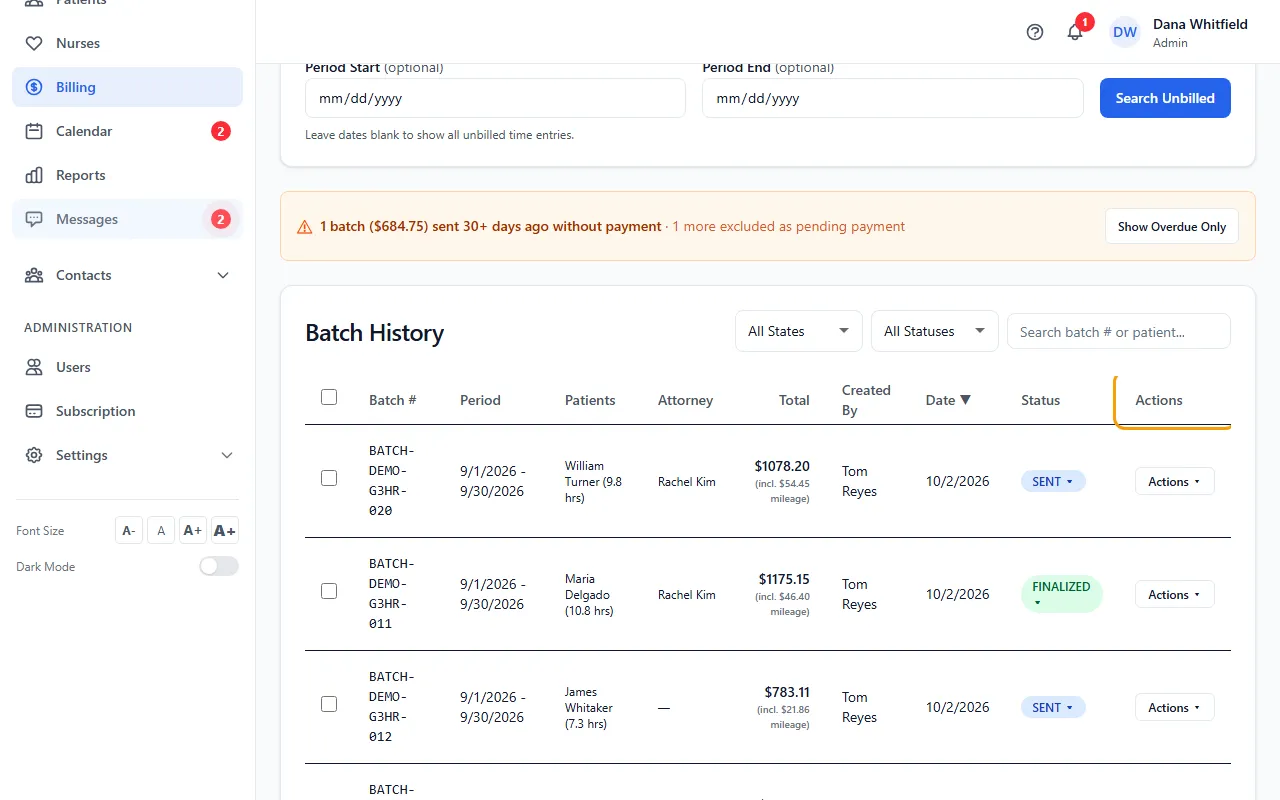
- On Billing > Batch Invoicing, click Actions on the batch and choose CMS-1500 Editor (on a batch with several patients, choose the patient's CMS-1500 item). The editor opens in a new browser tab.
- Check the boxes filled in from the patient, their insurance and your company settings, and correct anything that's wrong.
- Edit the service lines in Box 24: dates, place of service, CPT/HCPCS code, modifiers, diagnosis pointer, charges, units and NPI.
- Click Download PDF to save the filled-in form. This doesn't save your changes.
- Click Save & Return to keep your changes with the batch and go back to Batch Invoicing.
Your saved form is used from then on
After you save, View, Download, Email/Fax and Export ZIP use your saved form for that patient instead of rebuilding it.
To rebuild it from the patient's current details, hold Shift while you click View or Download on a single-patient batch.
Other buttons
Reset undoes your changes to the form's boxes since the editor opened. It doesn't reset the service lines.
When you download, Box 28 (total charge) is the sum of the service line charges.
If something goes wrong
- Save & Return isn't there.
- It shows only when you open the editor from a batch's Actions menu.
- “Failed to generate CMS-1500 PDF. Check the console for details.”
- Email support at admin@casemgmt.io with the batch number.