Change calendar colours and item types
Pick your own colours, colour appointments by doctor, and (Admins) rename, add or switch off item types for the whole company.
Last updated October 22, 2026
Who can do this: Admin, Nurse Case Manager, Internal Case Manager, Billing Staff
Steps
- Open Calendar and click Colours. The Colours & labels panel opens.
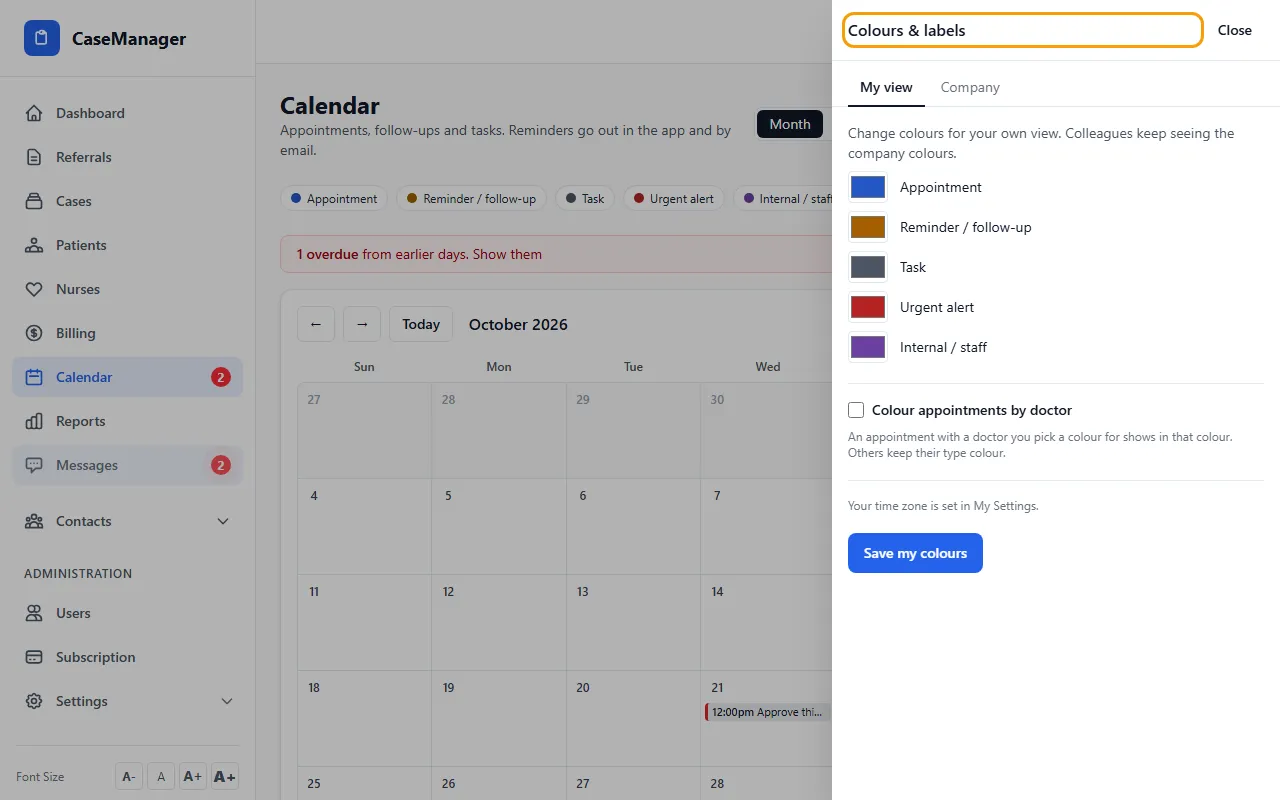
- On My view, pick a colour for any type. Only you see it; Use company colour puts it back.
- To tell doctors apart, tick Colour appointments by doctor, pick a colour next to a doctor's name (or type a name and click Add). Appointments with that doctor show in that colour.
- Click Save my colours.
Company types and colours (Admins)
Admins also see a Company tab. Changes there apply to everyone in the company.
Rename a type by typing over its name, change its colour, or untick On to stop it being offered for new items. Items that already use it keep it. Reset puts a standard type back to its original name and colour.
Click + Add a type (e.g. IME, Deposition) to add your own. A company can have up to 30 of its own types.
Choose the Company time zone here too. It is used for reminder emails, the morning summary and “today” for everyone who has not picked their own. Click Save company settings.
Review labels
If you had calendar items from before item types existed, a yellow note says a type was suggested for them. Click Review labels to check each one, then save, or click Hide this list. Nothing is reworded or deleted.
If something goes wrong
- “Every type needs a name.”
- Fill in the name of every type, including any new one you added.
- “Too many custom types.”
- Your company has 30 of its own types. Switch off or rename one you no longer use.
- There is no Company tab.
- Only Admins can change company types and the company time zone.